
user manual



151
5
Editing and Printing Images
6
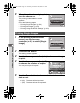
Press the 4 button.
A confirmation dialog appears.
To print the pictures according to the print
settings on the printer, press the 4
button.
To change the print settings, go to Step 7.
7
Press the Green button.
The screen for changing the print settings appears.
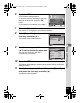
8
Select [Paper Size] and press the
four-way controller (5).
The [Paper Size] screen appears.
9
Use the four-way controller
(
2345
) to choose the paper size.
You can only choose a size that is
supported by your printer.
10
Press the 4 button.
The [Paper Size] setting is saved, and the screen returns to the print
settings screen.
11
Use the four-way controller (23) to select [Paper Type]
and press the four-way controller (5).
A pull-down menu appears.
Pri nt w i th thi s s etti ng?
P r i n t w i t h t h i s se t t i n g ?
Pri nt w i th thi s s etti ng?
OK
Print
Print
MENU
Change
C h a n g e
Change
Pape r S i z e Se tti ng
Pape r Type
Borde r Status
Quality
S e tti ng
S e tti ng
S e tti ng
PictBridge
MENU
P a p e r S i z e
Paper Size
Paper Type
Border Status
Quality
S e t t i n g
Setting
Setting
Setting
Setting
Cancel
C a n c e l
Cancel
MENU OK
OK
O K
OK
2L
L
100×150
A4
A3
4”×6”
8”×10”
11”×17”
Paper Size
Card
Postcard
Letter
S e t t i n g
Setting
e_kb477.book Page 151 Thursday, November 20, 2008 4:21 PM