
User's Manual


Table Of Contents
- For Using Your Camera Safely
- Care to be Taken During Handling
- Contents
- Composition of the Operating Manual
- 1 Before Using Your Camera
- 2 Getting Started
- 3 Basic Operations
- 4 Shooting Functions
- 5 Shooting Settings
- 6 Playback Functions and Image Editing
- 7 Changing Additional Settings
- 8 Connecting to a Computer
- 9 Using the Flash
- 10 Appendix
225
Changing Additional Settings
7
2
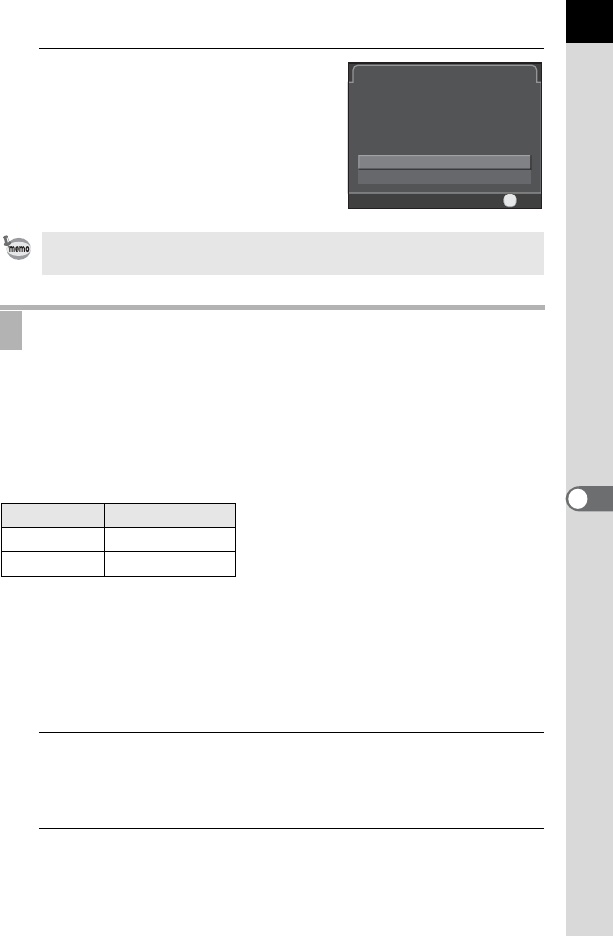
Press the four-way controller (2)
to select [Create folder], and
press the 4 button.
A folder with a new number is created.
You can change the file names of images.
The default naming conventions are as follows depending on the [Color
Space] (p.144) setting in [Image Capture Settings] of the [A Rec. Mode
1] menu.
“xxxx” indicates the file number, and is displayed as a four-digit sequential
number.
For sRGB, you can change [IMGP] (4 characters) to the desired
characters.
For AdobeRGB, of the 4 characters you selected, the first 3 are assigned
in place of [IMG].
Example: When set to [ABCDxxxx.JPG], files are named
[_ABCxxxx.JPG] for AdobeRGB.
1
Select [File Name] in the [R Set-up 2] menu and press the
four-way controller (5).
The [File Name] screen appears.
2
Press the four-way controller (5).
The text-entry screen appears.
Only one folder can be created using this operation. Multiple empty folders
cannot be created consecutively.
Setting the File Name
Color Space File Name
sRGB IMGPxxxx.JPG
AdobeRGB _IMGxxxx.JPG
Create New FolderCreate New Folder
Creates a new storage folderCreates a new storage folder
with the following name:with the following name:
101PENTX101PENTX
CancelCancel
Create folderCreate folder
OKOK
OK