
User Manual

3. Installing Peavey Xport
™
The Xport
™
requires the installation of custom drivers, supplied in the enclosed CD. Generic USB audio drivers will not deliver optimal
performance.
1. Close all other applications.
2. Disconnect the Xport
™
from your computer’s USB port.
3. Install the custom Xport
™
drivers.
Do not connect the Xport
™
during the installation process.
The custom driver is supplied in the Xport
™
CD. You may want to check http://www.peavey.com for any available updates.
Windows XP / Vista / 7
To install the Xport
™
ASIO driver on a Windows system, run Peavey_Xport
™
_USB_Driver_Setup.exe. After setup is complete, connect the
Xport
™
to your computer using the included standard USB cable.
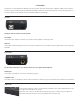
Windows may then display “Found New Hardware Wizard” system messages.
If prompted with the question “Can Windows connect to Windows Update to search for
software?”: Select “No, not this time,” then click Next.
If prompted with the question “What do you want the wizard to do now?”:
Select “Install the software automatically,” then click Next.
This process may repeat up to 3 times, after which your hardware should be installed
successfully and ready to use.
Once the Xport
™
unit is connected and the driver is installed, you will be able to select
the Xport
™
from your audio application’s hardware configuration preferences.
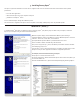
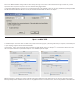
For example, here is the Preferences dialog for Reaper:
Peavey Xport
™
is selected as the ASIO device.
The “ASIO Configuration” button will launch the Xport
™
ASIO Control Panel, where you
can select the buffer size.
Select the smallest buffer size to get the lowest latency when playing live through Xport
™
.