
User`s guide



Motherboard User’s Guide
36
Setting Up a Non-BootaSetting Up a Non-Boota
Setting Up a Non-BootaSetting Up a Non-Boota
Setting Up a Non-Boota
bb
bb
b
le RAID le RAID
le RAID le RAID
le RAID
ArAr
ArAr
Ar
rr
rr
r
aa
aa
a
yy
yy
y
Setting Up the BIOS
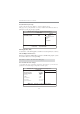
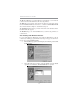
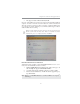
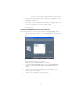
Use the arrow keys to select Integrated Peripherals (see Figure 1.1), then press
Enter.
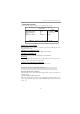
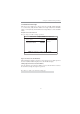
The Integrated Peripherals window appears.
Figure 1.2 Integrated Peripherals Window
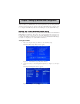
Figure 1.1 BIOS CMOS Setup Utility Main Window
Start your computer, then press Delete to enter the BIOS setup.
The BIOS CMOS Setup Utility window appears.
1
2
There are two ways to setup NVIDIA RAID Configuration: one is to create a RAID 1
Array for backup or a RAID 0 Array for increased performance just by adding additional
disk array without changing the original OS (Non-Bootable RAID Array); while the other
is to configure the RAID Array disks when reinstalling the OS (Bootable RAID Array).
RAID arrays can be created/deleted using both MediaShield RAID BIOS and the MediaShield
RAID Manager from Windows. This section only covers basic BIOS setup required for non-
bootable array. See the section "Setting Up a Bootable RAID Array” for instructions on
configuring the RAID array in BIOS. See sections on using the MediaShield RAID Manager
for details on configuring non-bootable RAID from Windows.
Chapter 5 Setting Up NVIDIA RAID Configuration