
Operating Instructions




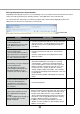


Table Of Contents
- Preface
- Before using this product
- Use an SD memory card
- Operation window
- Basic operation
- Login operation at startup
- Monitor live images
- Record images
- Play recorded images
- Play images from a designated point
- Search and play
- Play back copied images
- Event function
- Copy recorded images
- About the face matching function
- Operate the camera
- Configure the network settings
- Network security of the recorder
- Display the operation window
- About the operation window
- Monitor live images from cameras
- Play recorded images
- Play image recorded at a designated date & time
- Search and play recording events (REC event search)
- Motion detection search and playback (VMD search)
- Check a list of copied recorded images
- Event function
- Copy recorded images
- Download recorded images currently being played
- Play the copied/downloaded recorded images
- Operate the camera
- Setup
- Notification by e-mail
- Troubleshooting
- Glossary

98
99
Message displayed on the information bar
Depending on the operation system in use, the following may occur. Follow the instructions below when the fol-
lowing occurred. By performing the following solutions, other applications may not be affected.
The "Information Bar" expressed in the following symptom and solutions will be displayed just below the
address bar only when there is information to communicate.
Symptom Cause/solution Reference
The following message is displayed
on the information bar.
"Pop-up blocked. To see this pop-
up or additional options, click
here…"
• Clicktheinformationbarandselect"AlwaysAllowPop-
ups from This Site". The dialog window saying "Allow
pop-upsfromthissite?"willbedisplayed.Clickthe
[Yes] button.
–
The following message is displayed
on the information bar.
"This site might require the follow-
ing ActiveX control: 'wvasetup.exe'
from 'Panasonic System Networks
Co., Ltd.'. Click here to install..."
• Clicktheinformationbarandselect"InstallActiveX
Control...".
Click the "Install" button on the displayed "Security
Warning" window.
–
The following message is displayed
on the information bar.
"To help protect your security,
Internet Explorer blocked this site
from downloading files to your
computer. Click here for options..."
• Clicktheinformationbarandselect"DownloadFile...".
When downloading fails even though you selected
"Download File...", perform the following operation.
Click "Internet Options" on the Tools menu of Internet
Explorer, and then click the [Security] tab. Then, click
the [Custom Level…] button to open the "Security
Setting" window. Under "Downloads", select "Enable"
for "Automatic prompting for file downloads". Then click
the [OK] button.
When the warning window is displayed, click the [Yes]
button.
–
The following message is displayed
on the information bar when tried
to execute a downloaded file.
"The publisher could not be veri-
fied. Are you sure you want to run
thissoftware?"
• Clickthe[Run]button. –
Unnecessary status bar or scroll
bar is displayed on the pop-up
window.
An URL is displayed on the pop-up
title bar and the title is not dis-
played completely.
• Click"InternetOptions"ontheToolsmenuofInternet
Explorer, and then click the [Security] tab. Then, click the
[Custom Level…] button to open the "Security Setting"
window. Under "Miscellaneous", select "Enable" for
"Allow script-initiated windows without size or position
constraints". Click the [OK] button. When the warning
window is displayed, click the [Yes] button.
• Inaddition,whenusingInternetExplorer7.0,select
"Enable" for "Allow websites to open windows without
address or status bars".
–
Information Bar