
Operating Instructions




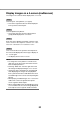

Table Of Contents
- Preface
- Before using this product
- Use an SD memory card
- Operation window
- Basic operation
- Login operation at startup
- Monitor live images
- Record images
- Play recorded images
- Play images from a designated point
- Search and play
- Play back copied images
- Event function
- Copy recorded images
- About the face matching function
- Operate the camera
- Configure the network settings
- Network security of the recorder
- Display the operation window
- About the operation window
- Monitor live images from cameras
- Play recorded images
- Play image recorded at a designated date & time
- Search and play recording events (REC event search)
- Motion detection search and playback (VMD search)
- Check a list of copied recorded images
- Event function
- Copy recorded images
- Download recorded images currently being played
- Play the copied/downloaded recorded images
- Operate the camera
- Setup
- Notification by e-mail
- Troubleshooting
- Glossary

68
69
Display images on a 4-screen (multiscreen)
Live images from cameras will be displayed on a 4-screen.
Step 1
Click the [Cam. select] button. (☞ Page 61)
→ A list of the registered cameras will be displayed
in the [Camera selection] box.
Step 2
Click the [Multiscreen] button.
→ Live images from the cameras (registered as a
group) will be displayed on a 4-screen.
Step 3
Each click of the [Multiscreen] button switches to the
next 4 screens in the sequence: camera 1 to 4→cam-
era 5 to 8→camera 9 to 12→camera 13 to 16...
Step 4
Click a camera title in the [Camera selection] box or
the camera title displayed on the image to display on
a 1- screen again.
→ The display returns to the 1-screen.
Note:
• Tochangethescreenpatterntoamulti-screen,
right-click on the live images and select the item
from the displayed menu.
• Selecting"Wideview"fromtheright-clickmenu
will enlarge the displayed images on a 4-screen.
• Clickingthe[Gotolast]buttononthe[HDD]tab
while displaying live images will start playback
from a point around 30 seconds before the latest
recorded image of the camera currently being dis-
played.
• Whenplayingrecordedimagesona4-screen,the
audio of the camera assigned to the top left
screen segment will be output.
• WhenstartingVMDsearchwhiledisplayingimag-
es on a multiscreen, the camera image displayed
in the top left screen segment will be searched.