
Operating Instructions


Table Of Contents
- Preface
- Before using this product
- Use an SD memory card
- Operation window
- Basic operation
- Login operation at startup
- Monitor live images
- Record images
- Play recorded images
- Play images from a designated point
- Search and play
- Play back copied images
- Event function
- Copy recorded images
- About the face matching function
- Operate the camera
- Configure the network settings
- Network security of the recorder
- Display the operation window
- About the operation window
- Monitor live images from cameras
- Play recorded images
- Play image recorded at a designated date & time
- Search and play recording events (REC event search)
- Motion detection search and playback (VMD search)
- Check a list of copied recorded images
- Event function
- Copy recorded images
- Download recorded images currently being played
- Play the copied/downloaded recorded images
- Operate the camera
- Setup
- Notification by e-mail
- Troubleshooting
- Glossary
48
49
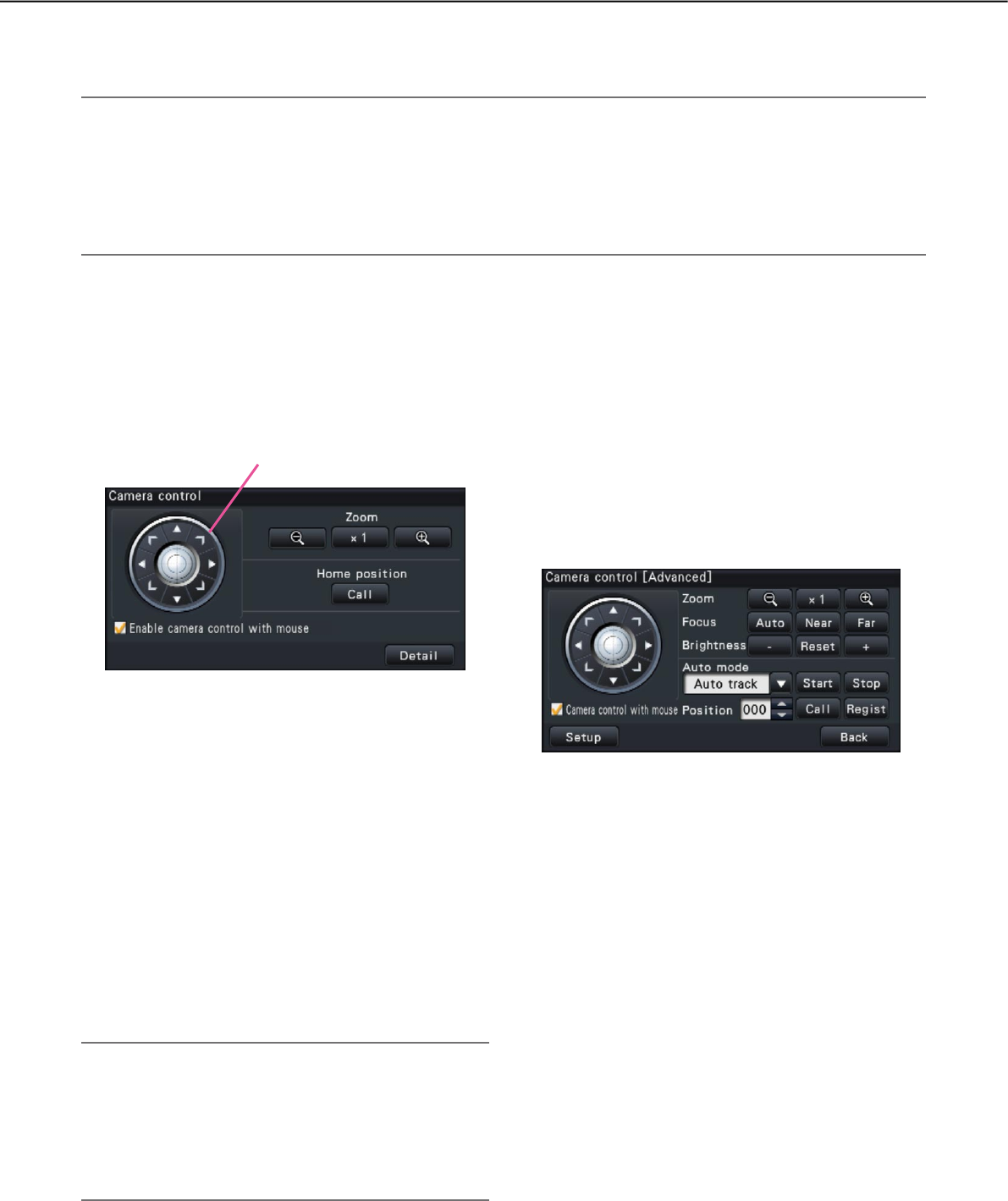
[Detail] button
Display the "Camera control [Advanced]" panel, and
perform any of the following camera operations:
• [Focus]button
Adjust the focal point.
• [Brightness]button
Adjusts the lens iris of the camera.
• Automode
Activates the auto mode function of the camera.
• [Position]
Registers the current orientation of the camera as
a preset position. Moves the camera to a previ-
ously registered preset position.
Operate the camera
When displaying live images from a camera with the panning/tilting function on a 1-screen or 4-screen, the fol-
lowing camera operations are available.
Note:
• Itmaybeimpossibletooperatethecameraorsomefunctionsmaybeinoperabledependingonthemodel
of the camera.
• Operationsareperformedfromtheoperationwindow.Whenworkingwiththewideviewscreen,opena
1-screen or 4-screen operation window by clicking the [Ctrl screen] button in the bottom right corner of the
screen.
• Forafixedcamera,thebuttonsonthecameracontrolpanelandothercontrolswillbedisabled.
Camera control panel
Operate the cameras displayed as selected (inside selection frame) in the image display area. On the 1-screen,
the camera whose image is currently displayed, can be operated. On the 4-screen, click the camera number
panel on the operation panel, or select a camera image by clicking it in the image display area.
Control buttons
Move (pan/tilt) the camera in the clicked direction.
Keeping the button pressed will move the camera
continuously.
[Zoom] button
Adjusts the zoom factor.
[Home position/Call] button
Move the camera to the home position.
[Enable camera control with mouse] checkbox
When this item is checked, pan/tilt (clicking) and
zoom (mouse wheel) can be controlled with the
mouse on the selected camera image.
Note:
• Whenthischeckboxismarked,digitalzooming
(☞ page 24) by turning the mouse wheel operation
is not possible. When the camera control panel is
inoperable for the fixed camera, the digital zoom
can be performed by turning the mouse wheel
even when the checkbox is checked.
Control buttons