Secondary Display Transmission Function Advanced Operation (Wireless Manager ME 5.
Secondary Display Transmission Function Advanced Operation Contents Using the Secondary Display Transmission Function to its Best Advantage (1)..................... 3 Using the Secondary Display Transmission Function to its Best Advantage (2)..................... 4 Using the Secondary Display Transmission Function to its Best Advantage (3)..................... 5 Using the Secondary Display Transmission Function to its Best Advantage (4)..................... 6 What “Secondary Display” Can Do for You........
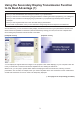
Using the Secondary Display Transmission Function to its Best Advantage (1) • Have you ever had difficulties memorizing the contents of your presentation? • Have you ever become confused when giving presentations containing documents prepared by your colleagues? • Have you ever worried that a colleague giving a presentation you prepared might misinterpret the intended message? • Have you ever forgotten what was on the next slide during a presentation? • In the middle of presentation, have you ever wanted to
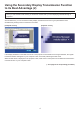
Using the Secondary Display Transmission Function to its Best Advantage (2) • Have you ever wanted to take meeting or conference minutes while you were displaying materials through a projector? At times like these, you can use the Secondary Display Transmission Function to give presentations while simultaneously making notes in PowerPoint’s note field.
Using the Secondary Display Transmission Function to its Best Advantage (3) When using PowerPoint • At a conference, have you ever wanted to sneak a look at additional or supplementary materials for your presentation? At times like these, you can use the Secondary Display Transmission Function to give presentations while simultaneously viewing other materials.
Using the Secondary Display Transmission Function to its Best Advantage (4) When using applications other than PowerPoint • At a conference, have you ever wanted to sneak a look at materials you don’t want others to see? • Have you ever been in a quandary at a conference because you wanted to prepare the next material but ended up showing it while operating your computer? At times like these, you can display one application on your computer screen and a different application on the projector screen using th
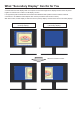
What “Secondary Display” Can Do for You A function that uses two displays with one computer to show the images of two display screens which are joined together to look like one is called a “multi-display” function. It is supported by Microsoft Windows XP and Microsoft Windows 2000. (RGB connectors used for external connections or an additional video adapter card must be provided for this function to work.
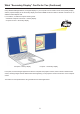
What “Secondary Display” Can Do for You (Continued) Using Wireless Manager ME 5.0, the original display on your computer can be made to serve as the primary display and the projector display as the secondary display even without RGB connectors used for external connections or an additional video adapter card.
System Requirements The computer should meet the following requirements in order to use the secondary display function. OS: Microsoft Windows 2000 Professional SP4/XP Home Edition/XP Professional CPU: Intel® Pentium® III 800MHz or faster, or compatible processor (1 GHz or faster is recommended when using live mode) RAM: 256 MB or more Hardware conditions: CD or DVD drive (for software installation and viewing the user’s manual) LAN terminal (10BASE-T/100BASE-TX/1000BASE-T) An IEEE802.
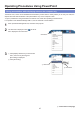
Operating Procedures Using PowerPoint Giving presentations while displaying notes on the computer only “Presenter View,” which comes standard with PowerPoint (version 2002 or newer), allows you to view your notes, the elapsed time and slide thumbnails of the presentations only on the computer screen. To give a presentation using PowerPoint’s Presenter View, follow the operating procedure below. For operation of the Wireless Manager ME 5.0, see the “Network Function Edition.
Operating Procedures Using PowerPoint (Continued) 4 Click [ ]. An image consisting only of the wallpaper appears on the projector screen. Click here. [Computer screen] 5 [Projector screen] Start up PowerPoint and click [Slide Show] → [Set Up Show]. The “Set Up Show” window now appears. Click here.
Operating Procedures Using PowerPoint (Continued) 6 In the [Multiple monitors] area, select [Monitor 2 Default Monitor]※1 under [Display slide show on], select the [Show Presenter View] check box, and click [OK]. Select this setting. You are now ready to display the slide show on the projector screen using “Presenter View.” ※1: This display may differ depending on the computer you are using.
Operating Procedures Using PowerPoint (Continued) 7 Click [Slide Show] → [View Show] to start the slide show. “Presenter View” appears on the computer screen, and the slide show appears on the projector screen. Click here. [Computer screen] [Projector screen] Note When closing the Secodary Display Transmission Function, be sure to exit the slide show first, or “Presenter View” may not be displayed properly.
Operating Procedures Using PowerPoint (Continued) Giving presentations while taking notes or minutes To jot down points or Q&A notes in the note field during a PowerPoint presentation, follow the operating procedure below. 1 Start up Wireless Manager ME 5.0, and select the projector. The launcher is displayed. Click [ ] at the far left to display the launcher menu. 2 Click [Display Switchover] → [Secondary], and click [ (→ See pages 10-11, steps 2-4.
Operating Procedures Using PowerPoint (Continued) 5 Click [Slide Show] → [View Show] to start the slide show. The computer screen display remains the same while the slide show appears on the projector screen. Click here. [Computer screen] [Projector screen] The regular PowerPoint screen appears on the computer so you can proceed with the slide show while jotting down Q&A notes or other points in the note field. You can write down the notes here.
Operating Procedures Using PowerPoint (Continued) 6 The small “Slide Show” toolbar now appears on the PowerPoint screen. Click [Resume Slide Show] to restage the slide show. Click here. (The position where this appears may differ depending on the computer.) If the “Slide Show” toolbar fails to appear, select [View] → [Toolbars] → [Slide Show] in PowerPoint to display it. Click here. 7 The slide show can now be restaged. Proceed with the slide show using the [↑], [↓], [Page Up] and [Page Down] keys.
Operating Procedures Using PowerPoint (Continued) Giving presentations while referring to other documents To run another application on the computer screen while staging a slide show, follow the operating procedure below. 1 Start up Wireless Manager ME 5.0, and select the projector. The launcher is displayed. Click [ ] at the far left to display the launcher menu. 2 Click [Display Switchover] → [Secondary], and click [ (→ See pages 10-11, steps 2-4.
Operating Procedures Using PowerPoint (Continued) 5 Click [Slide Show] → [View Show] to start the slide show. The computer screen display remains the same while the slide show appears on the projector screen. Click here. [Computer screen] [Projector screen] The slide show will remain displayed on the projector screen even if another application on the computer screen is started up, and regular Windows operations can be performed.
Operating Procedures Using PowerPoint (Continued) 6 Start up Excel and open the additional document. You can refer to the Excel document while giving your presentation. 7 To move on with the slide show, click any visible part of the PowerPoint window to operate PowerPoint.
Operating Procedures Using PowerPoint (Continued) 8 The small “Slide Show” toolbar now appears on the PowerPoint screen. Click [Resume Slide Show] to restage the slide show. Click here. (The position where this appears may differ depending on the computer.) If the “Slide Show” toolbar fails to appear, select [View] → [Toolbars] → [Slide Show] in PowerPoint to display it. Click here. The slide show can now be restaged. Proceed with the slide show using the [↑], [↓], [Page Up] and [Page Down] keys.
Procedures for Displaying Different Applications When giving presentations using programs other than PowerPoint, move the window manually to the projector screen, and proceed with operation. Arrangement of displays in the initial condition In the initial condition of Wireless Manager ME 5.0, the projector and computer screens are treated as a joint screen, with the projector screen as the top half of the joint screen.
Procedures for Displaying Different Applications (Continued) Moving the window between the displays To move the application window that is displayed on the computer screen to the projector screen, follow the operating procedure below. 1 Start up Wireless Manager ME 5.0, and select the projector. The launcher is displayed. Click [ ] at the far left to display the launcher menu. 2 Click [Display Switchover] → [Secondary], and click [ (→ See pages 10-11, steps 2-4.
Procedures for Displaying Different Applications (Continued) 5 When the mouse pointer is moved beyond the top edge of the computer screen, the protruding part now appears on the projector screen. [Projector screen] [Computer screen] 6 Keep moving the mouse pointer upward until the whole window appears on the projector screen. Release the mouse button once the whole window is displayed on the projector screen.
Procedures for Displaying Different Applications (Continued) 7 Start the application you want to refer to on the computer screen only. Different applications can now be displayed on the computer screen and projector screen. [Projector screen] [Computer screen] To return the application that is displayed on the projector screen to the computer screen, press the left button of the mouse on the title bar of the application and drag the window toward the bottom of the screen.
Procedures for Displaying Different Applications (Continued) Changing the display arrangement In the initial condition, the projector and computer screens are treated as a joint screen, with the projector screen as the top half of the joint screen. However, using “Display Properties”, the direction of the arrangement can be changed to your preference. To change from a top/bottom arrangement to a left/right arrangement, for instance, follow the operating procedure below.
Procedures for Displaying Different Applications (Continued) 2 Press the left button of the mouse on [3], move the pointer between [1] and [2], release the mouse button (drag and drop), and click [Apply] or [OK]. Keep the mouse button pressed when moving. After moving [3], click this.
Procedures for Displaying Different Applications (Continued) 3 The window is arranged with screen [1] on the left and screen [3] on the right. The actual computer screen and projector screen will also appear connected at the left and right. [Projector screen] [Computer screen] Note • The size of the projector screen is fixed at 1024 x 768, and cannot be changed. • If the display arrangement is changed, these settings will be maintained even if the computer is shut down.
Q&A Q1 How can I use the secondary display transmission function? When using the secondary display transmission function, it is necessary to connect the computer and the projector using wireless LAN or wired LAN or by using an RGB cable. • Connecting with wireless LAN or Wired LAN The video adapter card installed inside the computer does not have to support multi-displays. Only by clicking [Display Switchover] → [Secondary] on the launcher menu of the Wireless Manager ME 5.
Q&A (Continued) Q2 I can use the secondary display transmission function with wired LAN or an RGB cable connection, what is the merit for using wireless LAN connection? By using a wireless LAN connection you are freed from the restrictions imposed by a cable connection. Q3 Do I need any additional video adapter card to use the Secondary Display Transmission Function? No additional video adapter card is required, provided that you use Wireless Manager ME 5.0.
Q&A (Continued) Q6 Why is it that the images displayed by the Secondary Display Transmission Function appear on the computer screen when the 4-screen or 16-screen index style is selected? When the Secondary Display Transmission Function is used, different images can be displayed on the computer screen and projector screen. However, when an index style is selected, the images appearing on the projector screen are reduced in size, making operation more difficult.
Q&A (Continued) Q8 What should I do when [Display Switchover] → [Secondary] on the launcher menu is displayed in gray and cannot be selected? The Secondary Display Transmission Function cannot be used if Wireless Manager ME 5.0 is being used under the [Installation Free Set up] setting.
Request Regarding Security When using this product, the following security issues are foreseen. • Leakage of your private information via this product • Illegal operation of this product by a malicious third-party • Harm to or cessation of operation of this product by a malicious third-party Please take adequate security measures. • Make sure the password is as hard to guess as possible. • Change the password periodically. • Matsushita Electric Industrial Co., Ltd.
Trademarks • Microsoft and its logo as well as Windows, Windows Vista™, Windows Media, Microsoft Office, PowerPoint, Word and Excel are either registered trademarks or trademarks of Microsoft Corporation in the United States and/or other countries. • Intel , Pentium and Centrino are registered trademarks or trademarks of Intel Corporation or its affiliates in the United States and other countries.