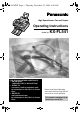
FL541.PDF Page 1 Thursday, December 21, 2006 9:46 AM High Speed Laser Fax and Copier Operating Instructions Model No. FOR FAX ADVANTAGE ASSISTANCE: — PHONE CALL 1-800-HELP-FAX (1-800-435-7329) — E-MAIL TO consumer_fax@us.panasonic.com for customers in the U.S.A. or Puerto Rico — REFER TO www.panasonic.com for customers in the U.S.A. or Puerto Rico KX-FL541 Please read these Operating Instructions before using the unit and save for future reference. This model is designed to be used only in the U.S.A.
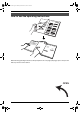
FL541.book Page I Thursday, December 21, 2006 9:46 AM Location of Controls How to use the operating instructions When following operating instructions, always keep the front cover page (next page) open so that you will find easy reference to the buttons.
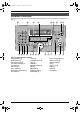
FL541.book Page II Thursday, December 21, 2006 9:46 AM Location of controls Please keep this page open when following operating instructions. For a description of each button, see page 8. A B J K L M C D N O P Q Keys (Listed in alphabetical order.) AUTO ANSWER H FLASH L BROADCAST C HANDSET MUTE K CALLER ID PRINT R HELP N CALLER ID SEARCH S LOWER T CALLER IQ E MANUAL BROAD D COLLATE F MENU P COPY START W MONITOR M DIRECTORY PROGRAM O NAME/TEL NO.
FL541.book Page 2 Thursday, December 21, 2006 9:46 AM Thank you for purchasing a Panasonic fax machine. Things you should keep a record of Attach your sales receipt here.
FL541.book Page 3 Thursday, December 21, 2006 9:46 AM Safety Instructions SafetyFax 1For Instructions Advantage assistance, call 1-800-435-7329. Important safety instructions When using this unit, basic safety precautions should always be followed to reduce the risk of fire, electric shock, or personal injury. 1. Read and understand all instructions. 2. Follow all warnings and instructions marked on this unit. 3. Unplug this unit from power outlets before cleaning. Do not use liquid or aerosol cleaners.
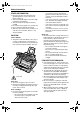
FL541.book Page 4 Thursday, December 21, 2006 9:46 AM Safety Instructions OTHER INFORMATION: L Keep the unit away from electrical noise generating devices, such as fluorescent lamps and motors. L The unit should be kept free from dust, high temperature and vibration. L The unit should not be exposed to direct sunlight. L Do not place heavy objects on top of this unit. L Do not touch the plug with wet hands. L Wipe the outer surface of the unit with a soft cloth.
FL541.book Page 5 Thursday, December 21, 2006 9:46 AM Table of Contents 1. Introduction and Installation 1. Table of Contents Accessories 1.1 Included accessories..........................7 1.2 Accessory information ........................8 Finding the Controls 1.3 Description of buttons......................... 8 1.4 Overview ............................................ 9 Installation 1.5 Toner cartridge and drum unit ......... 10 1.6 Paper tray .........................................12 1.
FL541.book Page 6 Thursday, December 21, 2006 9:46 AM Table of Contents Jams 8.5 Recording paper jam ........................ 58 8.6 Document jams - sending................. 60 Cleaning 8.7 Cleaning the inside of the unit .......... 61 9. Caller IQ Feature Caller IQ Feature 9.1 openLCR service for the Caller IQ feature .............................................. 64 9.2 To turn the Caller IQ ON / OFF......... 64 9.3 Updating the rate table (downloading the rate table) ...................................
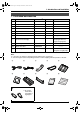
FL541.book Page 7 Thursday, December 21, 2006 9:46 AM 1. Introduction and Installation 1 Introduction and Installation 1.1 Included accessories Item Part number*1 Quantity 1 Power cord PFJA1030Z 1 ---------- 2 Telephone line cord PQJA10075Z 1 ---------- 3 Handset PFJXE0805Z 1 ---------- 4 Handset cord PFJA1029Z 1 ---------- 5 Paper stacker PFKS1096Z1 1 6 Paper tray PFKS1085Z1 1 7 Drum unit KX-FA84 1 See page 69.
FL541.book Page 8 Thursday, December 21, 2006 9:46 AM 1. Introduction and Installation G {RESOLUTION} 1.2 Accessory information To ensure that the unit operates properly, we recommend the use of a Panasonic toner cartridge and drum unit. 1.2.1 Available accessories – Replacement toner cartridge (KX-FA83) – Replacement drum unit (KX-FA84) L To place an order: L To select a resolution (page 36, 44). H {AUTO ANSWER} L To turn ON/OFF the auto answer setting (page 39, 40).
FL541.book Page 9 Thursday, December 21, 2006 9:46 AM 1. Introduction and Installation 1.4 Overview 1 7 2 8 3 9 4 j 56 k l 1 Handset 2 Speaker 3 Document guides 4 Paper tray 5 Recording paper entrance 6 Tension plate 7 Paper stacker*1 8 Document stacker*1 9 Recording paper exit j Document exit k Front cover l Document entrance *1 The paper stacker and document stacker may not be shown in all illustrations. For Fax Advantage assistance, call 1-800-435-7329.
FL541.book Page 10 Thursday, December 21, 2006 9:46 AM 1. Introduction and Installation 3 Installation 1.5 Toner cartridge and drum unit Place the toner cartridge (1) into the drum unit (2) vertically. 1 The included toner cartridge is a starter toner cartridge. It will print about 800 letter-sized pages with a 5% image area (page 69). Caution: L Read the following instructions before you begin installation. After you have read them, open the drum unit protection bag.
FL541.book Page 11 Thursday, December 21, 2006 9:46 AM 1. Introduction and Installation 6 Make sure that the triangles (1) match, to install the toner cartridge correctly. 8 Install the drum and toner unit (1) by holding the tabs. 1 2 1 7 Lift open the front cover (1), holding OPEN (2). L Do not touch the transfer roller (2). 9 1 Close the front cover (1) by pushing down on both sides, until locked. 1 2 L If the lower glass (3) is dirty, clean it with a soft and dry cloth.
FL541.book Page 12 Thursday, December 21, 2006 9:46 AM 1. Introduction and Installation 1.6 Paper tray 1.7 Paper stacker Insert the paper tray (1) into the slot (2) on the back of the unit. Line up the slots (1) in the paper stacker with the pegs (2) on the bottom of the unit, then insert the two tabs of the paper stacker into the slots on the unit (3). 1 2 2 3 3 Note: L Do not place the unit in an area where the paper tray may be obstructed (i.e., by a wall, etc.).
FL541.book Page 13 Thursday, December 21, 2006 9:46 AM 1. Introduction and Installation 1.8 Document stacker 1.9 Handset cord Pull the document stacker (1) forward gently until it clicks into place, then press the center part of the document stacker (2) to open the extender (3). Connect the handset cord (1). 1 1.10 Recording paper 1 2 A4, letter or legal size recording paper can be used for fax messages. The unit can hold up to 250 sheets of 60 g/m2 to 75 g/m2 (16 lb. to 20 lb.
FL541.book Page 14 Thursday, December 21, 2006 9:46 AM 1. Introduction and Installation 2 Pull the tension plate forward (1) and insert the paper, print-side down (2), then push the tension plate back (3). 2 To use A4 size paper Insert the tabs on the A4 paper guides (1) into the slots. 4 1 1 4 L “L” is shown on the A4 paper guide for the left side. “R” is shown on the A4 paper guide for the right side. Note: L When you use letter or legal size paper, you do not need to install the A4 paper guides.
FL541.book Page 15 Thursday, December 21, 2006 9:46 AM 2. Preparation 2.1.1 Connections 2 Preparation 2For Connections Fax Advantage and Setup assistance, call 1-800-435-7329. 2.1 Selecting the way to use your fax machine Connect to LINE. Depending on your situation, you can select the way you prefer to use your fax machine in Quick Setup feature #00. You can print out the Quick Setup Guide for your assistance.
FL541.book Page 16 Thursday, December 21, 2006 9:46 AM 2. Preparation 2.2.4 How to setup 2.2 Case 1: FAX ONLY ON 2.2.1 Your situation You wish to use the fax machine only for fax reception/transmission. 2.2.2 Telephone wiring image in house or office Fax machine Single telephone line (1 phone number) 2.2.3 Connections for Case 1 {MENU} {A}{B} 1 2 {SET} Press {MENU}. Press {#} then {0}{0}. QUICK SETUP PRESS SET Connect to LINE. 3 Press {SET}. L The Quick Setup Guide will be printed.
FL541.book Page 17 Thursday, December 21, 2006 9:46 AM 2. Preparation 2.3.3 Connections for Case 2a 2.3 Case 2a: Distinctive Ring (1 phone line with 2 or more phone numbers) Connect to LINE. 2.3.1 Your situation You wish to use the fax machine and your answering machine in a different room and receive faxes and phone calls automatically. You must get another phone number to use for fax besides the current phone number.
FL541.book Page 18 Thursday, December 21, 2006 9:46 AM 2. Preparation 5 Press {A} or {B} repeatedly to display the following. SELECT A SETUP =DIST. RING [±] 6 7 Press {SET}. Press {MENU}. L The AUTO ANSWER light is ON. L You cannot change the receiving mode while the Distinctive Ring feature is activated. 2.3.5 How to receive calls If the number assigned for phone calls is called, the fax machine and answering machine will ring and then the answering machine will record voice message automatically.
FL541.book Page 19 Thursday, December 21, 2006 9:46 AM 2. Preparation 2.4.3 Connections for Case 2b 2.4 Case 2b: Distinctive Ring (using with voice mail service) Connect to LINE. 2.4.1 Your situation You have already subscribed to voice mail service and also wish to receive a fax automatically. You must get another phone number to use for fax besides the current phone number. To get a new phone number, you need to subscribe to a Distinctive Ring service at your local telephone company.
FL541.book Page 20 Thursday, December 21, 2006 9:46 AM 2. Preparation 5 Press {A} or {B} repeatedly to display the following. SELECT A SETUP =DIST. RING [±] 6 7 Press {SET}. Press {MENU}. L The AUTO ANSWER light is ON. L You cannot change the receiving mode while the Distinctive Ring feature is activated. 2.4.5 How to receive calls If the number assigned for phone calls is called, a voice message will be recorded in the voice mail service. The fax machine will ignore the incoming call.
FL541.book Page 21 Thursday, December 21, 2006 9:46 AM 2. Preparation 2.5.4 How to setup 2.5 Case 3: EXT. TAM (External Telephone Answering Machine) ON 2.5.1 Your situation You wish to use the fax machine and your answering machine in the same room. 2.5.2 Telephone wiring image in house or office {MENU} {A}{B} Single telephone line (1 phone number) Fax machine Answering machine 1 2 {SET} {FAX START} Press {MENU}. Press {#} then {0}{0}. QUICK SETUP PRESS SET 3 Press {SET}.
FL541.book Page 22 Thursday, December 21, 2006 9:46 AM 2. Preparation Receiving a voice message and fax document in one call The caller can leave a voice message and send a fax document during the same call. Inform the caller of the following procedure beforehand. 1. The caller calls your unit. L The answering device will answer the call. 2. The caller can leave a message after the greeting message. 3. The caller presses *#9 (pre-selected fax activation code). L The unit will activate the fax function. 4.
FL541.book Page 23 Thursday, December 21, 2006 9:46 AM 2. Preparation 2.6.4 How to setup 2.6 Case 4: TEL ONLY OFF 2.6.1 Your situation You wish to use the fax machine and an extension telephone in a different room. Most incoming calls are phone calls and the fax machine is seldom used for fax reception. 2.6.2 Telephone wiring image in house or office Room Extension telephone Room Single telephone line (1 phone number) Fax machine {MENU} {A}{B} 1 2 {SET} {FAX START} Press {MENU}.
FL541.book Page 24 Thursday, December 21, 2006 9:46 AM 2. Preparation – a fax calling tone (slow beep) is heard, or – no sound is heard, press *#9 (pre-selected fax activation code) firmly. 3. Replace the handset. L The fax machine will start reception. Note: L You can change the fax activation code in feature #41 (page 48). 24 For Fax Advantage assistance, call 1-800-435-7329.
FL541.book Page 25 Thursday, December 21, 2006 9:46 AM 2. Preparation 2.7.3 Connections for Case 5 2.7 Case 5: FAX with PC MODEM (one phone number) Remove the stopper. 2.7.1 Your situation You wish to use a computer connected via MODEM and the fax machine on a single telephone line. The fax machine and the computer are in the same room and you do not want the computer to answer incoming calls automatically. 2.7.
FL541.book Page 26 Thursday, December 21, 2006 9:46 AM 2. Preparation 2.7.4 How to setup ON {A}{B} 1 “EXT. IN USE” means MODEM or an extension telephone is in use on the same line. Do not use the fax machine while the message is displayed, or else the PC activities could be disturbed. {SET} Set the fax machine to FAX ONLY mode by pressing {AUTO ANSWER} repeatedly to display the following.
FL541.book Page 27 Thursday, December 21, 2006 9:46 AM 2. Preparation Help Button 2.8 Help function 2.9 Adjusting volume The unit contains helpful information which can be printed for quick reference. Basic settings: How to set the date, time, your logo and fax number. Feature list: How to program the features. Directory: How to store names and numbers in the directory and how to dial them. Fax sending/receiving: Help with problems sending/receiving faxes. Copier: How to use the copier function.
FL541.book Page 28 Thursday, December 21, 2006 9:46 AM 2. Preparation L The accuracy of the clock is approximately ±60 seconds a month. 2.10 Date and time To correct a mistake Press {<} or {>} to move the cursor to the incorrect number, and make the correction. If you have registered with openLCR service The date and time will be automatically set.
FL541.book Page 29 Thursday, December 21, 2006 9:46 AM 2. Preparation Keys Characters 2.11 Your logo {5} J The logo can be your company, division or name. {6} K L l 5 M N O m n o 6 {7} P Q R S p q r {8} T U V t v 8 {9} W X Y Z w x {0} 0 ( ) % & ¥ {MENU} {SET} {FLASH} {HANDSET MUTE} 1 Press {MENU}. SYSTEM SET UP PRESS NAVI.[( )] 2 Press {<} or {>} repeatedly to display the following.
FL541.book Page 30 Thursday, December 21, 2006 9:46 AM 2. Preparation 3. Press {#}. LOGO=B| i 2.12 Your fax number 4. Press {5} 3 times. LOGO=Bi| l To correct a mistake Press {<} or {>} to move the cursor to the incorrect character, and make the correction. To delete a character Press {<} or {>} to move the cursor to the character you want to delete and press {STOP}. {MENU} {FLASH} 1 To insert a character 1.
FL541.book Page 31 Thursday, December 21, 2006 9:46 AM 3. Telephone 3 Telephone Automatic Dialing 3.1 Storing names and telephone numbers into one-touch dial Up to 22 telephone numbers can be stored in one-touch dial for quick access. L Station 1 to 3 can be used alternatively as broadcast keys (page 38). L You can also send faxes using one-touch dial (page 37). Helpful hints: L You can confirm the stored entries in the telephone number list (page 66).
FL541.book Page 32 Thursday, December 21, 2006 9:46 AM 3. Telephone Helpful hints: L For your convenience, HELP-FAX (1-800435-7329) has been pre-programmed. If you cannot solve a problem, call using this entry (page 32). If unnecessary, you can erase it (page 32). L You can confirm the stored entries in the telephone number list (page 66). Note: L If “SPACE= 5 DIRS.” is displayed, you can store only 5 more entries. L A hyphen or a space entered in a telephone number counts as 2 digits.
FL541.book Page 33 Thursday, December 21, 2006 9:46 AM 3. Telephone To search for a name by initial Example: “LISA” 1. Press {>}. L Confirm that there are no documents in the document entrance. 2. Press {A} or {B} to initiate the navigator directory. 3. Press {5} repeatedly to display any name with the initial “L” (see the character table, page 29). L To search for symbols (not letters or numbers), press {*}. 4. Press {A} or {B} repeatedly to display “LISA”. L To stop the search, press {STOP}.
FL541.book Page 34 Thursday, December 21, 2006 9:46 AM 3. Telephone To change the display of the caller information Press {NAME/TEL NO.} repeatedly after step 2. Example: 1 Press {MENU} repeatedly to display “CALLER SET UP”. 2 3 Press {SET}. 4 5 Press {SET}. SAM LEE 11:20AM Jul 20 , b 1345678901 11:20AM Jul 20 , L Check mark (,) on the display means the call has already been viewed or answered.
FL541.book Page 35 Thursday, December 21, 2006 9:46 AM 3. Telephone 3. Press {SET}. For stations 4–11: 1. Press the desired station key. 2. Press {SET}. For stations 12–22: 1. Press {LOWER}, then press the desired station key. 2. Press {SET}. For navigator directory: 1. Press {<} or {>}. 2. Press {SET}. 5 Press {SET}. Note: L You can confirm the stored entries in the telephone number list (page 66). L The unit can only store a name of up to 10 characters long. L To edit a name or number, see page 32.
FL541.book Page 36 Thursday, December 21, 2006 9:46 AM 4. Fax 4 Fax Sending Faxes 4.1 Sending a fax manually 1 2 {MONITOR} {STOP} {FAX START} {RESOLUTION} {REDIAL/PAUSE} {QUICK SCAN START} 1 Adjust the width of the document guides (1) to the size of the document. 2 Insert the document (up to 20 pages) FACE DOWN (2) until a single beep is heard and the unit grasps the document. 3 If necessary, press {RESOLUTION} repeatedly to select the desired resolution. 4 5 6 Press {MONITOR}.
FL541.book Page 37 Thursday, December 21, 2006 9:46 AM 4. Fax 3. Press {QUICK SCAN START} or {FAX START}. Effective scanning area L Shaded area (1) will be scanned. L The document will be fed into the unit and scanned into memory. The unit will then transmit the data. If the document exceeds the memory capacity, sending will be canceled and this feature will be turned OFF automatically. You must transmit the entire document manually. 4 mm 1 4 mm To stop transmission Press {STOP}.
FL541.book Page 38 Thursday, December 21, 2006 9:46 AM 4. Fax 2 Insert the document (up to 20 pages) FACE DOWN until a single beep is heard and the unit grasps the document. 3 If necessary, press {RESOLUTION} repeatedly to select the desired resolution (page 36). 4 Enter the fax number. 2 For BROADCAST 1-2: 1. Press the desired {BROADCAST} key. 2. Press {A} or {B} repeatedly to select “BROADCAST”. For MANUAL BROADCAST: 1. Press {MANUAL BROAD}. Using stations 1–11: 2.
FL541.book Page 39 Thursday, December 21, 2006 9:46 AM 4. Fax 4 5 Press {*}. 6 Press {SET}. L To add other entries, repeat steps 5 and 6 (up to 20 entries). 7 Press {DIRECTORY PROGRAM} to exit the program. Press {A} or {B} repeatedly to display the desired entry. 4.4.3 Erasing a stored entry from the broadcast memory 1 Press {>}. L Confirm that there are no documents in the document entrance.
FL541.book Page 40 Thursday, December 21, 2006 9:46 AM 4. Fax How to receive calls 1. When the unit rings, lift the handset to answer the call. 2. When: – document reception is required, – a fax calling tone (slow beep) is heard, or – no sound is heard, press {FAX START}. 4.6 Receiving a fax automatically (AUTO ANSWER ON) ON CONNECTING..... 3. Replace the handset. L The unit will start fax reception. L If you do not answer the call within 10 rings, the unit will temporarily switch to fax reception.
FL541.book Page 41 Thursday, December 21, 2006 9:46 AM 4. Fax Additionally, faxes originating from numbers that match a programmable junk fax prohibitor list will not be accepted by the fax machine (page 41). L Keep the front cover page open for button locations. Important: L This feature does not work when: – the unit is set to the TEL mode, or – manual reception is performed. 4.7.1 Activating the junk fax prohibitor 1 Press {MENU} repeatedly to display “JUNK FAX PROH.”. 2 3 4 5 Press {>}.
FL541.book Page 42 Thursday, December 21, 2006 9:46 AM 5. Distinctive Ring 5 Distinctive Distinctive Ring Ring 5.1 Distinctive Ring service from your phone company The Distinctive Ring service is a service offered by your local telephone company. This service provides several telephone numbers for a single telephone line, and the ring pattern differs according to which telephone number the call was addressed to.
FL541.book Page 43 Thursday, December 21, 2006 9:46 AM 5. Distinctive Ring 5.4 Programming the ring pattern assigned for fax L Keep the front cover page open for button locations. 1 2 3 4 Set feature #31 to “ON” (page 42). 5 6 Press {SET}. Press {MENU}. Press {#}, then {3}{2}. Press {A} or {B} repeatedly to select the ring pattern assigned for fax.
FL541.book Page 44 Thursday, December 21, 2006 9:46 AM 6. Copy – “PHOTO WITH TEXT”: For originals containing photographs and text. 6 Copy Copying 6.1 Making a copy L If you select “STANDARD”, copying will be done using “FINE” mode. 1 To stop copying Press {STOP}. 6.1.1 More copying features 2 {A}{B} {COLLATE} {STOP} {COPY START} {RESOLUTION} To enlarge a document 1. After step 4 on page 44, press {A} repeatedly to select from “105%” to “200%” by changing the enlargement rate 5% at a time. 2.
FL541.book Page 45 Thursday, December 21, 2006 9:46 AM 6. Copy Example: Making 2 copies of a 4-page original document 4 3 4 2 4 1 3 3 2 4 2 3 1 2 1 Collated pages 1 Uncollated pages Note: L The unit will store the documents into memory while collating the copies. If memory becomes full while storing, the unit will only print out the stored pages. L After copying, the collating feature will turn OFF automatically.
FL541.book Page 46 Thursday, December 21, 2006 9:46 AM 7. Programmable Features L The setting you selected is set, and the next feature will be displayed. 7 Programmable Features Summary Features 7.1 Programming 7 To exit programming, press {MENU}. To cancel programming Press {MENU} to exit the program. {MENU} {SET} {<}{>}{A}{B} 7.1.1 Programming basic features 1 2 3 4 5 Press {MENU}. Select the feature you wish to program. Press {<} or {>} repeatedly to display the desired feature.
FL541.book Page 47 Thursday, December 21, 2006 9:46 AM 7. Programmable Features “ON”: A sending report will be printed out after every transmission. “OFF”: Sending reports will not be printed out. 7.3 Advanced features Code #06: Changing the ring setting in FAX ONLY mode Code #22: Setting the journal report to print automatically FAX RING COUNT RINGS=3 [±] To change the number of rings before the unit answers a call in FAX ONLY mode. You can select “1”, “2”, “3” (default), “4” or “5 EXT.
FL541.book Page 48 Thursday, December 21, 2006 9:46 AM 7. Programmable Features L To cancel after programming, press {STOP} then {SET}. Code #26: Setting the Caller ID list to print automatically AUTO CALL. LIST MODE=ON [±] “ON” (default): The unit will print the Caller ID list automatically after every 30 new calls (page 33). “OFF”: The unit will not print the Caller ID list, but keep a record of the information for the last 30 callers.
FL541.book Page 49 Thursday, December 21, 2006 9:46 AM 7. Programmable Features L The connecting tone volume cannot be adjusted. “ON” (default): You will hear connecting tones. “OFF”: Deactivates this feature. Code #79: Setting toner save feature TONER SAVE MODE=OFF [±] “ON”: The toner cartridge will last longer. “OFF” (default): Deactivates this feature. Code #80: Resetting advanced features to their default settings SET DEFAULT RESET=NO [±] To reset the advanced features: 1. Press {MENU}. 2.
FL541.book Page 50 Thursday, December 21, 2006 9:46 AM 7. Programmable Features {#}{3}{2} Ring pattern – {1}:“A” – {2}:“B” – {3}:“C” – {4}:“D” – {5}:“B-D” (default) {#}{3}{7} Auto reduction – {1}:“ON” (default) – {2}:“OFF” {#}{3}{9} Display contrast – {1}:“NORMAL” (default) – {2}:“DARKER” {#}{4}{1} Fax activation code – {1}:“ON” (default) – {2}:“OFF” L If you select “ON”, then enter your code from 2 to 4 digits using 0-9, * and #.
FL541.book Page 51 Thursday, December 21, 2006 9:46 AM 8. Help 8 Help 8For Error Fax Messages Advantage assistance, call 1-800-435-7329. 8.1 Error messages – Reports If a problem occurs during fax transmission or reception, one of the following communication messages will be printed on the sending and journal reports (page 37). COMMUNICATION ERROR (Code: 40-42, 46-72, FF) L A transmission or reception error occurred. Try again or check with the other party.
FL541.book Page 52 Thursday, December 21, 2006 9:46 AM 8. Help L The drum life is complete. Replace the drum unit immediately (page 56). L The unit is warming up. Wait for a while. REDIAL TIME OUT FAILED PICK UP L Recording paper was not fed into the unit properly. Re-insert the recording paper (page 58). FAX IN MEMORY L The unit has a document in memory. See the other displayed message instructions to print out the document. LOW TEMP. L The inside of the unit is extremely cold and cannot be operated.
FL541.book Page 53 Thursday, December 21, 2006 9:46 AM 8. Help Frequently Asked Questions 8.3 When a function does not work, check here 8.3.1 Initial settings I cannot hear a dial tone. L If you used a splitter to connect the unit, remove the splitter and connect the unit to the wall jack directly. If the unit operates properly, check the splitter. L Disconnect the unit from the telephone line and connect the line to a known working telephone.
FL541.book Page 54 Thursday, December 21, 2006 9:46 AM 8. Help L Try copying the document. If the copied image is clear, there may be something wrong with the other party’s machine. The other party complains that smudges or black lines appear on their received document. L The glass or rollers are dirty with correction fluid, etc. Clean them (page 61). Please do not insert the document before correction fluid has dried completely. 8.3.4 Fax – receiving I cannot receive documents.
FL541.book Page 55 Thursday, December 21, 2006 9:46 AM 8. Help L You may have used paper with a cotton and/or fiber content that is over 20%, such as letterhead or resume paper. L The remaining toner is low. Replace the toner cartridge (page 56). L We recommend you replace the drum unit every fourth time you replace the toner cartridge (page 56). To check the drum life and quality, please print the printer test list (page 66). L The toner save mode of feature #79 is ON (page 49). 8.3.
FL541.book Page 56 Thursday, December 21, 2006 9:46 AM 8. Help Replacement 1 Before opening the protection bag of the new toner cartridge, shake it vertically more than 5 times. 2 Remove the new toner cartridge from the protection bag. Peel off the seal (1) from the toner cartridge. 8.4 Replacing the toner cartridge and the drum unit When the display shows the following, replace the toner cartridge.
FL541.book Page 57 Thursday, December 21, 2006 9:46 AM 8. Help drum unit. Remove the drum and toner unit (1) by holding the two tabs. 6 Remove the used cartridge (1) from the drum unit (2). 1 2 2 1 L Do not touch the transfer roller (2). L If you replace the toner cartridge and the drum unit at the same time, skip to step 7. 5 3 L The toner may stick to the cartridge and the drum unit. Be careful when handling. See page 4 for details. L Do not drop the toner on the green drum surface (3).
FL541.book Page 58 Thursday, December 21, 2006 9:46 AM 8. Help 9 Turn the two levers (1) on the toner cartridge firmly. 11 Install the drum and toner unit (1) by holding the tabs. 1 1 10 Make sure that the triangles (1) match, to 12 Close the front cover (1) by pushing down on both sides, until locked. install the toner cartridge correctly. 1 1 L If the lower glass (2) is dirty, clean it with a soft and dry cloth.
FL541.book Page 59 Thursday, December 21, 2006 9:46 AM 8. Help 1 Lift open the front cover (1), holding OPEN (2). allow the jammed paper (3) to pull free from the rear cabinet. 1 1 2 2 3 3 Caution: The fuser unit (3) gets hot. Do not touch it. 2 2. Lift both green levers (1) forward until they stop. Remove the jammed paper. When the recording paper has jammed near the drum and toner unit: Remove the jammed paper (1) carefully by pulling it toward you. 2 1 3.
FL541.book Page 60 Thursday, December 21, 2006 9:46 AM 8. Help 4. Push back the levers (1) to the original position. L Before re-inserting, make sure to fan and straighten the recording paper. 2 1 1 3 Close the front cover (1) by pushing down on both sides, until locked. Pull the tension plate forward (2) and re-insert the recording paper (3), then push back the tension plate. L Before re-inserting, make sure to fan and straighten the recording paper. 8.
FL541.book Page 61 Thursday, December 21, 2006 9:46 AM 8. Help 2 Hold the center part of the front cover (1), and pull open the inner cover (2). Note: L Do not pull out the jammed document forcibly before opening the front cover. 1 2 3 L Do not touch the transfer roller (3). Cleaning 3 Remove the jammed document carefully (1). 8.7 Cleaning the inside of the unit If any of the following problems occurs, clean the inside of the unit: – If misfeeding of your original occurs frequently.
FL541.book Page 62 Thursday, December 21, 2006 9:46 AM 8. Help Caution: The fuser unit (3) gets hot. Do not touch it. 3 7 Remove the drum and toner unit (1) by holding the two tabs. Clean the document separation roller (1) with a cloth moistened with isopropyl rubbing alcohol, and let all parts dry thoroughly. 1 1 8 4 Clean the lower glass (1) with a soft and dry cloth. Hold the center part of the front cover (1), and pull open the inner cover (2).
FL541.book Page 63 Thursday, December 21, 2006 9:46 AM 8. Help 10 Close the front cover (1) by pushing down on both sides, until locked. 1 11 Reconnect the power cord and the telephone line cord. Note: L Do not touch the transfer roller (1). 1 For Fax Advantage assistance, call 1-800-435-7329.
FL541.book Page 64 Thursday, December 21, 2006 9:46 AM 9. Caller IQ Feature 9 Caller 9For Caller assistance, IQIQ Feature Feature please call openLCR: 1-866-openLCR (1-866-673-6527) 9.1 openLCR service for the Caller IQ feature This unit is compatible with service provided by openLCR. L If you have any questions regarding the openLCR service, call openLCR’s customer service department at 1-866openLCR (1-866-673-6527). L NEITHER PANASONIC COMMUNICATIONS CO., LTD.
FL541.book Page 65 Thursday, December 21, 2006 9:46 AM 9. Caller IQ Feature During download L The CALLER IQ indicator will flash and the display will show the following. DOWNLOADING L While downloading, you cannot do other operations such as making/answering calls or sending/receiving documents. L Depending on where you live, the call for downloading may be a long distance call and will take about 1-2 minutes. You will be charged for the cost of the call.
FL541.book Page 66 Thursday, December 21, 2006 9:46 AM 10. General Information 10 General Printed Reports Information 10.1 Reference lists and reports You can print out the following lists and reports for your reference. Setup list: Provides you with the current settings of the basic and advanced programming features (page 46 to page 49). Telephone number list: Provides you with names and numbers which are stored in one-touch dial and the navigator directory.
FL541.book Page 67 Thursday, December 21, 2006 9:46 AM 10. General Information 10.2 Technical data about this product Applicable lines: Document size: Effective scanning width: Effective printing width: Public Switched Telephone Network Max. 216 mm (81/2") in width, Max. 600 mm (235/8") in length 208 mm (83/16") Letter/Legal: 208 mm (83/16") A4: 202 mm (715/16") *1 Transmission time : Approx. 4 s/page (ECM-MMR)*2 Scanning density: Horizontal: 8 pels/mm (203 pels/inch) Vertical: 3.
FL541.book Page 68 Thursday, December 21, 2006 9:46 AM 10. General Information ITU-T No. 1 Test Chart Paper specifications Recording paper size: Recording paper weight: Letter: 216 mm × 279 mm (81/2" × 11") Legal: 216mm × 356 mm (81/2" × 14") A4: 210 mm × 297 mm (81/4" × 1111/16") 60 g/m2 to 90 g/m2 (16 lb. to 24 lb.
FL541.book Page 69 Thursday, December 21, 2006 9:46 AM 10. General Information Toner life Toner life depends on the amount of content in a received, copied or printed document. The following is the approximate relationship between image area and toner life for replacement toner cartridge (Model No. KX-FA83). Toner life varies in actual usage. 5% image area 10% image area 15% image area Approx. 2,500 sheets of letter size paper can be printed. Approx. 1,200 sheets of letter size paper can be printed.
FL541.book Page 70 Thursday, December 21, 2006 9:46 AM 10. General Information FCC and Other Information 10.3 FCC and Other Information This equipment complies with Part 68 of the FCC rules and the requirements adopted by the ACTA. On the rear of this equipment is a label that contains, among other information, a product identifier in the format US:ACJ----------. If requested, this number must be provided to the telephone company. • Registration No .....
FL541.book Page 71 Thursday, December 21, 2006 9:46 AM 10. General Information — Reorient or relocate the receiving antenna. — Increase the separation between the equipment and receiver. — Connect the equipment into an outlet on a circuit different from that to which the receiver is connected. — Consult the dealer or an experienced radio/TV technician for help.
FL541.book Page 72 Thursday, December 21, 2006 9:46 AM 10. General Information Limited Warranty 10.4 Limited Warranty PANASONIC CONSUMER ELECTRONICS COMPANY, DIVISION OF PANASONIC CORPORATION OF NORTH AMERICA One Panasonic Way, Secaucus, New Jersey 07094 PANASONIC PUERTO RICO, INC. San Gabriel Industrial Park, Ave. 65 de Infantería, Km. 9.
FL541.book Page 73 Thursday, December 21, 2006 9:46 AM 10. General Information Some states do not allow the exclusion or limitation of incidental or consequential damages, or limitations on how long an implied Limited Warranty lasts, so the exclusions may not apply to you. This Limited Warranty gives you specific legal rights and you may also have other rights which vary from state to state.
FL541.book Page 74 Thursday, December 21, 2006 9:46 AM 10. General Information Customer Services 10.5 Customer Services directory Customer Services Directory Obtain Product Information and Operating Assistance; locate your nearest Dealer or Servicenter; purchase Parts and Accessories; or make Customer Service and Literature requests by visiting our Web Site at: http://www.panasonic.com/consumersupport or E-mail us via: consumer_fax@us.panasonic.
FL541.book Page 75 Thursday, December 21, 2006 9:46 AM 11. Index 11. Index 11.
FL541.book Page 76 Thursday, December 21, 2006 9:46 AM 11.
FL541.
FL541.
FL541.
FL541.book Page 80 Thursday, December 21, 2006 9:46 AM KX-FL541 Proof of Purchase Panasonic FAX ADVANTAGE PROGRAM Free peace of mind, direct from Panasonic NO EXTRA COST FAX ADVANTAGE PROGRAM ■ ■ 1-year limited warranty 1: parts, labor, and toll-free help line 2 Free overnight replacement 3 and repair program The Panasonic Fax Advantage Consumer Service Program. Panasonic knows that if your fax machine is not up and running, neither is your business.