
High Speed Color Scanner Operating Instructions

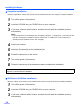
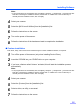
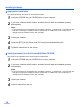
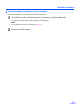
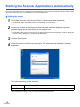
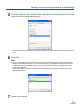
Table Of Contents
- Table of Contents
- Notice
- For Your Safety
- Component Identification
- Setting up the Scanner
- Installing Software
- Starting the Scanner Applications Automatically
- Document Specifications
- Loading Documents
- Clearing Paper Jams
- Mixed Batch Card Guide
- Cleaning the Unit
- Replacing Consumables
- Removing the Stand
- Repacking Instructions
- Specifications
- Troubleshooting
- Index
18
Starting the Scanner Applications Automatically
The scanner application can be configured to start automatically when pressing the Start/Stop button, and/or placing
documents on the feed tray. To accomplish this, follow the steps below.
Setting the event
1
Click [Start], and then click [Control Panel] - [Printers and Other Hardware].
• For Windows 2000, click [Start], and then click [Setting] - [Control Panel].
2
Select your scanner in the [Scanners and Cameras], and then display the scanner
property dialog box by right clicking on the scanner icon.
• For Windows 2000, select your scanner in the [Scanners and Cameras Properties], and then display the
scanner property dialog box by clicking [Properties] button.
3
Click the [Events] tab.
4
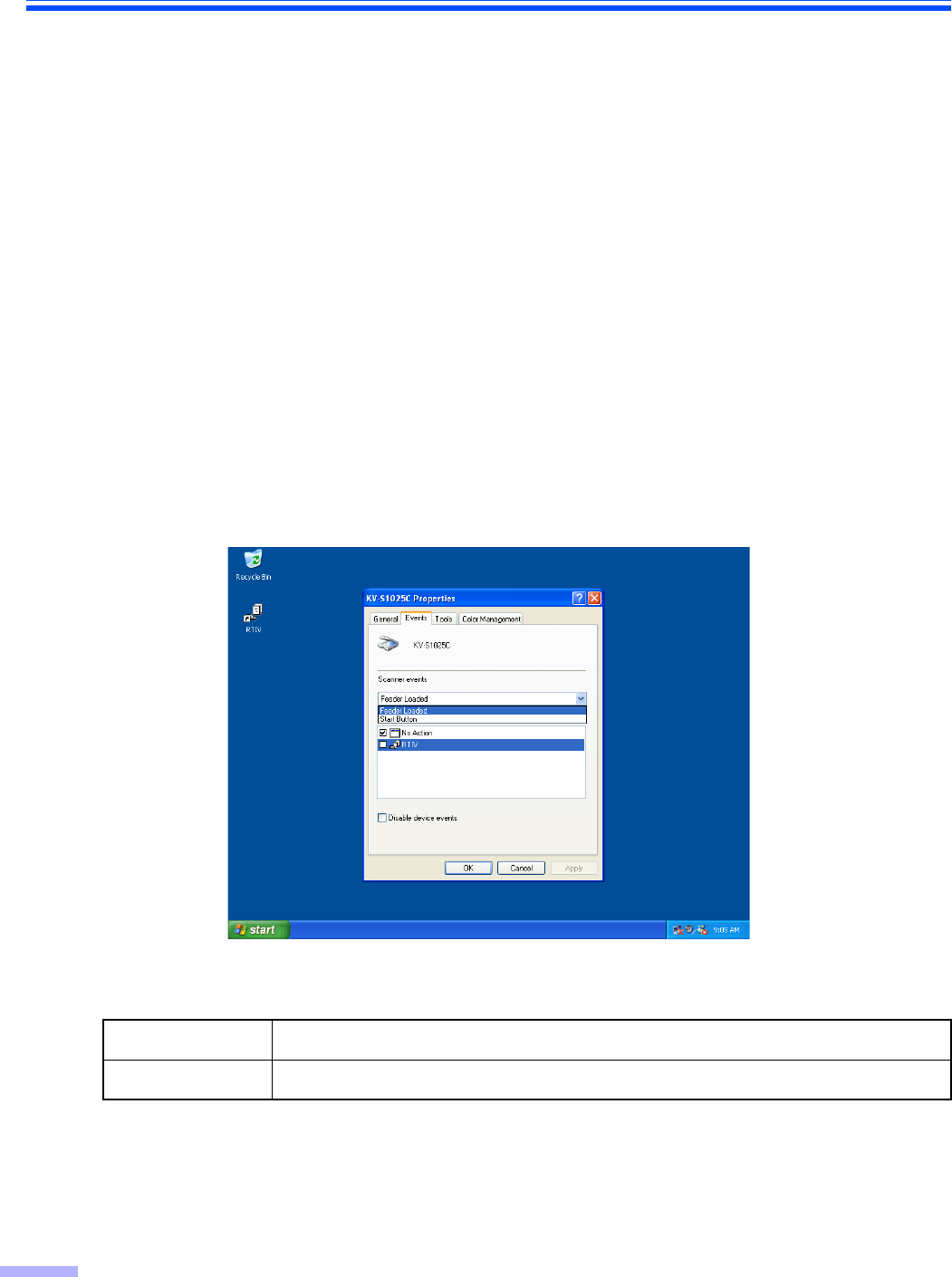
Select an event in the [Scanner events] list. The selected event activates a scanner
application.
The following events can be selected.
* If the unit goes into sleep mode, you must press the Start button twice.
Feeder Loaded An event occurs when placing documents on the feed tray.
Start Button * An event occurs when pressing the Start/Stop button of the scanner.