
Printer/Fax/Scanner/Copier Operating Instructions

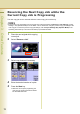
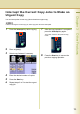

Table Of Contents
- Operating Instructions
- Conventions
- Table of Contents
- Basic Menu Features
- Basic Operation Procedure
- Selecting the Color Mode
- Selecting Original Type and Adjusting the Density
- Registering Quality Preset
- Using Quality Preset
- Quality Adjusting
- Proof Copying
- Confirming/Editing the Selected Copy Features
- Storing a Job in Memory
- Recalling a Preset Job Stored in Memory
- Checking the Waiting to Copy Job
- Completion Notice
- More Menus Features
- 2-Sided Copy Mode
- Basic Operation for the 2-Sided Copy Mode
- Copying 2-Sided Original(s) onto Two Separate Sheets
- Copying Facing Page Original to Two Separate Sheets
- From 1-Sided Originals to 2-Sided Copies Using Saddle Stitch (Booklet)
- Copying Mixed Size Originals from the ADF
- Copying Special Originals (Thin Paper, etc.) from the ADF
- Sort Mode
- Zoom Mode
- Effect Modes
- Insertion Modes
- Overlay Modes
- 2-Sided Copy Mode
- Other Features
- Appendix
92
Chapter 3 Other Features
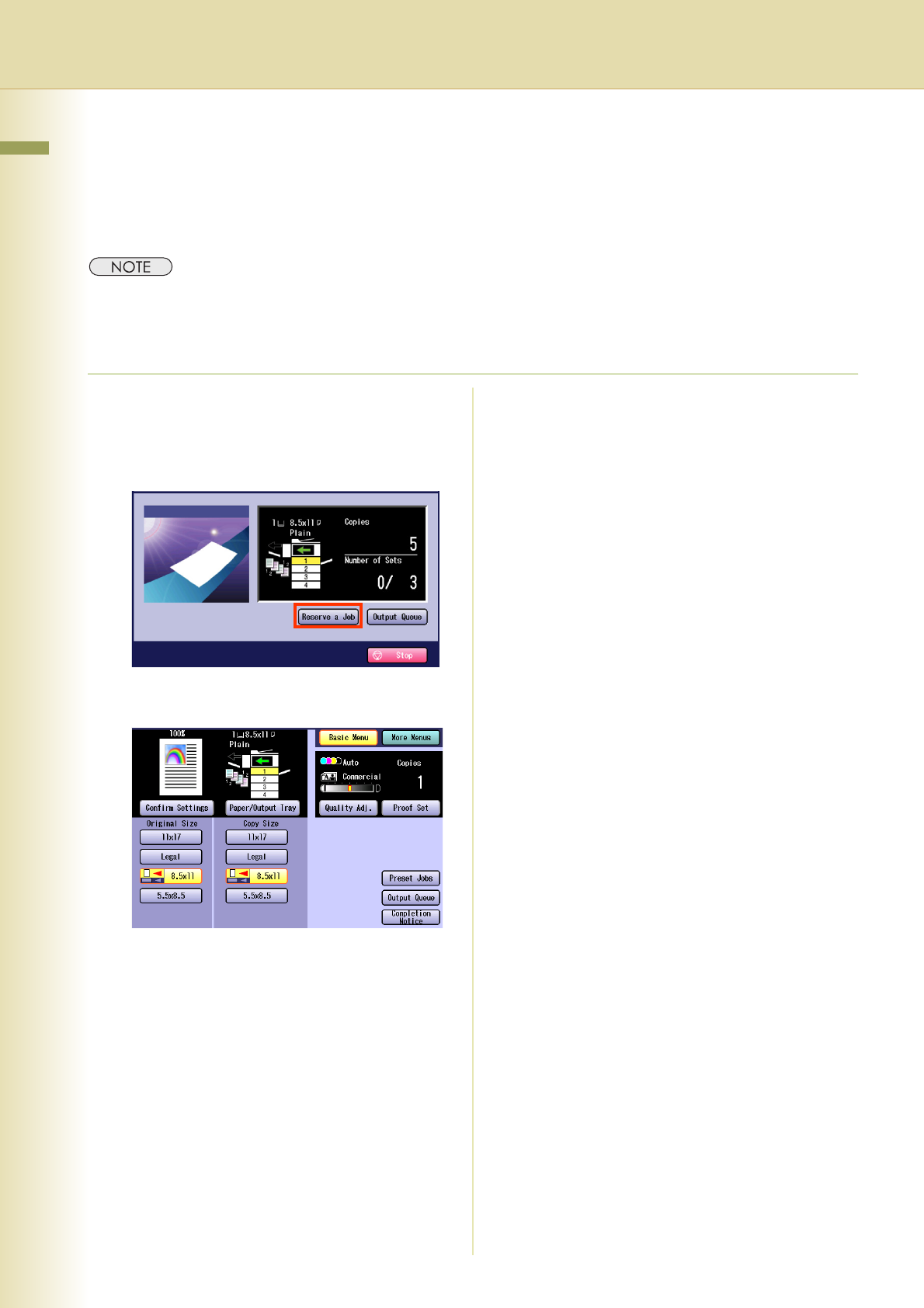
Reserving the Next Copy Job while the
Current Copy Job is Progressing
The next copy job can be reserved while the current copy job is under way.
z The previous copy job settings can be saved if the Function Parameter “41 Reserve a Job Settings” (Copier
Settings > Key Operator Mode) is set to “Save”. This is useful when using the previous copy job settings to the
next copy job. To save the previous copy job settings, refer to Copier Settings (Key Operator Mode) in the
Operating Instructions (For Function Parameters) of provided CD-ROM.
1
Place the next original while copying
current job.
2
Select “Reserve a Job”.
3
Select copy features if necessary.
4
Enter the desired number of copies.
5
Press the Start key.
z While the current job is progressing, the
next copy job will be scanned and stored
into the Hard Disk Drive.