
Printer/Fax/Scanner/Copier Operating Instructions

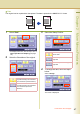
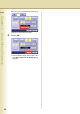

Table Of Contents
- Operating Instructions
- Conventions
- Table of Contents
- Basic Menu Features
- Basic Operation Procedure
- Selecting the Color Mode
- Selecting Original Type and Adjusting the Density
- Registering Quality Preset
- Using Quality Preset
- Quality Adjusting
- Proof Copying
- Confirming/Editing the Selected Copy Features
- Storing a Job in Memory
- Recalling a Preset Job Stored in Memory
- Checking the Waiting to Copy Job
- Completion Notice
- More Menus Features
- 2-Sided Copy Mode
- Basic Operation for the 2-Sided Copy Mode
- Copying 2-Sided Original(s) onto Two Separate Sheets
- Copying Facing Page Original to Two Separate Sheets
- From 1-Sided Originals to 2-Sided Copies Using Saddle Stitch (Booklet)
- Copying Mixed Size Originals from the ADF
- Copying Special Originals (Thin Paper, etc.) from the ADF
- Sort Mode
- Zoom Mode
- Effect Modes
- Insertion Modes
- Overlay Modes
- 2-Sided Copy Mode
- Other Features
- Appendix
65
Chapter 2 More Menus Features
Continued on the next page...
Issue Number
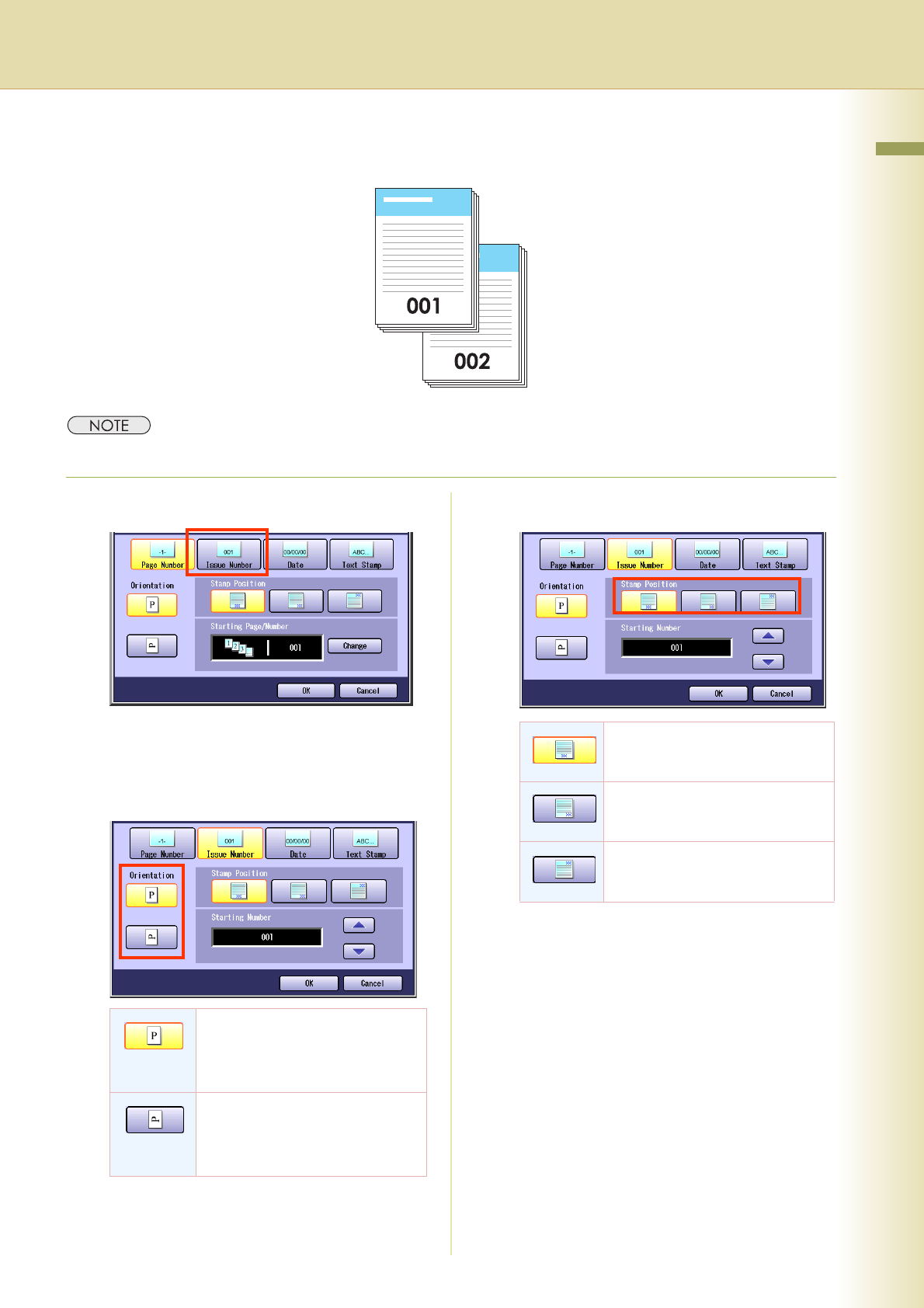
The original can be copied with consecutive numbers from 001 to 999 printed.
z The Issue Numbers can be set from 001 to 999. After 999, the number returns to 001.
1
Select “Issue Number”.
z To display this screen, refer to steps 1 to 4 of
Basic Operation for Stamping (see page
62).
2
Select the Orientation of the original.
3
Select the Stamp Position.
Select the orientation of the
original according to the
orientation of its characters
(vertical direction).
Select the orientation of the
original according to the
orientation of its characters
(horizontal direction).
The issue number is printed on
the bottom at the center.
The issue number is printed on
the bottom right side.
The issue number is printed on
the upper right side.