
Printer/Fax/Scanner/Copier Operating Instructions
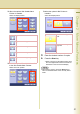
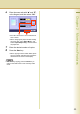
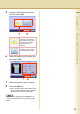
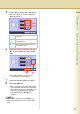
Table Of Contents
- Operating Instructions
- Conventions
- Table of Contents
- Basic Menu Features
- Basic Operation Procedure
- Selecting the Color Mode
- Selecting Original Type and Adjusting the Density
- Registering Quality Preset
- Using Quality Preset
- Quality Adjusting
- Proof Copying
- Confirming/Editing the Selected Copy Features
- Storing a Job in Memory
- Recalling a Preset Job Stored in Memory
- Checking the Waiting to Copy Job
- Completion Notice
- More Menus Features
- 2-Sided Copy Mode
- Basic Operation for the 2-Sided Copy Mode
- Copying 2-Sided Original(s) onto Two Separate Sheets
- Copying Facing Page Original to Two Separate Sheets
- From 1-Sided Originals to 2-Sided Copies Using Saddle Stitch (Booklet)
- Copying Mixed Size Originals from the ADF
- Copying Special Originals (Thin Paper, etc.) from the ADF
- Sort Mode
- Zoom Mode
- Effect Modes
- Insertion Modes
- Overlay Modes
- 2-Sided Copy Mode
- Other Features
- Appendix
60
Chapter 2 More Menus Features
5
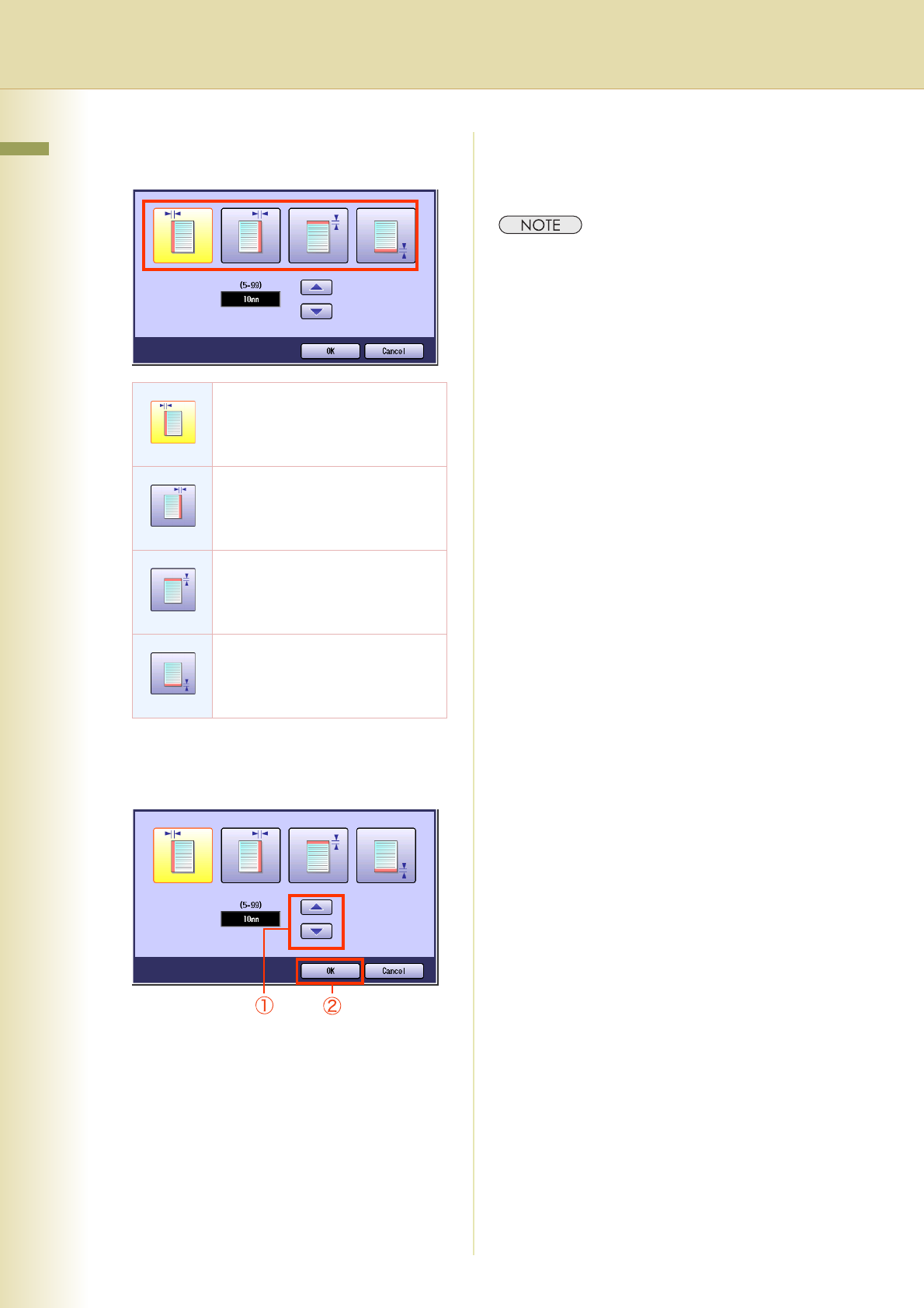
Select the desired position of the
binding margin.
6
Enter the width of the binding margin
with “S” and “T”, or the Keypad, and
then select “OK”.
z The width of the binding margin can be set
in 1 mm increments from 5 mm to 99 mm.
7
Enter the desired number of copies.
8
Press the Start key.
z After finishing copying, press the Reset key to
return to the initial screen of the currently active
mode.
Select to set the binding margin on
the left side of the paper.
Select to set the binding margin on
the right side of the paper.
Select to set the binding margin on
the top side of the paper.
Select to set the binding margin on
the bottom side of the paper.