
Printer/Fax/Scanner/Copier Operating Instructions
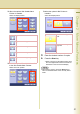
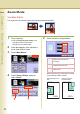
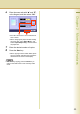
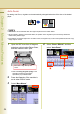
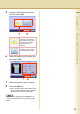
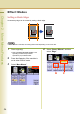
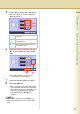
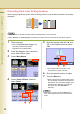
Table Of Contents
- Operating Instructions
- Conventions
- Table of Contents
- Basic Menu Features
- Basic Operation Procedure
- Selecting the Color Mode
- Selecting Original Type and Adjusting the Density
- Registering Quality Preset
- Using Quality Preset
- Quality Adjusting
- Proof Copying
- Confirming/Editing the Selected Copy Features
- Storing a Job in Memory
- Recalling a Preset Job Stored in Memory
- Checking the Waiting to Copy Job
- Completion Notice
- More Menus Features
- 2-Sided Copy Mode
- Basic Operation for the 2-Sided Copy Mode
- Copying 2-Sided Original(s) onto Two Separate Sheets
- Copying Facing Page Original to Two Separate Sheets
- From 1-Sided Originals to 2-Sided Copies Using Saddle Stitch (Booklet)
- Copying Mixed Size Originals from the ADF
- Copying Special Originals (Thin Paper, etc.) from the ADF
- Sort Mode
- Zoom Mode
- Effect Modes
- Insertion Modes
- Overlay Modes
- 2-Sided Copy Mode
- Other Features
- Appendix
59
Chapter 2 More Menus Features
Continued on the next page...
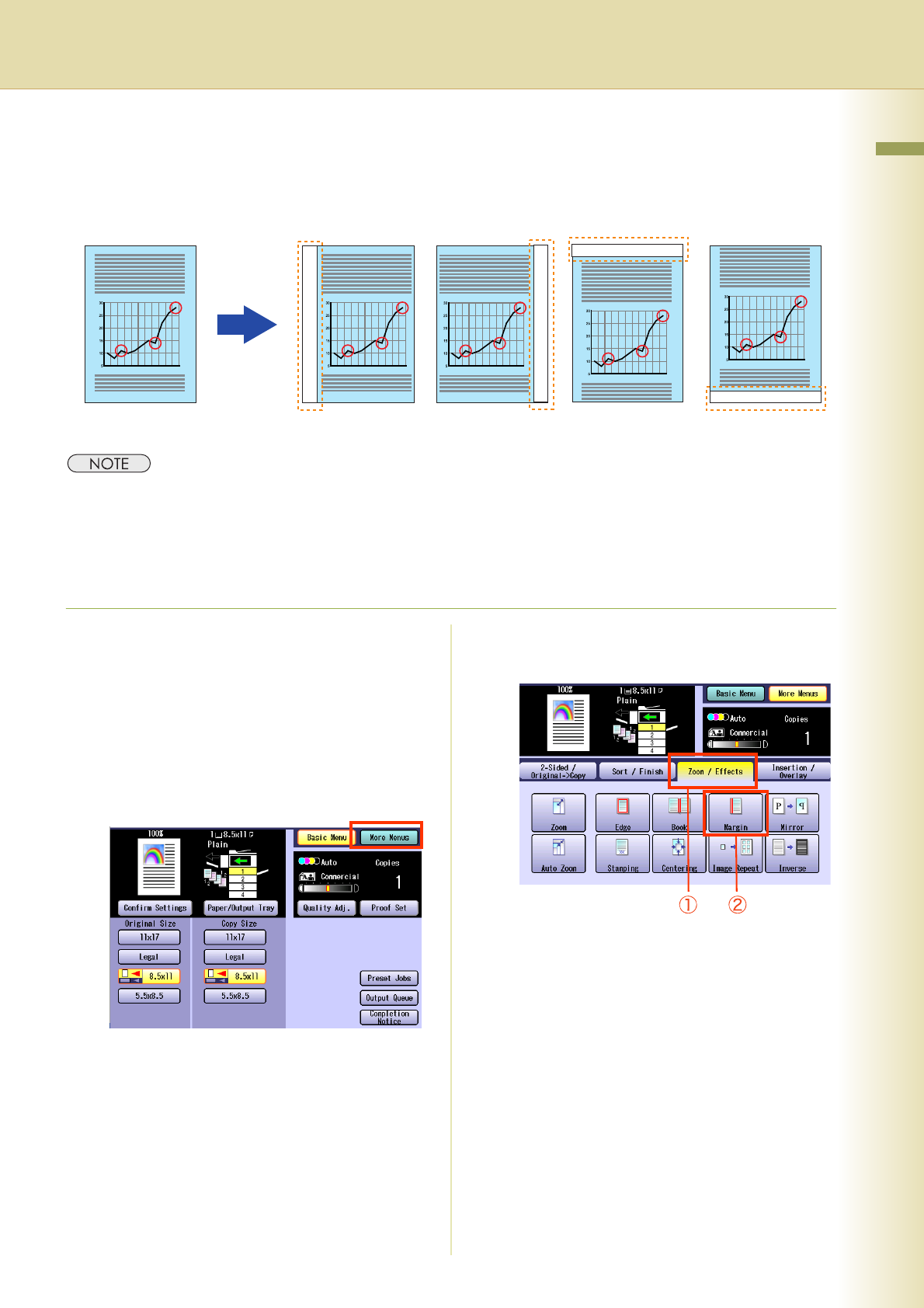
Shifting Image to Right, Left, Up, or Down
The margin can be added on any 4 sides of the image with the image shifted to the right, left, up, or
down accordingly.
z If a part of the copied image is missing, change the Margin Reduction setting to “Yes”. Refer to Copier
Settings in the Operating Instructions (For Function Parameters) of provided CD-ROM.
z When “Overlay” or “Form Overlay” is selected, the binding margin is also set for the overlay original.
z If this setting is made when the 2-Sided copy is selected, the print position comes out different between the
front and back sides of copy.
1
Place original(s).
z Refer to Placing Originals (Copy) in the
Operating Instructions (For Basic
Operations) of provided booklet.
2
Press the Copy key if the machine is
set to other function mode.
3
Select “More Menus”.
4
Select “Zoom / Effects”, and then
select “Margin”.
Margin Margin Margin
Margin