
Printer/Fax/Scanner/Copier Operating Instructions
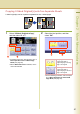
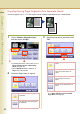
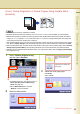
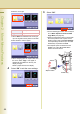
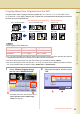
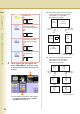
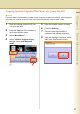
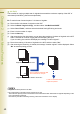

Table Of Contents
- Operating Instructions
- Conventions
- Table of Contents
- Basic Menu Features
- Basic Operation Procedure
- Selecting the Color Mode
- Selecting Original Type and Adjusting the Density
- Registering Quality Preset
- Using Quality Preset
- Quality Adjusting
- Proof Copying
- Confirming/Editing the Selected Copy Features
- Storing a Job in Memory
- Recalling a Preset Job Stored in Memory
- Checking the Waiting to Copy Job
- Completion Notice
- More Menus Features
- 2-Sided Copy Mode
- Basic Operation for the 2-Sided Copy Mode
- Copying 2-Sided Original(s) onto Two Separate Sheets
- Copying Facing Page Original to Two Separate Sheets
- From 1-Sided Originals to 2-Sided Copies Using Saddle Stitch (Booklet)
- Copying Mixed Size Originals from the ADF
- Copying Special Originals (Thin Paper, etc.) from the ADF
- Sort Mode
- Zoom Mode
- Effect Modes
- Insertion Modes
- Overlay Modes
- 2-Sided Copy Mode
- Other Features
- Appendix
43
Chapter 2 More Menus Features
Continued on the next page...
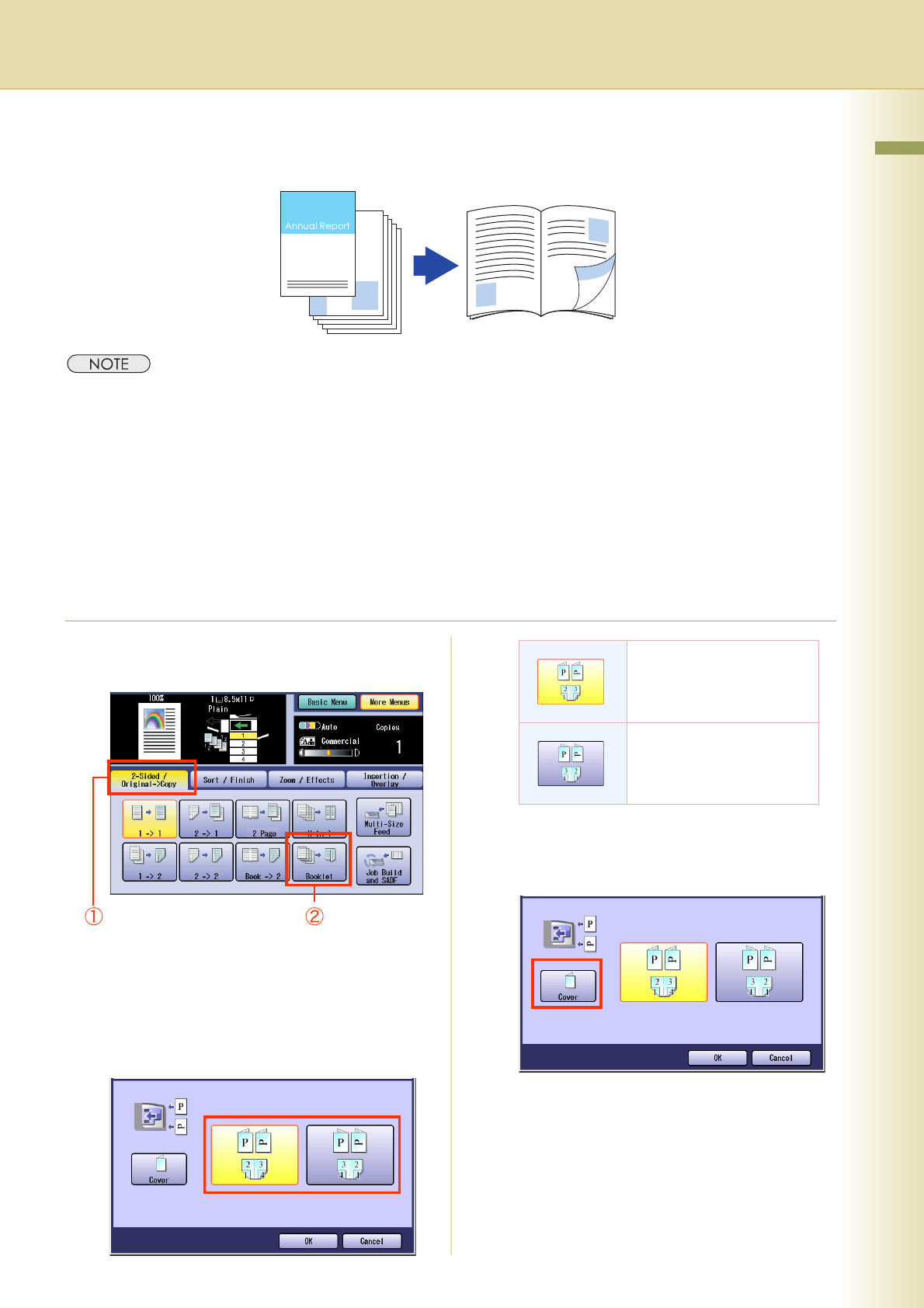
From 1-Sided Originals to 2-Sided Copies Using Saddle Stitch
(Booklet)
z 2-sided original cannot be copied into a booklet.
z Originals should be placed on the ADF. (5.5" x 8.5" or 8.5" x 11" size is only available, up to 60 originals)
z Saddle stitch binding is possible only when the optional 1Bin Saddle-Stitch Finisher (DA-FS405) is installed.
Ledger (11" x 17"), Legal (8.5" x 14"), and Letter-R (8.5" x 11") are the only applicable paper sizes (legal size
can be selected only when printing from computer).
z The standard setting for the copy size is the reduced size, however, the setting can be changed to the original
size. Refer to Copier Settings in the Operating Instructions (For Function Parameters) of provided CD-ROM.
z
When the fold position does not match with the center position of the copies, set the binding margin. Refer to
General
Settings
(Key Operator Mode)
in the Operating Instructions (For Function Parameters) of provided CD-ROM.
z Stamping can be combined with the Booklet function. For copying with stamp, refer to Copying with Stamping
(see pages 62 to 70).
1
Select “2-Sided / Original->Copy”,
and then select “Booklet”.
z To display this screen, refer to steps 1 to 3 of
Basic Operation for the 2-Sided Copy
Mode (see page 40).
z When “Multi-Size Feed” is selected,
“Booklet” cannot be selected.
2
Select the bind position.
3
Select the cover page type if
necessary.
Select “Cover”.
Select when binding the left
side or the top side of the
page.
Select when binding the
right side or the bottom side
of the page.