
Printer/Fax/Scanner/Copier Operating Instructions

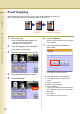
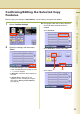
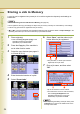
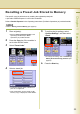
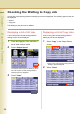
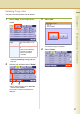
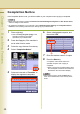

Table Of Contents
- Operating Instructions
- Conventions
- Table of Contents
- Basic Menu Features
- Basic Operation Procedure
- Selecting the Color Mode
- Selecting Original Type and Adjusting the Density
- Registering Quality Preset
- Using Quality Preset
- Quality Adjusting
- Proof Copying
- Confirming/Editing the Selected Copy Features
- Storing a Job in Memory
- Recalling a Preset Job Stored in Memory
- Checking the Waiting to Copy Job
- Completion Notice
- More Menus Features
- 2-Sided Copy Mode
- Basic Operation for the 2-Sided Copy Mode
- Copying 2-Sided Original(s) onto Two Separate Sheets
- Copying Facing Page Original to Two Separate Sheets
- From 1-Sided Originals to 2-Sided Copies Using Saddle Stitch (Booklet)
- Copying Mixed Size Originals from the ADF
- Copying Special Originals (Thin Paper, etc.) from the ADF
- Sort Mode
- Zoom Mode
- Effect Modes
- Insertion Modes
- Overlay Modes
- 2-Sided Copy Mode
- Other Features
- Appendix
38
Chapter 1 Basic Menu Features
Completion Notice
If the Completion Notice is set, you will be notified on your computer when copying is completed.
z Before using this function, install the Panasonic Document Management System and PCL Printer Driver,
and then configure each software.
z To register the IP Address of your computer, refer to Network Scanner Settings and Completion Notice
Function in the Operating Instructions (For Setting Up) of provided booklet.
1
Place original(s).
z Refer to Placing Originals (Copy) in the
Operating Instructions (For Basic
Operations) of provided booklet.
2
Press the Copy key if the machine is
set to other function mode.
3
Select the copy features if necessary.
4
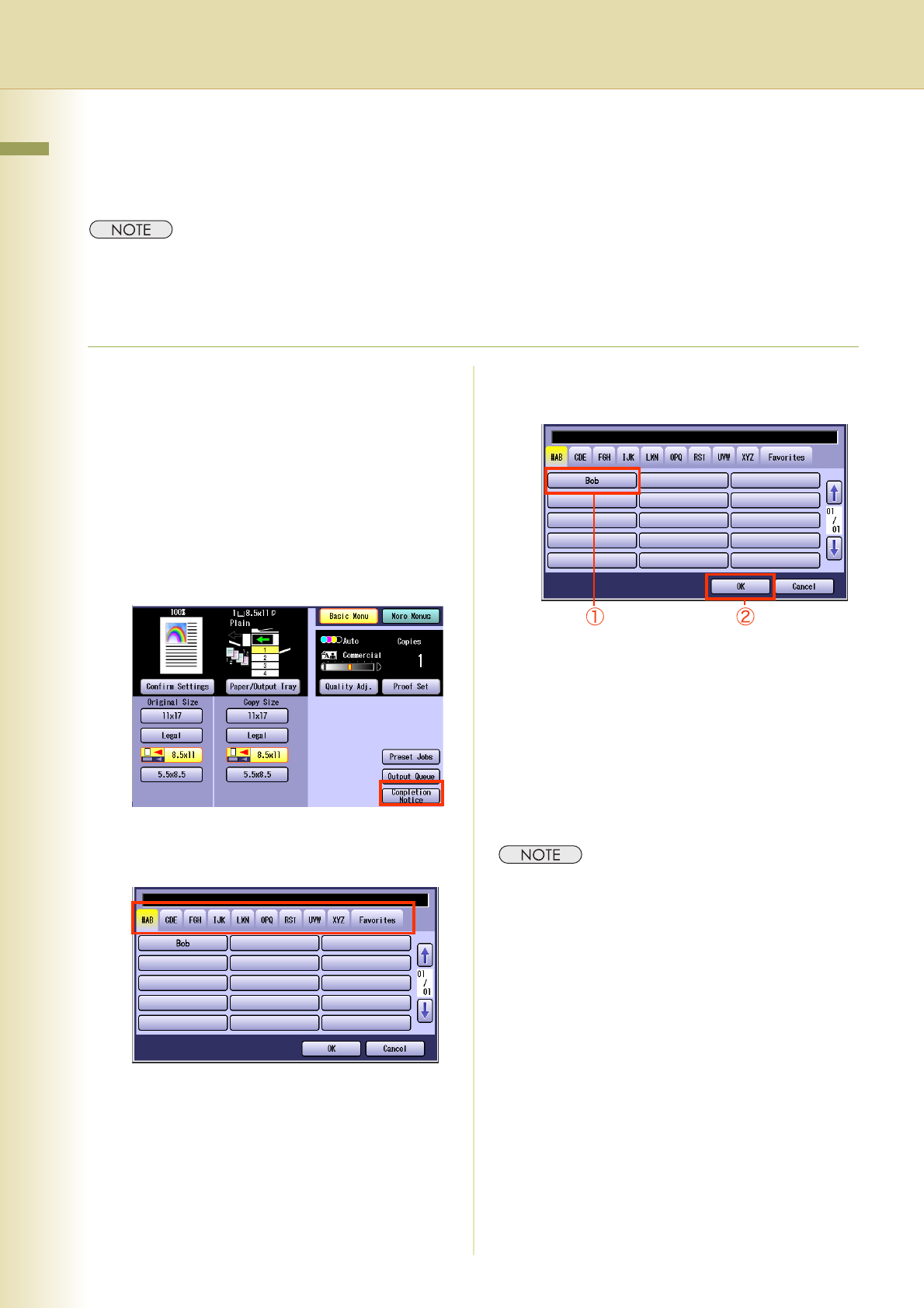
Select “Completion Notice”.
5
Select an index tab or “Favorites” to
display the registered computers.
6
Select a designated computer, and
then select “OK”.
7
Enter the desired number of copies.
8
Press the Start key.
A completion notice will be sent to the
specified computer when copying is
completed.
z When copying from the Platen Glass, place
the next original, and follow the instructions
described on the Touch Panel Display.
z After finishing copying, press the Reset key to
return to the initial screen of the currently active
mode.