
Printer/Fax/Scanner/Copier Operating Instructions

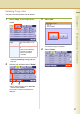

Table Of Contents
- Operating Instructions
- Conventions
- Table of Contents
- Basic Menu Features
- Basic Operation Procedure
- Selecting the Color Mode
- Selecting Original Type and Adjusting the Density
- Registering Quality Preset
- Using Quality Preset
- Quality Adjusting
- Proof Copying
- Confirming/Editing the Selected Copy Features
- Storing a Job in Memory
- Recalling a Preset Job Stored in Memory
- Checking the Waiting to Copy Job
- Completion Notice
- More Menus Features
- 2-Sided Copy Mode
- Basic Operation for the 2-Sided Copy Mode
- Copying 2-Sided Original(s) onto Two Separate Sheets
- Copying Facing Page Original to Two Separate Sheets
- From 1-Sided Originals to 2-Sided Copies Using Saddle Stitch (Booklet)
- Copying Mixed Size Originals from the ADF
- Copying Special Originals (Thin Paper, etc.) from the ADF
- Sort Mode
- Zoom Mode
- Effect Modes
- Insertion Modes
- Overlay Modes
- 2-Sided Copy Mode
- Other Features
- Appendix
36
Chapter 1 Basic Menu Features
Checking the Waiting to Copy Job
A list of jobs currently being printed or waiting to print can be displayed. The following types of jobs can
be displayed.
• All jobs
• Copy jobs
The Waiting to print jobs can be deleted.
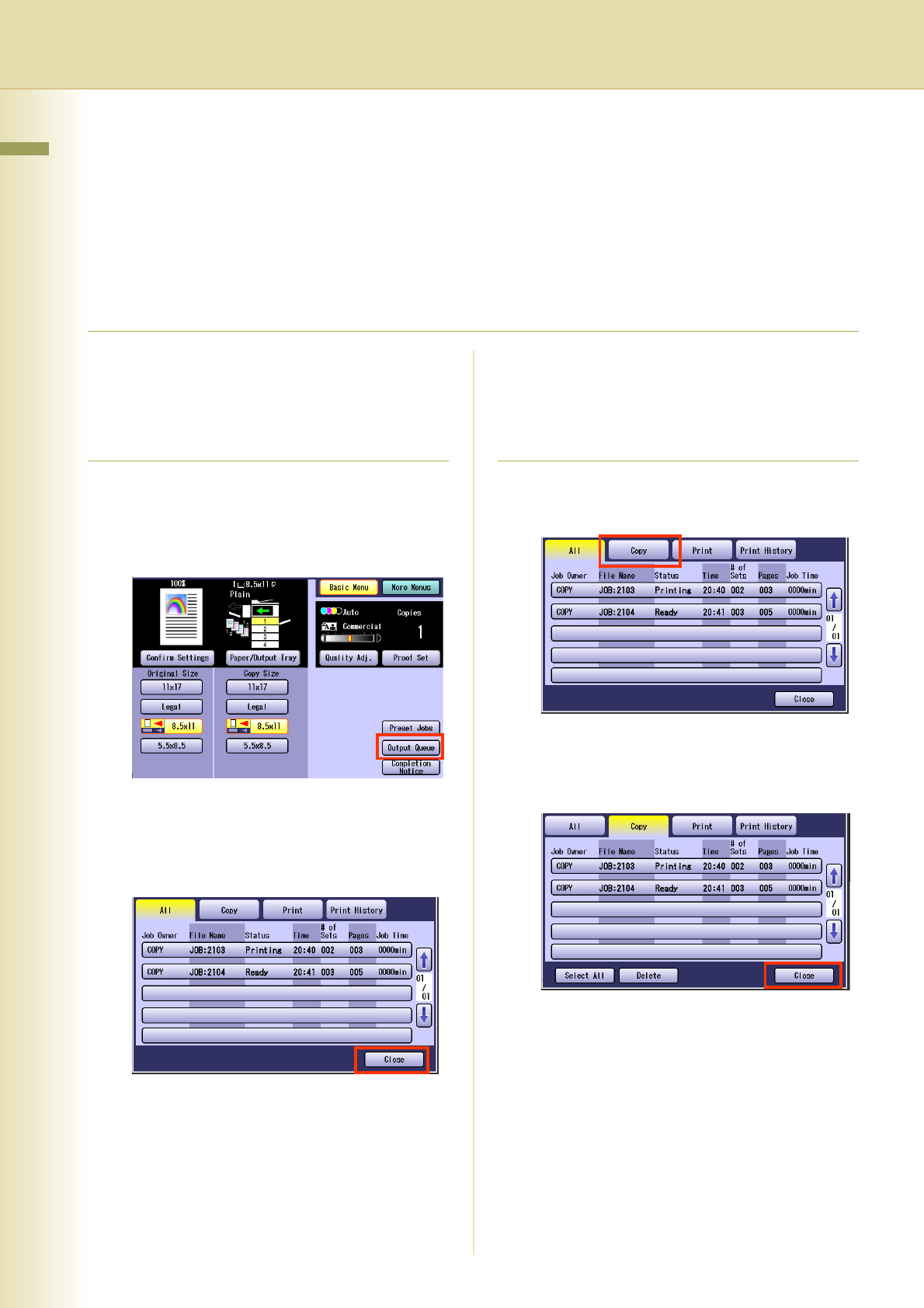
Displaying a List of All Jobs
A list of all the jobs currently being printed or
waiting to print can be displayed.
1
Press the Copy key if the machine is
set to other function mode.
2
Select “Output Queue”.
The Output Queue screen is displayed, and a
list of all the jobs currently being printed or
waiting to print are displayed.
3
Select “Close”.
Displaying a List of Copy Jobs
A list of Copy jobs currently being printed or
waiting to print can be displayed.
1
Select “Copy” in the Output Queue
screen.
z A list of Copy jobs currently being printed or
waiting to print is displayed.
2
Select “Close”.