
Printer/Fax/Scanner/Copier Operating Instructions
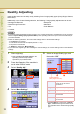
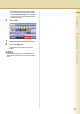
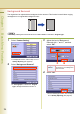

Table Of Contents
- Operating Instructions
- Conventions
- Table of Contents
- Basic Menu Features
- Basic Operation Procedure
- Selecting the Color Mode
- Selecting Original Type and Adjusting the Density
- Registering Quality Preset
- Using Quality Preset
- Quality Adjusting
- Proof Copying
- Confirming/Editing the Selected Copy Features
- Storing a Job in Memory
- Recalling a Preset Job Stored in Memory
- Checking the Waiting to Copy Job
- Completion Notice
- More Menus Features
- 2-Sided Copy Mode
- Basic Operation for the 2-Sided Copy Mode
- Copying 2-Sided Original(s) onto Two Separate Sheets
- Copying Facing Page Original to Two Separate Sheets
- From 1-Sided Originals to 2-Sided Copies Using Saddle Stitch (Booklet)
- Copying Mixed Size Originals from the ADF
- Copying Special Originals (Thin Paper, etc.) from the ADF
- Sort Mode
- Zoom Mode
- Effect Modes
- Insertion Modes
- Overlay Modes
- 2-Sided Copy Mode
- Other Features
- Appendix
30
Chapter 1 Basic Menu Features
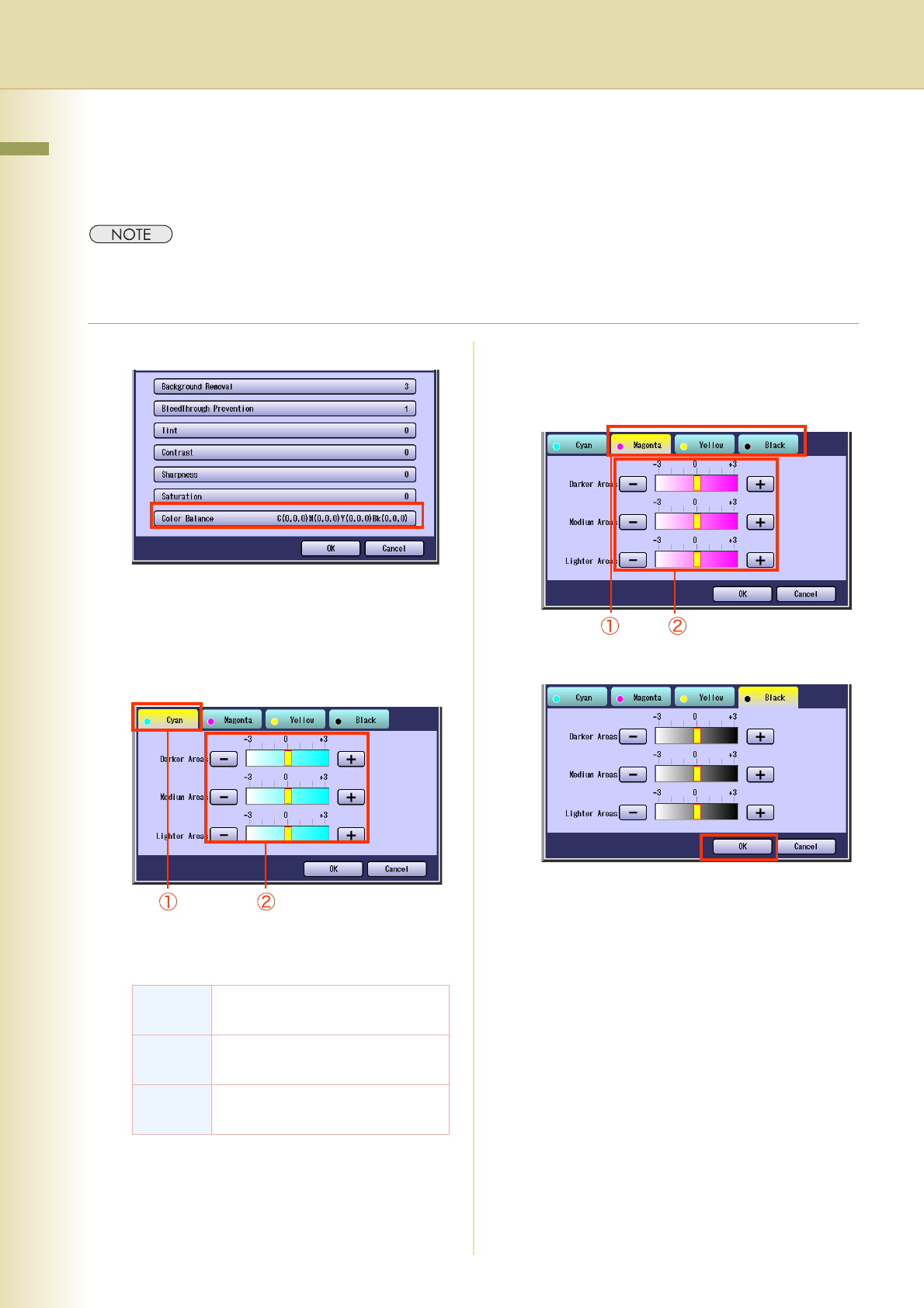
Color Balance
The original can be copied with the adjusted density level (Darker, Medium, and Lighter) of Yellow,
Magenta, Cyan, and Black.
z The density of each color can be fine tuned for each of the three density levels.
This function is useful for the fine adjustment of color photos. Unlike image editing software, this function
cannot greatly change the color tone since the adjustable range at each density level is very narrow.
1
Select “Color Balance”.
z To display this screen, refer to step 1 of
Background Removal (see page 24).
2
Select “Cyan”, and then adjust Darker
Areas, Medium Areas, and Lighter
Areas with “-” or “+”.
z The density range from the darkest level
(100%) to the lightest level (0%) is equally
divided into three range areas.
3
Select remaining colors, and then
adjust the Color Balance as shown in
step 2.
4
Select “OK”.
z The screen will return to step 1.
Select “OK”, and then proceed to steps 6 to
8 of Quality Adjusting (see page 23).
Darker
Areas
Darkest area
Medium
Areas
Area between the darkest and
lightest areas
Lighter
Areas
Lightest area