
Printer/Fax/Scanner/Copier Operating Instructions


Table Of Contents
- Operating Instructions
- Conventions
- Table of Contents
- Basic Menu Features
- Basic Operation Procedure
- Selecting the Color Mode
- Selecting Original Type and Adjusting the Density
- Registering Quality Preset
- Using Quality Preset
- Quality Adjusting
- Proof Copying
- Confirming/Editing the Selected Copy Features
- Storing a Job in Memory
- Recalling a Preset Job Stored in Memory
- Checking the Waiting to Copy Job
- Completion Notice
- More Menus Features
- 2-Sided Copy Mode
- Basic Operation for the 2-Sided Copy Mode
- Copying 2-Sided Original(s) onto Two Separate Sheets
- Copying Facing Page Original to Two Separate Sheets
- From 1-Sided Originals to 2-Sided Copies Using Saddle Stitch (Booklet)
- Copying Mixed Size Originals from the ADF
- Copying Special Originals (Thin Paper, etc.) from the ADF
- Sort Mode
- Zoom Mode
- Effect Modes
- Insertion Modes
- Overlay Modes
- 2-Sided Copy Mode
- Other Features
- Appendix
25
Chapter 1 Basic Menu Features
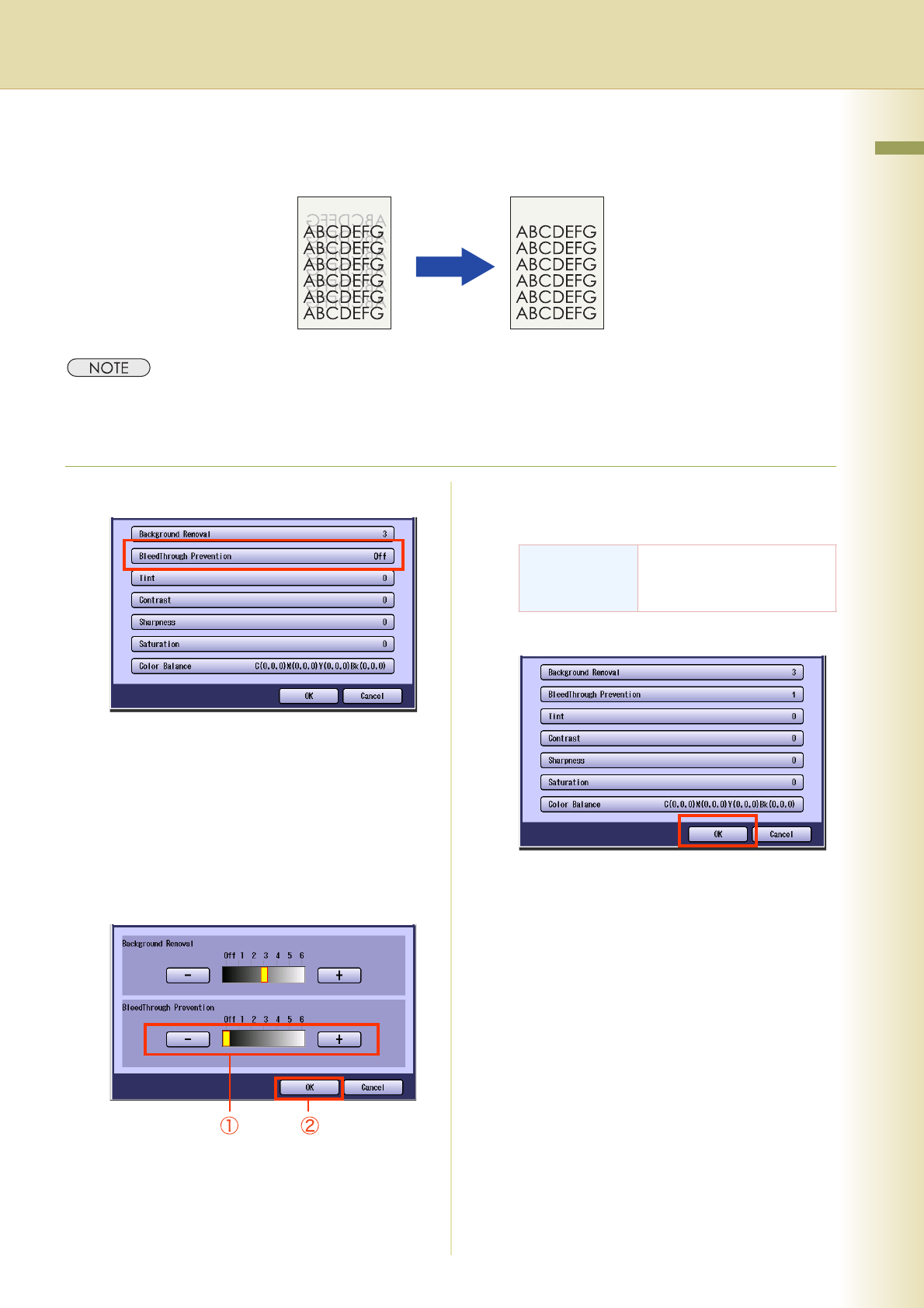
BleedThrough Prevention
Thin sheets of original can be copied without bleeding through.
z The setting of BleedThrough Prevention becomes invalid if “Photo” is selected in “Original Type”.
z When setting the Tint adjustment to More Blue or More Red, the copies may come out with bleed through
contamination.
1
Select “BleedThrough Prevention”.
z To display this screen, refer to step 1 of
Background Removal (see page 24).
z If “TracingPaper” is selected in “Original
Type”, BleedThrough Prevention of each
image quality type is set to 3.
2
Adjust the level of BleedThrough
Prevention with “-” and “+”, and then
select “OK”.
z If you set the Background Removal to “Off”,
the BleedThrough Prevention will not be
adjustable.
3
Select “OK”.
z For the following procedure, refer to steps 6
to 8 of Quality Adjusting (see page 23).
BleedThrough
Prevention
There are 6 levels. The
higher the level, the higher
the prevention effect.