
Digital Colour Imaging Systems Operating Instructions
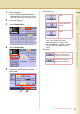
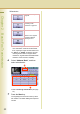


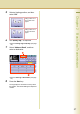
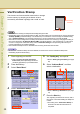
Table Of Contents
- Operating Instructions
- Conventions
- Table of Contents
- Getting To Know Your Machine
- Basic Fax Transmission
- Fax Transmission Procedure
- Entering a Destination
- Transmission with Destination Monitoring
- Talking to the Remote Party Before Transmission
- Setting Original Quality
- Setting the Original Size
- Transmitting 2-Sided Originals
- Verification Stamp
- Transmitting a Document Stored in Memory
- Job Build and SADF
- Direct Transmission
- Verifying Communication Status
- Rotated Transmission
- Batch Transmission
- Getting an Outside Line Using PIN Code Access
- Using Program Keys
- Cancelling a Communication
- Dial Prefix
- Convenient Fax Features
- Fax Reception
- Internet Fax
- What is Internet Fax?
- What Internet Fax Can Do
- Tips for Internet Fax
- Preparing to Use Internet Fax
- Sending an Email Procedure
- Entering an Email Address
- Using Cc, Bcc and From
- Setting a File Type and a File Name
- Emailing an A3-Sized Document
- Setting Message Delivery Notice (MDN)
- When Email Transmission Fails
- Using a Completion Notice
- Receiving an Email
- Receiving an Email on a Computer
- Inbound Routing
- Using the Relay Feature
- Relayed Transmission from Internet Fax
- Relayed Transmission from PC
- Result of Relayed Transmission
- Useful Terms to Remember
- Handling Communication Reservation Files
- Program Destinations/Program Keys
- Reading Reports/Lists
- Solving Problems
- Appendix
38
Chapter 2 Basic Fax Transmission
Verification Stamp
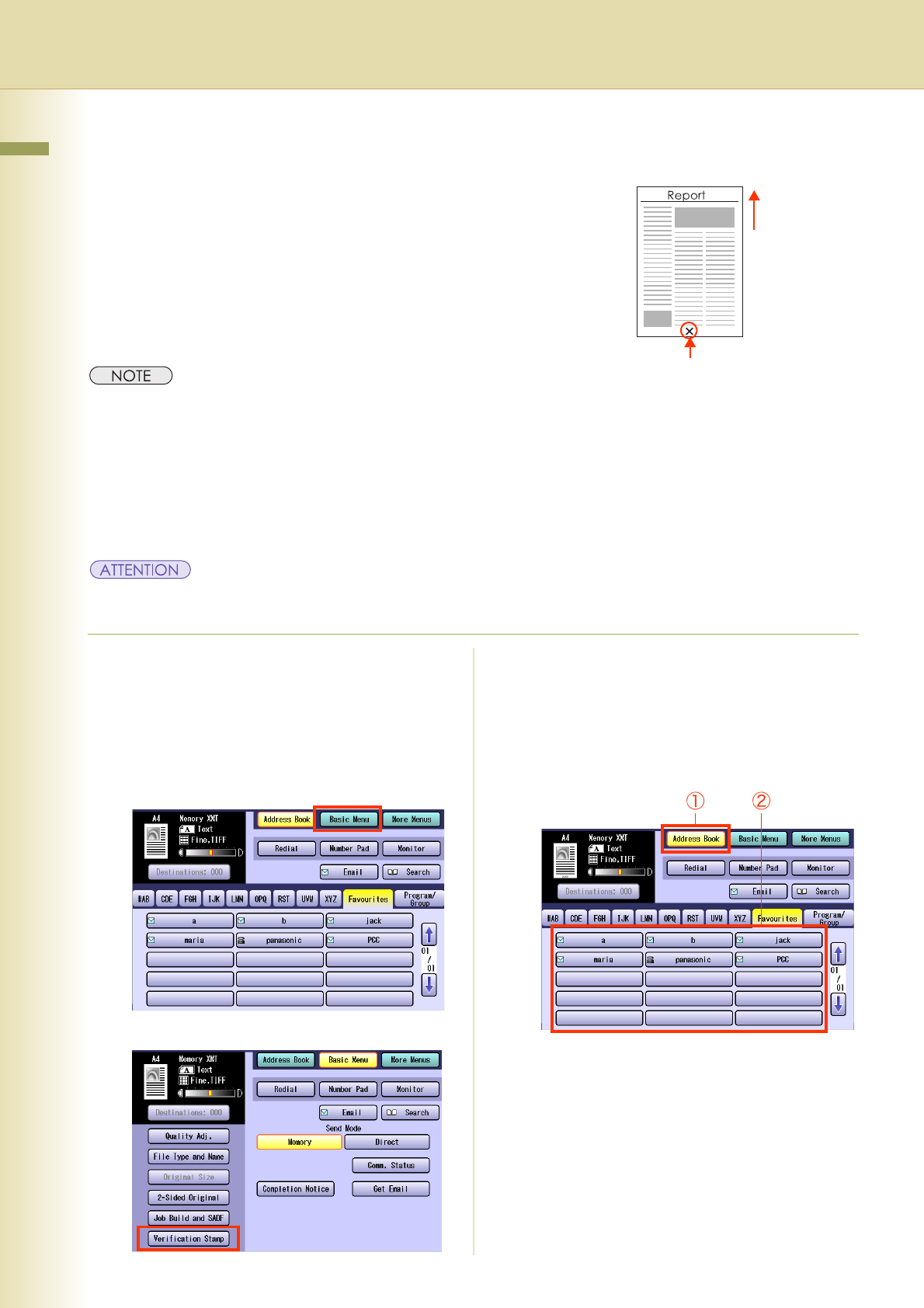
This function confirms successful transmission or storage
into the memory by stamping at the bottom of each
successfully transmitted original(s) with a small “x” mark.
z
The scanned document(s) are stamped after feeding through the ADF.
z
The standard setting of the Verification Stamp is “
Off
”. The stamp setting can be changed with the Function Parameter
“
04 Stamp (HOME)
” (Fax/Email Settings > Fax Parameters). For instructions on how to change the standard setting,
refer to
Fax/Email Settings
in the Operating Instructions (For Function Parameters) of provided CD-ROM.
z The machine can be configured not to stamp the documents stored in the memory by changing the setting of
the Function Parameter
“28 Stamp at Memory XMT” (Fax/Email Settings > Fax Parameters). For instructions
on how to configure the verification stamp, refer to Fax/Email Settings in the Operating Instructions (For
Function Parameters) of provided CD-ROM.
z The Verification Stamp function is available when scanning documents with the ADF.
z Because the verification stamp cannot be deleted, be careful not to use the verification stamp when
transmitting important document(s).
1
Place original(s) on the ADF.
z Refer to Placing Originals (Facsimile/
Internet Fax) in the Operating Instructions
(For Basic Operations) of provided booklet.
2
Press the Fax key.
3
Select “Basic Menu”.
4
Select “Verification Stamp”.
5
Set “Quality Adj.” as required.
z Refer to Setting Original Quality (see page
30).
6
Select “Address Book”, and then
select a destination.
z Refer to Entering a Destination (see page
16).
7
Press the Start key.
The original(s) are stored into memory with a
file number. Then starts dialling the telephone
number.
z The setting of the “Verification Stamp” is
returned to Off after the transmission is
completed.
Verification Stamp
Ex: Scanning
Direction