
Digital Colour Imaging Systems Operating Instructions
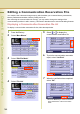
Table Of Contents
- Operating Instructions
- Conventions
- Table of Contents
- Getting To Know Your Machine
- Basic Fax Transmission
- Fax Transmission Procedure
- Entering a Destination
- Transmission with Destination Monitoring
- Talking to the Remote Party Before Transmission
- Setting Original Quality
- Setting the Original Size
- Transmitting 2-Sided Originals
- Verification Stamp
- Transmitting a Document Stored in Memory
- Job Build and SADF
- Direct Transmission
- Verifying Communication Status
- Rotated Transmission
- Batch Transmission
- Getting an Outside Line Using PIN Code Access
- Using Program Keys
- Cancelling a Communication
- Dial Prefix
- Convenient Fax Features
- Fax Reception
- Internet Fax
- What is Internet Fax?
- What Internet Fax Can Do
- Tips for Internet Fax
- Preparing to Use Internet Fax
- Sending an Email Procedure
- Entering an Email Address
- Using Cc, Bcc and From
- Setting a File Type and a File Name
- Emailing an A3-Sized Document
- Setting Message Delivery Notice (MDN)
- When Email Transmission Fails
- Using a Completion Notice
- Receiving an Email
- Receiving an Email on a Computer
- Inbound Routing
- Using the Relay Feature
- Relayed Transmission from Internet Fax
- Relayed Transmission from PC
- Result of Relayed Transmission
- Useful Terms to Remember
- Handling Communication Reservation Files
- Program Destinations/Program Keys
- Reading Reports/Lists
- Solving Problems
- Appendix
164
Chapter 6 Handling Communication Reservation Files
Chapter 6
Handling Communication Reservation Files
Editing a Communication Reservation File
Your machine has a document image memory which enables you to reserve Memory transmission,
Memory Deferred transmission, Memory Polling and so on.
After reserving the communications in memory, you may need to change the settings of the
communication(s) while it is still in memory. This section describes how to use the file editing features.
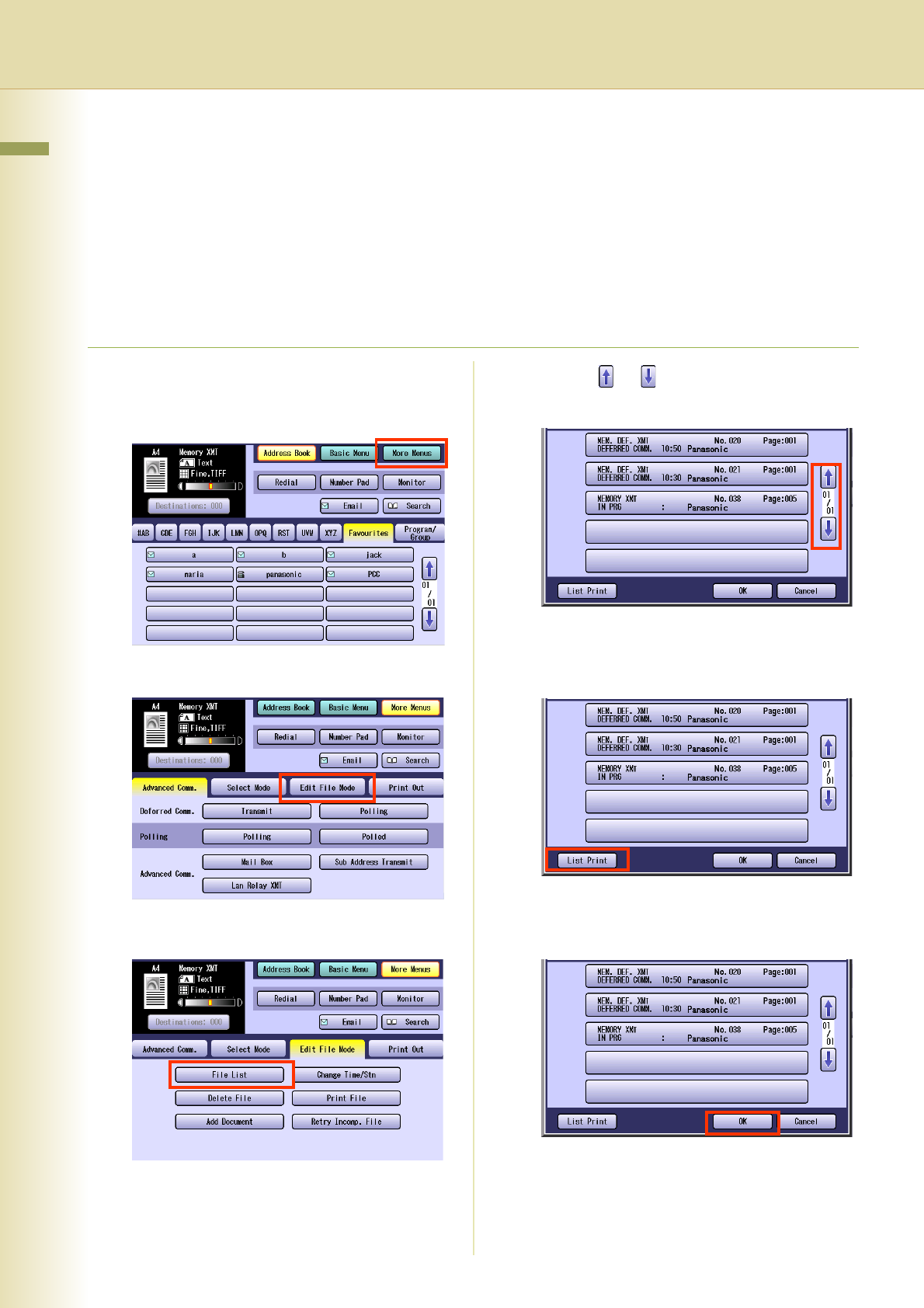
Displaying a Communication Reservation File List
To display a communication reservation file list, follow the steps below.
1
Press the Fax key.
2
Select “More Menus”.
3
Select “Edit File Mode”.
4
Select “File List”.
5
Select or to display the
communication reservation file.
6
To print the communication reservation
report,
select “List Print
”.
7
When the verification has completed,
select “OK”.
z Press the Reset key to return the machine
to the initial screen of the current active
mode.