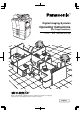
Digital Imaging Systems Operating Instructions (For Copy Functions) Model No. DP-6530/8130 Before operating this equipment, please read these instructions completely and keep these operating instructions for future reference.
Use of Recycled Paper in the Machine As with all machines and reproduction devices, the use of the appropriate paper ensures the best image quality of the copies and the machine’s performance and reliability. Because of the extreme variances in composition and quality of paper from various manufacturers, consumers should ensure the recycled paper they use is suitable for the machine.
EPA ENERGY STAR ® (MFD) The United States Environmental Protection Agency (EPA) has introduced a voluntary program, the ENERGY STAR Program, to encourage the widespread and voluntary use of energy-efficient technologies that enhance the workplace, improve product performance and prevent pollution. As an ENERGY STAR Partner, the Panasonic has determined that this machine meets the ENERGY STAR guidelines for energy efficiency.
PREFACE 1 2 3 4 5 6 7 Thank you for purchasing the digital imaging system DP-6530/8130. This Operating Instructions describes the following: • how to use the digital Digital Imaging System • how to inspect and carry out maintenance on the digital Digital Imaging System • how to remedy mechanical and copying problems Before using the Digital Imaging System, thoroughly read and understand this Operating Instructions.
PREFACE (Cont.) Features of the DP-6530/8130 The DP-6530/8130 is a digital imaging system which is high-speed, compact and high-durability. The DP-6530/8130 can read the image in the memory temporarily after scanning, so you can operate sorting/ grouping, etc. as well as processing/editing quietly, quickly and easily. And the combination of various finishing function such as thick paper and tab paper, etc. makes finishing easier as you request.
TABLE OF CONTENTS 1 2 3 4 5 6 7 8 Energy Star .................................................................................................................................. PREFACE ..................................................................................................................................... Features of the DP-6530/8130 .................................................................................................... TABLE OF CONTENTS ...........................................
TABLE OF CONTENTS (Cont.) 4. USING THE EDITING FUNCTIONS ............................................................................................... 4-1 1. IMAGE SHIFT ............................................................................................................................ 4-2 2. EDGE ERASE ........................................................................................................................... 4-4 3. DUAL-PAGE .......................................................
1 2 3 4 5 6 7 8 9 10 11 12 6 7. WHEN THE GRAPHIC SYMBOLS FLASH ON THE TOUCH PANEL ........................................... 7-1 1. DESCRIPTION OF THE FLASHING GRAPHIC SYMBOLS ...................................................... 7-2 2. ADD PAPER SYMBOL .............................................................................................................. 7-3 Adding Paper to the Drawers ...................................................................................................
DISCLAIMER NOTICE The following notice sets out the exclusions and limitations of liability of Panasonic (including its employees, agents and sub-contractors) to any purchaser or user ("User") of the DP-6530/8130, including its accessories, options and bundled software ("Product") 1 1. The exclusions and limitations of liability referred to in this notice shall be effective to the fullest extent permissible at law.
PRECAUTIONS 1. Installation 1 2 1 2 7 To obtain the best possible results, this machine should be used in conjunction with a dedicated AC power line with the following ratings. Notes: 1. The use of other appliances or other equipment on the same line as this machine may adversely affect performance and copy quality. 2. Be sure to use a 3-conductor, grounded wall outlet. 3. In areas, except USA and Canada, where a 2-pin plug is used, the machine must be grounded for safety.
PRECAUTIONS (Cont.) 2. General Precautions 1 Handle and use the machine gently and carefully. 2 Be sure to turn OFF the power switch (unless using the weekly timer mode): • Do not place anything on the paper drawers or the original feeding tray. • Never allow the power cable to be trampled on or pinched between hard objects, otherwise an accident or electrical trouble might occur. • Do not allow any metal items such as paper clips to fall into the machine. • When you leave your office at night.
1 2 Explanatory Label >PS< CLASS 1 LASER PRODUCT APPAREIL A LASER DE CLASSE 1 LASER KLASSE 1 3 PRODUCTO DE LASER DE CLASE 1 Certification Label 4 PRODUCT IS CERTIFIED BY THE MANUFACTURER TO COMPLY WITH DHHS RULE 21 CFR SUBCHAPTER J APPL I CABLE JS AT THE DATE OF MANUFACTURE.
PRECAUTIONS (Cont.) 2. General Precautions (Cont.) Fixing the adjusters (stoppers) 1 There are four adjusters (stoppers) located in front and rear bottom (two adjusters each) of the machine. After moving/installing the machine, be sure to turn the adjusters clockwise to fix them firmly on the ground. * To unlock the adjusters when moving the machine, turn them counterclockwise. If the machine is not steady, it may fall over and result in personal injury.
1. BEFORE MAKING COPIES 1 2 1. DESCRIPTION OF THE DIGITAL IMAGING SYSTEM AND THE OPTIONAL EQUIPMENT .......... 1-2 3 - Main Components ...................................................................................... 1-2 - Optional Equipment .................................................................................... 1-3 - Control Panel ............................................................................................. 1-4 4 - Touch Panel ........................................
1.
Optional Equipment Finisher 2-Bin Finisher (DA-FS810) 2-Bin Saddle-Stitch Finisher (DA-FS815) Enables the use of sort, group and staple modes, plus the hole punch (available when the optional hole punch unit is installed) and saddle-stitch model. 1 2 Hole punch unit (DA-SP81) Makes punching holes on copies for binding in notebooks. External LCF (Large Capacity Feeder) (DA-MA810) Feeds up to 4000 sheets of LT-sized paper (20 lb Bond) (recommended by Panasonic) continuously.
1. DESCRIPTION OF THE DIGITAL IMAGING SYSTEM AND THE OPTIONAL EQUIPMENT (Cont.) Control Panel 1 Total Counter Shows the total of copied paper since the set up of the machine. HELP key When this key is pressed, the appropriate operation procedures are displayed. 2 PRINTER/NETWORK key Press this key to switch between the printer and the network (optional) functions. 3 4 5 6 COPY key Press this key to select the copy functions.
FUNCTION CLEAR key When this key is pressed, all selected copy modes are cleared to default settings. * Automatic Function Clear Right bottom of this page STOP key Use this key to stop an ongoing scan and copy operation. Page 2-2 Page 2-15 START key Press this key to start copying. INTERRUPT key While copying is already in progress, press this key when you want to make copies of different originals. Pressing the key again will return you to the previous copy job.
1. DESCRIPTION OF THE DIGITAL IMAGING SYSTEM AND THE OPTIONAL EQUIPMENT (Cont.) Touch Panel 1 2 When the power is turned on, and ‘READY’ is displayed, the following basic screen is shown on the touch panel. On the screen, currently set functions, selected functions and the machine status are shown using messages and illustrations. * The contents of the touch panel screens on this manual show a machine equipped with full-options.
- SETTINGS (set functions confirmation) key This key allows you to confirm the functions that have been set. (The display shown on the right is an example.) 1 2 3 The icons displayed on the screen are as follows (some icons may not appear on the screen): 4 5 6 7 8 Clearing the Functions Selected If you press any key that is half-tone shaded, the function selected is cleared. Also, if the machine is left inactive for approx.
2. TURNING ON THE POWER SWITCH Turning ON the Power Switch/Auto Job Start 1 Turning ON the Power Switch 1 2 Turn ON the power switch. - This message appears on the message panel of the Basic Screen: Wait Warming Up - Time of warming up: Approx. 160 seconds 3 2 When “READY” appears, the machine is ready for copying. 4 5 6 - When selecting “Quick” of “Initial Screen” on the User Selection ( Page 5-19), the right menu is displayed.
Controlling the Use of the Machine with Department Codes With the use of department codes, you can restrict machine users as well as manage copy volumes made by individual groups or departments of your company. Page 5-20 * Registering, changing and deleting a department code * The department codes and the key copy counters ( Page 1-10) cannot be used together.
2. HOW TO MAKE COPIES 1 2 1. GENERAL COPYING PROCEDURES .................................... 2-2 2. SETTING COPY PAPER .......................................................... 2-4 - Acceptable Copy Paper Types and Sizes ................................................... 2-4 3 - Handling and Storing Paper ....................................................................... 2-5 4 - Changing the Paper Size of the Drawer/ Setting the Drawer for Special Uses ............... 2-6 3.
1. GENERAL COPYING PROCEDURES 1 After placing, or confirming that there is, paper in the drawers, place the originals. When the START key is pressed with any settings unchanged, copies are made in the initial (default) settings *1. You can make copies as desired by setting different copy modes. 2 The initial (default) settings of the machine at the time of installation are as shown below.
1 6 Once the final original has been scanned, press the FINISHED key. - When the reversing automatic document feeder is used, and the single-feed mode is selected, the procedure is slightly different from the above. Procedure of using the single-feed mode Page 5-3 - After starting copying, press the JOB STATUS key on the control panel, then press the STATUS key on the touch panel to indicate which drawer is in use. When paper runs out of each drawer, the empty drawer will flash.
2. SETTING COPY PAPER Acceptable Copy Paper Types and Sizes 1 For optimum copy quality, use the paper recommended by Panasonic. Consult your service technician for details. Feeder Drawers 2 Paper Type Paper Size Remarks Plain Paper (Standard size) 500 sheets (20 lb Bond) (17- 20 lb Bond) LD, LG, LT, LT -R, ST-R, COMP NOTE: LD: Ledger, LG: (101/8” x 14”), 13” LG (81/2” x13”) Legal, LT: Letter, LT-R: Thick 1 1 1 8.
Handling and Storing Paper Pay attention to the following points: - Avoid using paper that is specially treated or paper that was printed on another machine, and also avoid performing double copying on the same side of paper; this may cause a malfunction. - Do not use paper with creases, wrinkles, curled paper, paper prone to curling, smooth paper, or tough paper; this may cause paper misfeeds. - Paper should be wrapped in its wrapping paper and stored in a damp-free place.
2. SETTING COPY PAPER (Cont.) Changing the Paper Size of the Drawer/Setting the Drawer for Special Uses 1 The paper size of the drawers of the machine can be changed to desired size. The drawers can also be set for cover sheet, insertion, tab paper, thick paper and special sheets. Changing the Paper Size of the Drawer 2 3 1 2 4 Pull out the drawer toward you. - Do not touch the slide rail of the drawer.
8 Press the JOB STATUS key on the control panel, then the CASSETTE key on the touch panel. 1 2 3 9 Press the drawer key corresponding to that in which the paper size has been changed, then press the key of the paper size newly set. 4 - Chinese paper sizes (16K, 8K and 16K-R) can be selected on the screen which appears when the Next key is pressed once. Pressing the Next key again will display the AB format paper sizes.
2. SETTING COPY PAPER (Cont.) Changing the Paper Size of the Drawer/Setting the Drawer for Special Uses (Cont.) 1 2 3 Press the drawer key corresponding to that in which the paper has been set, then press the key of the paper type newly set. - If you want to select the COVER , INSERT or TAB PAPER, make sure that paper with the same size as that for the COVER, INSERT, or TAB PAPER is set in the other drawer including the optional external LCF (Large Capacity Feeder).
3. SETTING ORIGINALS Acceptable Original Types and Sizes Sheets Width: 11.6” Sizes capable of automatic detection (Standard size) Three-dimensional objects Length: 17” LD, LG, LT, LT-R, ST-R Setting place Types of originals Glass Maximum size NOTE: LD: Ledger, LG: Books Legal, LT: Letter, LT-R: 1 2 Letter-R, ST-R: Invoice-R 3 4 *1 Reversing automatic Plain paper, recycled paper: Width: 11.6” (Standard size) document feeder 13.3 - 33.8 lb (1-Sided Original) Length: 17” LT format: 13.
3. SETTING ORIGINALS (Cont.) When Placing an Original on the Glass 1 2 3 Sheet Originals When using the non sorting and non staple mode, the paper exits face up. 1 2 3 4 Raising the reversing automatic document feeder, place the original face down on the glass. Align the original against the left inner corner of the glass. Lower the reversing automatic document feeder slowly.
When Using the Reversing Automatic Document Feeder Precautions for Using the Reversing Automatic Document Feeder 1 Do not use the following types of originals as they tend to misfeed or become damaged: (1) Badly wrinkled or folded originals; in particular, originals whose leading edge is curled may fail to be correctly fed.
3. SETTING ORIGINALS (Cont.) When Using the Reversing Automatic Document Feeder (Cont.) 1 2 In the Continuous Feed Mode Page 5-2 - Be sure to set only originals with the same size. Mixed-sized originals 1 Page 5-4 After aligning the edges of originals well, place them face up and align the slides to the width of the originals. - Align the originals in the order from the top because they will be fed from the top. - One original sheet is also acceptable.
4. AUTO JOB START (JOB PRESET) While multi-copying is in process, you can reserve the next copy. 1 1 Place the original(s). Page 2-9 2 Select copy modes as required. 2 Press the START key. - Up to 5 jobs including the current printing job can be stored in the memory. Place the originals of the 6th job on the original glass or the reversing automatic document feeder and press the START key.
5. INTERRUPT COPYING While multicopying is in progress, you can interrupt it and make copies from different originals. 1 * The following modes cannot be used with interrupt copying. - Cover sheet copying 2 1 Press the - Sheet insertion copying - Document storage INTERRUPT key. - This message appears: Job interrupted job 1 saved 3 - Interrupt copying is available while copying is in progress. 4 Auto Start When the above message is displayed, you cannot make interrupt copying.
6. STOPPING THE COPY OPERATION If you want to stop the operation during scanning or multicopying, use the STOP key. 1 Stopping the Scanning of the Original 2 1 Press the control panel STOP key on the operational panel during the scanning. 3 4 2 If the screen on the right appears, press the MEMORY CLEAR key. Or press the START key if you want to restart the copy operation.
7. DELETING OR CHANGING ORDER OF PENDING JOBS If data is waiting to be printed, you can delete them, or change the printing order. 1 Deleting the Job 2 3 In the following procedure, you can delete the multicopying operation as well. 1 The menu on the right shows an example of the queue. 4 5 Press the JOB STATUS key on the control panel, then the JOB LIST key on the touch panel. 2 Select the job you want to delete, then press the DELETE key. 3 Press the Delete key. 4 The job will be deleted.
Changing the Printing Order 1 1 Press the JOB STATUS key on the control panel, then the JOB LIST key on the touch panel. 2 3 2 Select the job you want to move. 4 5 6 3 Press the MOVE key, then press the position where the selected job is to move to. - The job to be moved will be shifted next to new priority. - The job with top priority (having been printed or suspended) cannot be moved. 7 8 4 The changing order is completed.
1 2 3 4 5 6 7 8 9 10 11 12 2-18 HOW TO MAKE COPIES
3. SETTING OF BASIC COPY MODES 1 2 3 1. PAPER SELECTION ................................................................ 3-2 - Automatic Paper Selection (APS) .............................................................. 3-2 - Manual Paper Selection ............................................................................. 3-3 2. 3. 4. 5. 6. REDUCTION AND ENLARGEMENT COPYING ..................... 3-4 DUPLEX COPYING (1-SIDED, 2-SIDED, BOOK-TYPE) ......... 3-7 COPY DENSITY ADJUSTMENT .................
1. PAPER SELECTION Automatic Paper Selection (APS) 1 2 3 4 5 When you place regular-sized originals on the glass or in the reversing automatic document feeder, the built-in sensors automatically work to detect the size of the originals, helping the machine select and copy on paper that is the same size as the original. * Depending on the condition of the original, automatic paper selection may not work correctly. In that Page 3-3 case, select the paper size manually.
Manual Paper Selection It may not be possible for the device to perform Automatic Paper Selection with highly transparent originals such as OHP films and tracing paper, wholly dark originals or originals with dark borders, or irregular sized originals such as newspapers and magazines. For these types of originals, use manual paper selection. * When the desired size of paper is not set in any of the drawers, you can change the paper size of the Page 2-6) or use the sheet bypass copying ( Page 5-8).
2. REDUCTION AND ENLARGEMENT COPYING 1 2 3 4 When placing originals on the glass, you can copy them at the reducing and enlarging rate of 25 to 400%. For the reversing automatic document feeder, you can make the copy at the reducing and enlarging rate of 25 to 200%.
Specifying both Original Size and Copy Size 1 2 3 Place paper in the drawer(s). Place the original(s). 1 Page 2-4 Page 2-9 Press the desired drawer, then the ZOOM··· key. - The copy paper size is selectable on the screen in step 4 as well. 2 3 4 5 4 Press the key corresponding to the original size. - Using the original size and copy size, the correct reproduction ratio is computed and displayed on the screen. - OTHER key Page 5-14 6 7 Select other copy modes as required.
2. REDUCTION AND ENLARGEMENT COPYING (Cont.) Using the Reduction / Enlargement Zoom Keys or One-touch Zoom Keys 1 2 3 1 2 3 Place paper in the drawer(s). Place the original(s). Page 2-4 Page 2-9 Press the drawer icon representing the desired copy paper size, then press the ZOOM···· key. - The copy paper size is selectable on the screen in step 4 as well. 4 5 4 - Each time you press either key, the reproduction ratio changes by 1%. Holding down the key changes it continuously.
3. DUPLEX COPYING (1-SIDED, 2-SIDED, BOOK-TYPE) This function allows you to set the type of originals (1-sided, 2-sided or book-type) and the desired type of copying (1-sided or 2-sided). Original 1 Copy 2 3 4 5 6 7 8 9 10 - -3 -1-31 -12- -15- -12- -13- -15- 11 * cannot be used by OHP film.
3. DUPLEX COPYING (1-SIDED, 2-SIDED, BOOK-TYPE) (Cont.) 1 1 Place paper in the drawer(s). 2 2 3 Place the original(s). 4 Press the key as required. 3 Page 2-4 - When using the mode of 1-Sided Originals to 2-Sided Copies and 2-Sided Originals to 2-Sided Copies in bypass copying, be sure to specify the paper size. Page 5-10,5-11 Page 2-9 Press the key (shaded) on the right basic screen. - The default setting is 1-Sided Originals to 1-Sided Copies.
2 Press the BOOK 2 key. 1 2 3 3 Select the book copying type. - Press the RIGHT RIGHT key if copying should start at a right-hand page and end at a right-hand page. By the same token, you can choose from among the RIGHT LEFT , LEFT LEFT and LEFT RIGHT keys. 4 5 4 5 6 Select LT copy size. If you need a binding space, select the book margin mode from the Image Shift function. ( Page 4-2) 7 Select other copy modes as required. 6 Place the first page(s) to be copied on the glass, START key.
3. DUPLEX COPYING (1-SIDED, 2-SIDED, BOOK-TYPE) (Cont.) 1 7 Turn to the next page, set the book again and press the START key. - Repeat the procedure above until all your originals have been scanned. 2 3 8 After all your originals have been scanned, press the FINISHED key. - Press the COPY FINAL PAGE key if the last original has only one page.
4. COPY DENSITY ADJUSTMENT There are two types of image density adjustments: automatic mode (default setting) and manual mode. In the automatic mode, the sensors automatically detect the density of each original and select the optimum image density. In the manual mode, you can select the desired level of image density. It is recommended that lighter-density original be coped in the manual copy density mode. 1 2 Automatic Copy Density Mode 1 2 3 Place paper in the drawer(s). Place the original(s).
4. COPY DENSITY ADJUSTMENT (Cont.) Manual Copy Density Mode 1 2 3 1 2 3 Place paper in the drawer(s). 4 Press either or key to adjust the copy density to the desired level. Place the original(s). Page 2-4 Page 2-9 Press AUTO on the basic screen. 4 5 - Each time you press the or key, your copies will become lighter or darker, respectively. 6 7 - When the DENSITY LEVEL key is shown on the lower left of the screen, you can adjust the density manually on the basic screen.
5. SELECTING ORIGINAL MODE According to the type of your originals, you can choose among the three image types: Photo, Text or Text/ Photo (default setting). The Photo mode is suitable for copying photo originals whereas the Text mode is preferable for copying originals containing text only (or text and line artwork only). The Text/Photo mode is to be selected for originals containing photo and text mixed together. 1 2 1 2 3 Place paper in the drawer(s). Place the original(s).
6. QUICK ACCESS MENU 1 Finishing copy and duplex modes can be performed at the same time on one display by pressing the QUICK button. The character and button sizes are enlarged, and the white characters are displayed on the black background in order that you can easily operate the machine. 2 “Quick menu Display” and “Initial Screen” can be changed on the User Selection ( 3 4 1 2 3 5 Place paper in the drawer(s). Place the original(s).
4. USING THE EDITING FUNCTIONS 1 2 3 1. 2. 3. 4. 5. IMAGE SHIFT .......................................................................... EDGE ERASE .......................................................................... DUAL-PAGE ............................................................................. X-Y ZOOM ............................................................................... IMAGE EDITING ......................................................................
1. IMAGE SHIFT 1 A margin for binding is created by shifting the original image to either the right or left side. You can also create binding margins in the center (inner margin) when using Book-Type Originals to 2-sided copies Page 3-8). ( 2 3 4 Providing Right or Left Margin 5 1 Place paper in the drawer(s). Page 2-4 - When using this mode in bypass copying, be sure to specify the paper size. Page 5 -10, 5 -11 6 7 2 3 Place the original(s).
5 Adjust the width of the binding margin, then press the SET key. 1 - The default width of the margin is 7mm (0.276”). - To adjust the width, press the 0mm or 40mm key to select the desired number, then press the SET key. - In duplex copying, margins on the back are created on the other side of those in the front. Duplex copying Page 3-7 2 Select other copy modes as required. 6 Press the *25.4mm = 1” 3 START key.
2. EDGE ERASE 1 If your original has a dirty or torn edge, it may be reproduced as a black mark on the copy. In that case, use Edge Erase Copying. A white border is created along the edges of the copy, eliminating those black marks. * This function is available in only case of the standard-size original. 2 3 4 5 6 1 2 3 Place paper in the drawer(s). Page 2-4 - When using this mode in bypass copying, be sure to specify the paper size. Page 5 -10, 5 -11 Place the original(s).
3. DUAL-PAGE Utilizing this feature allows the facing pages of a book or magazine to be copied page by page onto two separate sheets of paper or duplex-copied on one sheet. There is no need to move the original on the glass. You can also place a pair of LT (or A4, B5) sized originals side by side and copy them on separate sheets of paper. * Only LT, A4 or B5 sized sheets of paper can be used in this mode. 1 2 3 -12- -13- -12- -13- 4 1 Place paper in the drawer(s).
3. DUAL PAGE (Cont.) 1 6 Place the first page(s) to be copied on the glass, and press the START key. - If you do not copy your originals from the first page, the copies will not be arranged in the same order as the original. - Center the book on the yellow indicator line with the bottom toward you. 2 Indicator line 3 7 4 5 Turn to the next page, set the book again and press the START key. - Repeat the above procedure until all your originals have been scanned.
4. X-Y ZOOM You can make copies with different reproduction ratios set for the X (horizontal) and Y (vertical) directions, respectively. 100% 1 200% 100% 200% 2 3 1 2 3 Place paper in the drawer(s). Place the original(s). Page 2-4 4 Page 2-9 Press the EDIT key to enter the edit menu, and press the XY ZOOM key. 5 6 7 4 Set the reproduction ratios for the X (horizontal) and Y (vertical) directions, respectively.
5. IMAGE EDITING Trimming/Masking 1 2 You can select an area on an original and copy it with the area trimmed (only the inside of the area copied) or masked (only the outside of the area copied). Four rectangular areas can be specified on an original. * Image editing is only possible with standard sized originals. * If the settings of the original and copy sizes are not made appropriately, the image may not be copied completely. Trimming Masking 3 4 5 6 1 Place paper in the drawer(s).
4 Place an original on the glass to specify the area. 5 Using the original scale on the left and the inner (top) scale, read the position of the desired area as follows: 2 - X1 Distance from the top left to the left edge of the specified area. - X2 Distance from the top left to the right edge of the specified area. - Y1 Distance from the top left to the upper edge of the specified area. - Y2 Distance from the top left to the lower edge of the specified area.
5. IMAGE EDITING (Cont.) Mirror Image 1 Copies are made with images completely reversed in terms of right and left. 2 3 4 5 6 1 2 3 Place paper in the drawer(s). Page 2-4 - When using this mode in bypass copying , be sure to specify Page 5-10, 5-11 the paper size. Place the original(s). Page 2-9 Press the EDIT key to enter the edit menu, and press the EDITING key. 7 8 4 Press the MIRROR key. 9 10 Select other copy modes as required. 11 5 Press the START key.
Negative/Positive Reversal The white area of originals copying black, and the black area of originals copying white. 1 2 3 1 2 3 Place paper in the drawer(s). Place the original(s). Page 2-4 4 Page 2-9 Press the EDIT key to enter the edit menu, and press the EDITING key. 5 6 7 4 Press the NEG/POS key. 8 9 10 Select other copy modes as required. 5 Press the START key.
6. 2 IN 1 / 4 IN 1 1 2 3 This feature allows multiple originals to be reduced and copied onto a single sheet which size is the same size as the original. There are two modes: 2 IN 1 copying, where two originals are reduced and copied onto a single sheet, and 4 IN 1 copying, where four originals are reduced and copied onto a single sheet. In addition, duplex 2 IN 1 / 4 IN 1 modes are available, where four/eight originals can be copied to two sides of a single sheet of paper.
1 Place paper in the drawer(s). Page 2-4 - When using this mode in bypass copying, be sure to specify Page 5-10, 5-11 the paper size. To make copies onto paper which is not the same size as originals, press the ZOOM... key to enter the right menu, and press the size you desire. 2 Place the original(s). Page 2-9 1 2 3 4 3 Press the EDIT key to enter the edit menu, and press the 2IN1/4IN1 key. 5 6 4 Select the type of image combination.
7. COPYING WITH ANNOTATION Copies are made with the current date and time, at which they are made, printed on the copy. 1 11.15. 2002 14:54 There may be situations when the image or character(s) overlap an annotation (such as date and time, etc.) 2 11.15. 2002 14:54 3 4 5 6 Date and time printed at the bottom of the portrait copy 1 2 3 Date and time printed at the top of the landscape copy Place paper in the drawer(s). Place the original(s).
8. PAGE NUMBERING COPYING This feature allows numbers to be added at specified position to copies. 1 1 2 3 1 2 3 Page number printed at the bottom center on the portrait copy. 1 2 3 Place paper in the drawer(s). Place the original(s). Page number printed at the top right on the landscape copy. Page 2-4 Page 2-9 Press the EDIT key to enter the edit menu, and press the PAGE NUMBER key. - If the desired function keys are not displayed, press the Next or Pre key to change the menu screen.
9. MAGAZINE SORT (FROM THE EDITING MENU) 1 The magazine sort mode allows 1-sided originals to be copied and sorted so that they can be folded and bound along a center line like typical magazines or booklets. Example of copying a 12-page document 2 1 6 2 3 7 4 3 2 12 9 11 • If used in combination with the optional saddle stitch finisher (MJ-1018, MJ-1021), copies can be automatically folded in half and stapled along their center line. LD, LT-R, A3, A4-R, B4 are available.
5 Adjust the binding margin and press the SET key. 1 - The default width of the margin is 2 mm (0.08’’). - To adjust the width, press the 2mm or 30mm key to select the desired number, then press the SET key. 2 3 - If the optional saddle stitch finisher (MJ-1018, MJ-1021) is installed, copies can be automatically stapled along their center line. To have copies stapled, press the STAPLE ON key. - Maximum number of sheets that can be stapled Page 6-7 4 5 *25.4mm = 1’’ Select other copy modes as required.
10. COVER COPYING 1 2 A top cover and/or back cover (special sheets, e.g. colored paper) can be added to each set of copies.
4 Press the EDIT key to enter the edit menu, and press the COVER SHEET key. 1 - If the desired function keys are not displayed, press the Next or Pre key to change the menu screen.
11. TAB PAPER MODE 1 Tab paper copy and insertion are available. Copy on Tab: Copying on tab paper Blank Tab Insert: Inserting blank tab paper prior to a selected page Copied Tab Insert: Combination of copying on tab paper and inserting tab paper 2 3 - To copy on tab paper, adjust the tab width. * Place tab paper in the second drawer or the bypass guide. * Only LT and A4 can be used in this mode. 4 5 When selecting “YES” of “Hole Punch the tab paper” on the User Selection ( Page 6-8).
Setting Tab Paper in the Bypass Guide 1 1 Align the tab paper with the original. Sheets of tab paper Originals 2 front side 1st 2 3 2nd 3rd 4th 1st 2nd 3rd 3 4th Place the tab paper with face up on the bypass guide. 4 Perform step 3 and 4 on page 5-9. - Be sure to select ‘Tab Paper’ for the paper type. 5 front side 6 Tab Width Adjustment To copy on tab paper, adjust both the tab width and the shift width for the drawer and the bypass guide respectively.
11. TAB PAPER MODE (Cont.) 1 2 Press the TAB EXTENSION key. 3 Press the CASSETTE key (or the BYPASS FEED key), then adjust the tab extension (tab width) and the shift width then press the SET key. 2 3 4 - Adjust the tab width and the shift width by means of the 0mm key and the 30mm key. 5 6 The initial settings are set to 13mm (0.51”) for the tab width and the shift width. You can change the initial setting (default *25.4mm = 1” Page 5-19).
Tab Paper Copying Copying on tab paper at the value in the tab width set mode ( 1 Place tab paper in the drawer or the bypass guide. 2 3 Place the original(s). - For placing it in the drawer Page 4-22 - For placing it in the bypass guide Page 4-23 Page 4-23). 1 2 Page 2-9 3 Press the EDIT key to enter the edit menu, and press the TAB PAPER key. - If the desired function keys are not displayed, press the Next or Pre key to change the menu screen. 4 5 4 Press the COPY ON TAB key.
11. TAB PAPER MODE (Cont.) 1 Tab Paper Insertion Tab paper (blank) is inserted into selected pages. Up to 15 sheets of tab paper can be inserted. 2 1 3 2 3 4 Place tab paper in the drawer or the bypass guide. - For placing it in the drawer Page 4-22 - For placing it in the bypass guide Page 4-23 Place the original(s). Page 2-9 Press the EDIT key to enter the edit menu, and press the TAB PAPER key.
Tab Paper Insertion and Copying Copied tab paper is inserted prior to the selected pages. Up to 15 sheets of tab paper can be inserted. 1 2 3 1 Place tab paper in the drawer or the bypass guide. - For placing it in the drawer Page 4-22 - For placing it in the bypass guide Page 4-23 Place the original(s). 2 Page 2-9 3 Press the EDIT key to enter the edit menu, and press the TAB PAPER key. - If the desired function keys are not displayed, press the Next or Pre key to change the menu screen.
12. DOCUMENT STORAGE 1 2 This feature allows images of the originals to be stored on the hard disk of the machine, and copies can be made from the hard disk later. This copying method consists of the following two modes: MEMORIZE mode : Stores original images at the specified location of the hard disk. PRINT mode : Prints the originals stored in the Memorize Mode in . * Originals can be stored in up to 24 locations. * Up to 1,000 original sheets can be stored in each location.
5 Press the START key. - The memorization process starts automatically. - To change the file name, select the ID you want to change in the list on the display, press the file name column, delete the file name already entered with the B Space key in the letter entry screen, then enter a new file name, and press the SET key. Page 5-29 - Entering letters - To confirm a memorized job, select the ID from the list on the display and press TEST PRINT .
13. OVERLAY 1 This function stores the images that you frequently use and makes copies by overlaying onto the copied originals. - 24 different images can be stored. * The stored image cannot be printed with reduction and enlargement. However, the original can be overlaid with reduction and enlargement by adjusting it to the size of stored image. 2 Storing Image 3 Overlay 4 Storing Image 5 6 1 2 Place the original you want to have memorized.
5 Input the file name with the screen for entering letters and press the SET key. 1 - Entering letters. Page 5-29 (Max. 36 characters) 2 6 Press the 7 The form will be stored as shown on the right. START key. - The original starts scanning to memorize the image. 3 (Maximum of 13 characters can be displayed for the file name.) 4 5 Confirming Stored Image (Test Print) 1 2 Perform steps 2 and 3.
13. OVERLAY (Cont.) Overlaying Originals with Stored Image 1 2 3 1 2 3 Place paper in the drawer(s). Place the original(s). Page 2-4 Page 2-9 Press the EDIT key to enter the edit menu, and press the OVERLAY key. - If the desired function keys are not displayed, press the Next key to change the menu screen. 4 4 Press the OVERLAY key. 5 Press the file name you desire (the selected file name will be shaded), and press the SET key. 5 6 7 8 Select other copy modes as required.
14. SHARPNESS ADJUSTMENT This function allows you to emphasize the letters and edges of images. 1 2 3 Place paper in the drawer(s). Place the original(s). 1 Page 2-4 2 Page 2-9 Press the EDIT key to enter the edit menu, and press the SHARPNESS key. - If the desired function keys are not displayed, press the Next key to change the menu screen. 3 4 5 4 Press the 5 Press the SET key. SOFT (or SHARP ) key.
15. DIRECTION OF DUPLEX COPY IMAGES (Rotation) 1 When lengthLD (Ledger) paper is copied under the mode of 1-Sided Originals to 2-Sided Copies, 2-Sided Originals to 1-Sided Copies, this function allows you to adjust the direction for ‘side-by-side’ opening. * This function is not necessary for copying in the direction of ‘vertical’ opening.
5. USING SPECIAL FUNCTIONS 1 2 3 1. CONTINUOUS ORIGINAL FEEDING / SINGLE ORIGINAL FEEDING .................. 2. MIXED-SIZED ORIGINALS ..................................................... 3. JOB MEMORY ......................................................................... 4. BYPASS COPYING ................................................................. 5-2 5-4 5-5 5-8 4 5 - Bypass Copying on Standard Size Paper ................................................
1. CONTINUOUS ORIGINAL FEEDING / SINGLE ORIGINAL FEEDING 1 When using the reversing automatic document feeder, you can select the continuous feed mode (default setting) where multiple (or single) originals are continuously fed in one by one, or the single-feed mode where if you insert an original, it is automatically pulled in and starts being copied. 2 3 4 5 Continuous Feed Mode 1 2 Place paper in the drawer(s). Page 2-4 Place the original(s) on the reversing automatic document feeder.
Single-feed Mode 1 2 Place paper in the drawer(s). 1 Page 2-4 Press the PROGRAM key to enter the program menu, and press the ADF key. 2 3 4 3 Press the SADF key. Select other copy modes as required. 5 6 4 5 Place an original. Page 2-9 - The original is automatically pulled in and the screen changes as shown on the right. - If there are more originals, set them in the same way. (The same operation is carried out whether or not you press the YES key.
2. MIXED-SIZED ORIGINALS 1 When placing the different-sized originals in the reversing automatic document feeder, you can make copies by setting MIXED-SIZED ORIGINALS. The available combination of mixed-sized originals are as follows: - LD (Ledger), LG (Legal), LT (Letter), LT-R (Letter-R) * The image may be copied out of position depending on the combination. 2 3 1 2 Place paper in the drawer(s). Page 2-4 - Bypass copying is not possible.
3. JOB MEMORY You can store and recall a combination of frequently used copy jobs at anytime. Up to four such combinations of jobs can be stored. * You cannot delete the copy modes that have already been stored in the memory, but you can rewrite new jobs on the memory key in which some copy modes have already been stored. 1 2 Storing a Combination of Copy Job Settings 1 2 Select the desired copy modes. Example : Reproduction ratio ........... 85% Copy quantity ................... 10 copies Paper size ..
3. JOB MEMORY (Cont.) 1 2 3 Recalling a Stored Combination of Copy Job Settings to Make Copies 1 2 3 Place paper in the drawer(s). Place the original(s). Page 2-4 Page 2-9 Press the PROGRAM key to enter the program menu, and press the JOB MEMORY key. 4 5 4 Press the RECALL key. 5 Press the Memory Number key where the desired combination of copy job settings are stored. 6 7 8 - Memory Number keys where copy jobs have been already stored are shown in a half-tone shaded pattern.
Confirming Stored Copy Jobs To confirm the copy modes stored in the Memory Number key, perform steps 3 to 5 on the previous page, then press the SETTINGS key. 1 2 3 - The screen on the right is an example of jobs that have been stored in “MEMORY 2”.
4. BYPASS COPYING 1 2 3 4 5 6 7 When you want to make copies on thick paper, OHP film, tab paper, tracing paper, sticker labels, use the Page 2-7) sheet bypass. (Only thick and tab papers can be set in the drawer. If the desired size of paper (standard size) is not set in any of the drawers, or if you want to make copies on non-standard size, make bypass copies.
2 3 Place the original(s). Page 2-9 If the paper other than standard type has been set, press the PROGRAM key to enter the program menu, and press BYPASS FEED key. 1 2 - If the standard size paper has been set, you do not have to perform steps 3 to 4. 3 - If you press the MEDIA TYPE key on the right menu, which is displayed when placing paper on the bypass guide, the menu of step 4 is also displayed.
4. BYPASS COPYING (cont.) Bypass Copying on Standard Size Paper 1 1 2 perform steps 1 to 2 on pages 5-8, 5-9. -Set the "OTHER" size key as necessary. Page 5-14 If the paper that has been set is a standard size other than LD, LG, LT or ST, you will select the OTHER key in step 2. In this case, you need to make the OTHER key recognize the same size as the paper that has been set. 3 2 Press the key of the same type as the paper that has been set.
Bypass Copying on Non-Standard Size Paper The size of non-standard paper is within the following ranges: Length: 100 - 297mm (3.94” - 11.69”) Width: 148 - 432mm (5.83” - 17.01”) 1 2 Perform steps 1 to 3 on page 5-10. 1 2 Press the NON-STANDARD key. 3 4 3 5 Key in each dimension (length and width), or recall the data stored in the MEMORY. Then press the lower SET key. 6 - When using the digital keys to key in the size: Key in the length and press the upper SET key.
4. BYPASS COPYING (cont.) Bypass Copying on Non-Standard Size Paper (cont.) Storing a Non-Standard Size in the MEMORY 1 It is convenient if a frequently used non-standard size of paper is stored in the memory. 2 3 1 2 Perform steps 1 to 3 on page 5-10. 3 Press the desired Memory Number key. 4 Key in each dimension, then press the MEMORY key. Press the NON-STANDARD key. 4 5 6 - When the paper size is ‘0mm’, the selected Memory Number key is vacant.
5. WEEKLY TIMER Using the built-in weekly timer, you can have the machine automatically turned ON and OFF at specified times. For instance, you can set the timer for the starting time and closing time of your office so that the machine will automatically turn itself ON and OFF at those specified times. - The ON/OFF times of the weekly timer are retained until they are changed. When the weekly timer is resumed, the previous settings will again become effective.
6. SETTING THE “OTHER” SIZE KEY 1 2 When original or paper size is required to be specified and you need to specify it to ‘OTHER’ size (except for non-standard size), this function should be used. - This function allows the OTHER key on the screen on the right to recognize the size that will be used. The initial setting for this key is COMP. 3 4 1 Press the PROGRAM key to enter the program menu, and press the OTHER KEY key.
7. SETTING THE DATE AND TIME The clock built in to the machine can be set by entering the date, day of the week and time using the digital keys. Also, you can easily change the clock to and from the daylight saving time system at the touch of a key. 1 Press the PROGRAM key to enter the program menu, and press the DATE/TIME key. - If the desired function keys are not displayed, press the Next key to change the menu screen.
8. SETTING THE AUTOMATIC ENERGY SAVE MODE 1 This function allows the machine automatically to go into the energy saving mode (unnecessary electricity is cut off at standby) if it is left inactive for a certain period of time. - 2 1 ENERGY SAVER key Page 1-5 Press the PROGRAM key to enter the program menu, and press the ENERGY SAVE key. - If the desired function keys are not displayed, press the Next key to change the menu screen.
9. SETTING THE AUTOMATIC OFF-MODE When the power of the optional printer controller is ON, the machine goes into the sleep mode which stands by with the minimum power consumption. 1 Press the PROGRAM key to enter the program menu, and press the AUTO SHUT OFF key. 1 2 - If the desired function keys are not displayed, press the Next key to change the menu screen.
10. SWITCHING LANGUAGES The language used on the touch panel can be changed to a different one. 1 2 1 Press the PROGRAM key to enter the program menu, and press the CHANGE LANGUAGES key. - If the desired function keys are not displayed, press the Next key to change the menu screen. 3 4 2 Press the key of the desired language.
11. USER SELECTION (Initial settings) You can change the initial setting (default setting) of each mode displayed on the User Selection screen. After changing the setting, there are two procedures as follows.
12. DEPARTMENT CODES 1 You can administer the copy quantity of each group by setting a department code for each purpose (machine and printer ). Up to 500 codes can be set. * You need a master Code to be Registered when you use this function for the first time. 2 3 Master Code Registration 1 Press the PROGRAM key to enter the program menu, and press the DEPARTMENT CODES key. - If the desired function keys are not displayed, press the Next key to change the menu screen.
5 Input the master code name, and press the SET key. 1 - Entering letters Page 5-29 (Max. 36 characters) 2 3 6 Key in the desired master code (the same number) both for “NEW CODE” and for “RETYPE NEW CODE”, and press the SET key. - The master code is 5 digits (“00000” is invalid). 4 5 7 Master code name is displayed in the department number “001”. - Master code registration is completed. (Maximum of 14 characters can be displayed for the department name.
12. DEPARTMENT CODES (Cont.) 1 2 Key in the master code or the department code (5 digits), then press SET key. - Registration of Department Code 2 As shown below Input the master code for using “SET DEPARTMENT CODES” and “RESET ALL COUNTERS”. 3 3 The department code menu is displayed. - The screen when the master code is entered. 4 5 - The screen when the department code is entered. 6 7 8 9 Registration / Change / Deletion of Department Code *Available only when the master code is entered.
2 Press the ENABLE key, then SET key. 1 2 3 3 Press the department number where you want to register the department code, and press the CHANGE key. 4 5 4 Input the department name and press the SET key. - Entering letters 6 Page 5-29 7 8 5 Key in the desired department code (the same number) both for “NEW CODE” and for “RETYPE NEW CODE”, and press the lower SET key. 9 - The department code is 5 digits (“00000” is invalid). - Registering of the department code is completed.
12. DEPARTMENT CODES (Cont.) Changing a Specific Department Code 1 2 1 Press the SET DEPARTMENT CODES key in the department menu. 2 Press the ENABLE key, then SET key. 3 Press the department number where you want to change the department code, and press CHANGE key. 4 Press the SET key.
5 Input the department name you want to register, and press the SET key. 1 - Entering letters Page 5-29 (Max. 36 characters) 2 3 6 Key in the former department code for “CURRENT CODE” and the new department code both for “NEW CODE” and “RETYPE NEW CODE”, and press the lower SET key. - The master code is 5 digits (“00000” is invalid). - Changing of the department code is completed. 4 5 6 Deleting a Specific Department Code 1 Press the SET DEPARTMENT CODES key in the department menu.
12. DEPARTMENT CODES (Cont.) 1 3 Press the department number where you want to delete the department code, and press the DELETE key. 4 Press the YES key. 2 3 - Deleting of the selected department code is completed. 4 5 6 Clearing a Specific Department Counter 7 1 Press the SET DEPARTMENT CODES key in the department code menu. 2 Press the ENABLE key, then the SET key.
3 Press the department number you want to clear the counter, and press the RESET COUNTERS key. 1 2 3 4 Press the YES key. - The counter reset is completed. 4 5 6 Disabling a Department Code 1 Press the SET DEPARTMENT CODES key in the department code menu. 7 8 9 2 Press the DISABLE key, then the SET key. - Disabling set is completed. 10 If you want to enable the department code function, you have to input the master code again.
12. DEPARTMENT CODES (Cont.) 1 2 Print out Department Code *This function prints out the number of copies output for each department. 1 Press the PRINT OUT DEPARTMENT CODES key in the department code menu. - Printing starts. 3 4 5 6 Clearing All Counters This function clears all counters to “000000”. * Available only when the master code is entered. * The total counter ( Page 1-4) cannot be reset. 1 Press the RESET ALL COUNTERS key in the department code menu. 2 Press the YES key.
13. ENTERING LETTERS The following screen is provided for entering letters. * To enter numbers, use the digital keys on the control panel. 1 2 The following keys are used to enter letters. - Caps Lock ............... Press this key to switch capital letters and small letters. - B Space .................. Press this key to delete the letter before the cursor. - Space ...................... Press this key to enter a space. ....................... Press these keys to move the cursor. - SET ..................
13. ENTERING LETTERS (Cont.) 1 3 Press the E , T , I , N and G keys. 4 Press the SET key to fix the entered letters. 2 3 4 5 6 Correcting Entered Letters 7 Example: Correct “Meeting” to “MEETING”. 1 Press the B Space key to delete “Meeting”. 2 Press the Caps Lock key to enter the capital letters.
3 Press the E , E , T , I , M and G keys. 1 2 3 4 Press the “G”. key to move the cursor to (under) 4 5 5 Press the B Space key to delete “M”. 6 7 8 6 Press the N key to enter “N”, then the SET key to fix the entered characters.
1 2 3 4 5 6 7 8 9 10 11 12 5-32 USING THE SPECIAL FUNCTIONS
6. SELECTING FINISHING MODES (USING THE OPTIONAL FINISHERS) 1. 2. 3. 4. FINISHING MODES AND FINISHERS (OPTIONAL) ............... SORT/GROUP COPYING........................................................ STAPLE SORTING (OPTIONAL) ............................................. MAGAZINE SORT & SADDLE STITCH MODE (BOOKLET MODE) ........... 5. HOLE PUNCH MODE (OPTIONAL) ........................................
1. FINISHING MODES AND FINISHERS (OPTIONAL) 1 2 There are 2 types of optional finishers (2-Bin Finisher/DA-FS810 and 2-Bin Saddle-Stitch Finisher/DA-FS815). Functions available differ depending on whether a finisher is installed and which type of finisher it is. - Press the key on the basic screen on the right (shaded), and confirm the finishing modes on the panel. * The touch panel used in this chapter appears when the optional 2-Bin Saddle-Stitch Finisher (DA-FS815) is installed with your machine.
2. SORT/GROUP COPYING To make multiple copies, you can select the sort mode or group mode as necessary. The paper sizes available for sort/group copying are LD (Ledger), LG (Legal), LT (Letter) and LT-R (Letter-R). Example of making 5 sets of copies from 5-page originals - Sort copying - Group copying 2 1 2 3 4 5 1 2 3 4 5 1 2 3 1 2 3 4 5 1 2 3 4 5 1 2 3 4 5 1 2 3 4 5 Place paper in the drawer(s). Place the original(s).
3. STAPLE SORTING (OPTIONAL) 1 When the optional finisher is installed, you can use the function that performs automatic stapling at one of the following three positions. * The paper weight should be in the range of 16 lb Bond - 28 lb Bond. Special paper such as OHP films or labels is excluded. * Stapling cannot be worked when the papers with different width are mixed.
4 Press the SINGLE STAPLE-1 (or DOUBLE STAPLE , SINGLE STAPLE-2 ) key. 1 Select other copy modes as required. 5 Press the START key. 2 3 - If the paper quantity exceeds the maximum number of sheets that can be stapled, the finisher automatically enters the sort mode. 4 Maximum Number of Sheets that can be Stapled When papers with different weights are loaded, the maximum number of sheets that can be stapled is that of the paper with the highest weight.
4. MAGAZINE SORT & SADDLE STITCH MODE (BOOKLET MODE) 1 2 When the Magazine Sort mode is selected, 1-sided originals can be copied and bound like magazines or booklets. When a 2-Bin Saddle-Stitch Finisher (DA-FS815) is installed, you can select the saddle stitch mode which will automatically staple in the center of the document. LD, LT-R, A3, A4-R, B4 are available. * Special paper such as OHP films or labels is excluded.
4 Press the key on the basic screen as shown on the right (shaded). 1 2 3 5 Press the MAGAZINE SORT ( or MAGAZINE SORT & SADDLE STITCH or SADDLE STITCH ) key. 4 - If the desired function keys are not displayed, press the Next key to change the menu screen. 5 Select other copy modes as required. 6 Press the 6 START key. When placing original(s) on the glass, perform steps 5 to 6 on page 2-2 to 2-3.
5. HOLE PUNCH MODE (OPTIONAL) 1 2 With the optional hole punch unit (DA-SP81) attached to the optional finisher (DA-FS810/FS815), you can have your copies punched with holes. * The paper weight should be in the range of 17 lb. Bond - 140 lb. Index. Special paper such as OHP films or labels is excluded. You can have the tab paper punched with hole by the User Selection ( 3 1 4 2 3 Place the original(s). 4 Press the HOLE PUNCH key. 5 Place paper in the drawer(s).
7. WHEN THE GRAPHIC SYMBOLS FLASH ON THE TOUCH PANEL 1 2 3 1. DESCRIPTION OF THE FLASHING GRAPHIC SYMBOLS .... 7-2 2. ADD PAPER SYMBOL ............................................................. 7-3 - Adding Paper to the Drawers ..................................................................... 7-3 4 - Adding Paper to the Tandem LCF (Large Capacity Feeder) ....................... 7-4 - Adding Paper to the External LCF (Large Capacity Feeder) (optional) ...... 7-5 5 3.
1. DESCRIPTION OF THE FLASHING GRAPHIC SYMBOLS 1 The graphic display on the touch panel shows the status of the machine. When one of the graphic symbols flashes, take the appropriate action referring to the page shown. 2 When one of the graphic symbols flashes, press the HELP key to display the guidance. 3 4 5 6 CHECK ORIGINALS symbol Flashes if an original misfeed occurs inside the reversing automatic document feeder.
2. ADD PAPER SYMBOL Adding Paper to the Drawers When the paper supply in the selected drawer or Tandem LCF (Large Capacity Feeder) runs out, the drawer or External LCF (Large Capacity Feeder) (optional) shown on the display flashes, and the following message appears: 1 Add paper 2 Add paper as follows. 1 3 Pull the drawer out carefully until it comes to a stop. - Be careful not to touch the drawer slide rail. 4 5 Slide Rail 2 Place the paper in the drawer. - 6 Place the paper face down.
2. ADD PAPER SYMBOL (Cont.) Adding Paper to the Tandem LCF (Large Capacity Feeder) 1 1 Pull the tandem LCF out carefully until it comes to a stop. - Be careful not to touch the drawer slide rail. 2 3 2 4 - When setting the paper, set the paper for A to the right side, and set it for B to the left side. (The paper can be set neatly if you pile it up gradually and alternately in trays A and B .) Be sure that the center lever is not open (refer to the labels attached in the tandem LCF ).
Adding Paper to the External LCF (Large Capacity Feeder) (optional) 1 Pull the external LCF out carefully until it comes to a stop. 1 - Be careful not to touch the drawer slide rail. 2 Slide Rail 2 3 Place the paper on the elevator tray. - Place the paper face up. - Maximum number of sheets that can be set Page 2-4 - Fan the paper well, then place it on the elevator tray, aligning it on the rear guide tray.
3. REPLACE TONER BOTTLE 1 SYMBOL When the toner bottle runs out of toner, the REPLACE TONER BOTTLE symbol flashes, Add toner 2 This message will appear on the screen. 3 4 Here at Panasonic dependable high quality image output is what we do. By using genuine Panasonic toner you can ensure that you are not only receiving quality output but also output that is friendly to mother earth and human beings. 5 6 7 8 9 10 1 Open the front cover.
2 Rotate the left end of the holder, then pull out the empty toner bottle with both hands as shown on the right. 1 Holder 2 Return used toner bottles to your service technician. 3 3 Shake the new toner bottle well to loosen the toner inside. 4 5 4 Holding the new toner bottle as shown on the right, pull out the seal in the direction of the arrow. 6 7 8 5 Match the label (orange) on the machine with the shutter (orange) on the toner bottle, then insert the toner bottle to the end.
3. REPLACE TONER BOTTLE 1 2 3 SYMBOL (Cont.) Additional Explanation The life of the toner bottle (number of copies) varies depending on the following conditions. Coverage of originals (printing ration of copies) varies depending on the following conditions: 1. Size and density of originals 2. The existence of solid black when making copies (when a book is copied and the original cover is partially open) 3. Temperature and humidity in the room when making copies 4.
4. CLEAR PAPER SYMBOL or symbol flashes in the positions where the When a paper misfeed occurs in the machine, the paper is misfed. In that case, remove the misfed paper using the following procedure referring to the illustration below.
4. CLEAR PAPER Paper Misfeed in the Reversing Automatic Document Feeder 1 2 SYMBOL (Cont.) 1 Push the button on the reversing automatic document feeder to open the cover. 2 Rotate the blue knob to remove any misfed originals. 3 Lift the blue handle (first) as shown on the right. 3 4 5 6 7 8 9 - If there are any misfed originals, remove them.
4 Lift the blue handle (second) as shown on the right. - If there are any misfed originals, remove them. 1 2 3 5 Lift the original feeding tray and remove any misfed originals. 4 5 6 Open the original exit tray and remove any misfed originals. 6 7 8 7 Lifting the handle in the direction of the arrow, pull it toward you. 9 10 8 Remove any misfed originals.
4. CLEAR PAPER Paper Misfeed inside of the Machine 1 2 SYMBOL (Cont.) 1 Open the paper feed cover. 2 Remove any misfed paper. 3 Open the bypass cover. 4 Remove any misfed paper. - When installing the external LCF (Optional), open the paper cover after doing step 1 of page 7-15.
5 Open the exit cover. 1 - For how to connect or separate the optional finisher. Page 7-9 2 3 6 Remove any misfed paper. Metal area of guide plate - If any paper is misfed in the cover, pull it out. Caution 4 Do not touch the metal area of guide plate in the automatic duplexer. You might burn yourself. 5 - If any paper is misfed in the machine, open the front cover and remove any misfed paper by turning the knob in the direction of the arrow.
4. CLEAR PAPER 1 8 SYMBOL (Cont.) Pull the transfer unit out until it comes to a stop. 2 3 - If a sheet of paper is misfed on the transfer belt, remove it. 4 - Do not put some objects on the transfer belt or do not touch it. - When a sheet of paper is caught in fuser unit, do not pull out directly but remove based on step 9. 5 6 9 Lift the grip, then turn the knob in the direction of the arrow to remove any misfed paper. Caution 7 Do not touch the fuser unit and around the metal area.
Paper Misfeed on the Bypass Guide 1 1 Pull up the misfed paper slowly on the bypass guide. 2 3 4 Paper Misfeed in the External LCF (Large Capacity Feeder) (Optional) 1 Pull the external LCF away from the machine slowly while pressing the release lever. 5 6 7 2 Remove any misfed paper by turning the blue knob in the direction of the arrow. Blue knob 8 9 3 10 When paper misfeeds inside of the machine, pull up and out the misfed paper.
4. CLEAR PAPER 1 4 SYMBOL (Cont.) Open the cover of the external LCF and remove any misfed paper. - Be careful not to touch the drawer slide rail. 2 Be careful not to let your fingers be caught when closing the drawer. Slide rail 3 4 5 Return the external LCF to its original position. - As shown in the figure on the right, place your hands on B to enable you to slowly reconnect it to the machine while maintaining both machines parallel to one another.
Paper Misfeed in the Finisher (Optional) 1 1 Open the upper cover of the finisher. Knob 1 2 3 2 4 Lift knob (See the upper right figure), then remove any misfed paper. 5 6 Knob - For the paper misfed in the position shown on the right, pull the knob in the direction of the arrow, then remove it. Knob 7 8 2 Knob 9 3 Lift knob ( and then remove any misfed paper.
4. CLEAR PAPER 1 4 SYMBOL (Cont.) Remove any misfed paper from the paper exit area. 2 3 4 Paper Misfeed in the Saddle Stitch Unit (Optional) * Only when the saddle stitch finisher (DA-FS815) is installed. 5 1 Open the entrance cover of the saddle stitch unit. 2 Remove any misfed paper. 3 Open the lower cover of the finisher.
4 Turn the right-hand knob push the left-hand knob counter clockwise. Then, and turn it clockwise. 1 2 2 1 3 5 Remove any paper misfed on the exit side of the saddle stitch unit. 4 5 6 Open the exit cover of the saddle stitch unit and remove any misfed paper.
5. ADDING STAPLES (OPTIONAL) 1 When the staple cartridge runs out of staples, if the optional finisher is installed, the following message appears: Set staple cartridge 2 Add staples to the cartridge according to the procedure below. Finisher (DA-FS810/FS815) 3 1 Open the front cover of the finisher. 2 Lower the blue lever in the stapler and slide out the staple cartridge. 4 5 6 - The stapler unit has moved to its specified position.
5. ADDING STAPLES (OPTIONAL) (Cont.) 5 Pull out the seal holding the staples straight upward. 1 2 3 6 Return the staple cartridge to its original position. 7 Close the front cover of the finisher. - Insert the cartridge until it is caught by the claw and fixed with a click sound. 4 5 If the following message remains displayed, repeat the above to .
5. ADDING STAPLES (OPTIONAL) (Cont.) 1 2 Saddle Stitch Unit * Only when the Saddle-Stitich Finer (DA-FS815) is installed. 1 Open the lower cover of the saddle stitch finisher. 2 Slide out the saddle stitch unit carefully toward the front. 3 Pull out the grip of the saddle staple holder toward you and turn it 90o clockwise in the direction of the arrow. 4 Remove the empty staple case and set a new one.
6 Make sure that the finisher is attached to the machine firmly and that LD, LT-R size paper is set in the machine. - If one of the above paper sizes is not set, test stapling cannot be performed. 7 1 2 Close the lower cover of the finisher. Test stapling is then automatically performed on a blank sheet. - This operation is carried out to avoid blank stitching. 3 If test stapling fails to be performed and the following message remains displayed, repeat the above procedure from steps 1 to 7.
6. REMOVING JAMMED STAPLES (OPTIONAL) 1 When copies have not been stapled in the staple mode, the following message may be shown on the display: Examine stapler 2 This means that staples have become jammed. Remove them as described below. Finisher 3 4 5 1 Perform steps 1 to 2 on page 7-21. 2 Holding the knob, lower part A . Stapling area Caution Do not touch the stapling area. The stapler could injure you. 6 A 7 3 Remove any jammed staples using your fingertip or something sharp.
5 Return the staple case to its original position. - Insert the cartridge until it is caught by the claw and fixed with a click sound. 1 2 3 6 Close the front cover of the finisher. 4 5 6 Saddle Stitch Unit 1 2 7 Perform steps 1 to 3 of the procedure for “ 5. ADDING STAPLES Saddle Stitch Unit ” ( Page 7-24). 8 Remove the empty staple case. 9 10 3 While pushing down on level , pull up knob .
6. REMOVING JAMMED STAPLES (OPTIONAL) (cont.) 1 4 Remove any jammed staples, and then return knob to its original position. 2 Stapler Jammed staples 3 5 Return the staple case to its original position.
7. DISPOSING OF ACCUMULATED PUNCHED PAPER BITS (OPTIONAL) When paper bits punched from copies have accumulated to a certain level, the following message appears. Please Dispose of Hole Punch Dust 1 Dispose of the paper bits as described below. 2 1 Open the cover of the hole punch unit. 3 4 2 Holding the black handle, slide out the case containing the paper bits, and dispose of them properly. 5 6 7 3 4 Return the waste case to its original position. 8 Close the cover of the hole punch unit.
8. CALL SERVICE SYMBOL / PERIODIC MAINTENANCE MESSAGE CALL SERVICE SYMBOL 1 symbol flashes, the following message appears and copying is no When the CALL SERVICE longer possible. Call your service technician. 2 Call for service 3 4 When the CALL SERVICE or CLEAR PAPER symbol is flashing, if you press the Clear key and the digital key 8 together before you turn off the power, the corresponding error code will appear on the copy quantity display only while both keys are held down.
8. MAINTENANCE 1 2 1. DAILY INSPECTION ................................................................ 8-2 2. SIMPLE TROUBLESHOOTING ............................................... 8-3 3 4 5 6 7 8 9 10 11 12 8-1 08_Maintenance.
1. DAILY INSPECTION 1 2 Items for Daily Check Power switch ON/OFF status We recommend turning the power switch ON at the startup everyday so that copies can be made whenever you want. Also, be sure to turn the power switch OFF when you leave the office. In the following cases, do not turn the power switch OFF. - when the off-mode (or sleep mode) is set; - when the weekly timer is in use; 3 4 5 Weekly Maintenance Cleaning the original glass, the original cover, the scanning area and the guide area.
2. SIMPLE TROUBLESHOOTING Check the following items, and if the problem still occurs, call service for assistance. 1 Machine does not start Items to be checked Is the power cord plug firmly Countermeasure Reference page Insert the power cord plug firmly. 2 inserted in the outlet? Is the front cover, the side Close the covers properly.
2. SIMPLE TROUBLESHOOTING (Cont.) Copy density is too high 1 Is the copy density adjustment Use the manual density keys to set the copy set darker than is standard? density properly. Page 3-11 2 Copies are stained 3 4 Is the reversing automatic Close the reversing automatic document document feeder firmly feeder firmly to shut out any outer light. Page 2-10 closed? Clean the original cover or the transport belt.
9. SPECIFICATIONS & OPTIONS 1 2 3 1. 2. 3. 4. DP-6530/8130 SPECIFICATIONS ........................................... SPECIFICATIONS OF OPTIONS ............................................ PACKING LIST ......................................................................... INDEX ...................................................................................... 9-2 9-4 9-6 9-7 4 5 6 7 8 9 10 11 12 9-1 09_Specifications.p65 Page 1 04/09/02, 16:54 Adobe PageMaker 6.
1.
Continuous Copying Speed Paper Type Plain Paper Paper Size LT (Letter), DP-6530 Feeder sheets/min.
2.
Hole Punch Unit Model Name DA-SP81 Paper Weight: 16 lb Bond - 140 lb Index Number of punching holes and hole diameter Available paper sizes 2 / 3 holes switchable 2 holes: LG (Legal), LT-R (Letter-R) (0.315” dia.
3. PACKING LIST 1 Packing List Set-up Instructions Set-up Report Photoconductive Drum Photoconductive Drum Cover 2 Operating Instructions Pocket Tray Spacer of Reversing Automatic Document Feeder Back Guide for Tab Paper 3 4 5 6 7 8 9 10 11 12 9-6 SPECIFICATIONS & OPTIONS 09_Specifications.p65 Page 6 04/09/02, 16:54 Adobe PageMaker 6.
4. INDEX Numbers 2 IN 1 ............................................................. 2 IN 1 DUPLEX .............................................. 2 IN 1/4 IN 1 ................................................... 4 IN 1 ............................................................. 4 IN 1 DUPLEX .............................................. 4-12 4-12 4-12 4-12 4-12 A Acceptable Copy Paper Types and Sizes ......... 2-4 Acceptable Original Types and Size ................. 2-9 Add Paper Symbol ..............
4. INDEX (Cont.) 1 2 3 4 5 6 7 8 9 Duplex Copying ................................................ 3-7 J E Job Memory ..................................................... 5-5 JOB STATUS key ............................................. 1-4 Edge Erase ...................................................... 4-4 Energey Saver ...................................................... 1 ENERGY SAVER key ....................................... 1-5 Entering Letters ..............................................
Power Switch .................................................... 1-2 Precautions .......................................................... 9 Precautions for Using the Reversing Automatic Document Feeder .......................................... 2-11 Print out Department Code ............................ 5-28 PRINTER/NETWORK key ................................ 1-4 Procedure to display the department code menu 5-21 Providing a Bookbinding Margin ...................... 4-3 Providing Right or Left Margin ..
memo
USA Only WARRANTY PANASONIC DIGITAL DOCUMENT COMPANY MAKES NO WARRANTIES, GUARANTEES OR REPRESENTATIONS, EXPRESSED OR IMPLIED, TO CUSTOMER WITH RESPECT TO THIS PANASONIC MACHINE, INCLUDING BUT NOT LIMITED TO, ANY IMPLIED WARRANTY OF MERCHANTABILITY OR FITNESS FOR A PARTICULAR PURPOSE.