
Printer/Fax/Scanner/Copier Operating Instruction

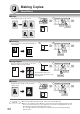
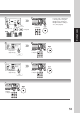
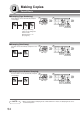

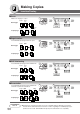
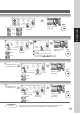


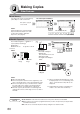
Table Of Contents
- Getting To Know Your Machine
- Before Starting
- Making Copies
- Function
- Accessories
- Network Scanner (Option)
- Problem Solving
- Others
- Specifications
- DP-3530/4530/6030 (Copier)
- i-ADF (Standard)
- System Console 1 (DA-DS603)
- System Console 2 (DA-DS604)
- 3000-Sheet Tray (LCT) (DA-MA301)
- Letter-R/Legal Size Adaptor for LCT (DA-TK31)
- 2-Bin Finisher (DA-FS600)
- 2-Bin Saddle-Stitch Finisher (DA-FS605)
- Punch Unit (DA-SP31)
- 2-Bin Finisher (DA-FS330)
- 1-Bin Saddle-Stitch Finisher (DA-FS355A)
- Punch Unit (DA-SP41)
- Options and Supplies
- INDEX
- Specifications

58
Making Copies
Insertion/Overlay
■ Overlay
Overlays a second image onto the first by using
a second original.
1st-page
■ File Edit
Up to three
∗
editing functions
available in the Form Overlay
feature.
∗
:To Add a new file
∗
(HDD = Max. 5 files)
∗
:To Erase a
registered file
∗
:To Change the
title of a file
or
(Register only)
Select a file
■ Form Overlay
Overlay an image stored in memory onto the copy.
or
File
NOTE
● The File Edit function for selecting a file is only available when the optional Hard Disk Drive
(See page 81) is installed.
When the optional Hard Disk Drive is not installed, only one file can be selected.
● When an overlay image is not stored in memory, Form Overlay function is not selectable.
or
∗
One image file can be registered.
With the optional Hard Disk Drive (DA-HD60)
installed, up to 5 image files can be registered.
If the selected File Key already contains a
registered file image, the new image will overwrite
the current image.
∗∗
Without the optional Hard Disk Drive (HDD) installed: After
pressing the FILE EDIT button, the machine skips Step 3
and proceeds to Step 4 (Erase Mode).
1 2
1 2 3
1 2
∗∗