
User's Manual Part 3




340
Other Convenient Functions
You can manage your schedule events in the list and make
an alarm tone sound when the specified time comes. You
can store up to 100 ToDo items to manage your schedule.
p
See page 336 for how alarm works.
1
m
Stationery
ToDo
l
()
Do the following operations.
p
You can check the stored contents by selecting a stored
ToDo item, and you can edit it by pressing
Oo
().
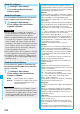
Set secret/
Release secret
You can have the schedule event set to or
release from secret.
YES
p
When you select “Set secret” in ordinary
mode (not in “Secret mode” or “Secret data
only”), enter your Terminal Security Code.
Compose
message
You can compose an i-mode mail whose text
contains the date and contents of the
schedule event.
Go to step 2 on page 172.
Attach to mail
You can attach the schedule event to
i-mode mail to send.
Go to step 2 on page 172.
p
You can attach it to i-mode mail also by
pressing
l
( ) from the detailed
Schedule display.
Send Ir data
See page 305.
Send all Ir data
See page 305.
transmission
See page 306.
All
transmission
See page 307.
Copy to
microSD
See page 295.
Delete this
YES
p
If you delete a schedule event, holiday or
anniversary set for repeat, the all data items
set for repeat will be deleted.
p
You can delete national holidays only by
“Delete this”.
Delete past
See page 339.
Delete select
Put a check mark for schedule events to
be deleted
l
()
YES
Delete all
You can delete all schedule events, holidays or
anniversaries. You can operate this only when
the Icon display is displayed. (See page 339)
+m-9-5
ToDo
Using ToDo to Manage Schedule
Function menu
Operation/Explanation
<>
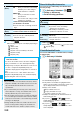
Item Operation/Explanation
(Edit ToDo)
Enter ToDo contents.
p
You can enter up to 100 full-pitch/200
half-pitch characters.
2
Press
l
().
: Priority high
: Priority low
p
If you do not enter the contents, “ ” is not
displayed, and you cannot store the ToDo item.
(Due date)
Select an item.
Enter date
. . . . . . . . . . Enter the date (due date) directly.
Choose date
. . . . . . . . . . Select a date (due date) from the
calendar. Check the date and
press
Oo
().
No date
. . . Does not set the date (due date).
The alarm does not work.
(Priority)
Select a priority.
p
If you sort the items in due date order, the
items for the same date are displayed from
the higher priority.
(Category)
Select a category.
(Alarm)
Select an alarm method.
ON
. . . Alerts you at the set time. The setting
for alarm notification is completed.
ON/Set time
. . . . . . Alerts you at the time set as the
prenotification.
OFF
. . Does not alert you. The setting for
alarm notification is completed.
Enter how many minutes before the
specified time to be alerted.
p
You can enter from “01” through “99” in two
digits.
(Alarm tone)
Select a type of alarm tone
Select a folder
Select an alarm tone.
Item Operation/Explanation
Function Menu while ToDo Item is Displayed
Function menu
Operation/Explanation
New
Go to step 1 on page 340.
Edit
Go to step 1 on page 340.
p
To edit “Completion date” of the ToDo item
set with “Completion”, select “ ”, and
perform the same operation as in “Due date”
of step 1 on page 340.
Change status
The set status icons are displayed on the
ToDo List.
Select a status.
p
The status icons switch from blue to red
after the due date.
p
If you select “Completion”, perform the
same operation as in “Due date” of step 1
on page 340.