
User's Manual Part 3




337
Other Convenient Functions
p
During Lock All, Personal Data Lock or Omakase Lock
The alarm does not sound.
After releasing each lock, the “Missed alarm” icon is
displayed to inform you of the missed alarm. Further, if the
power is turned off, the power does not turn on and the
“Missed alarm” icon does not appear even after releasing
each lock.
p
While SD-PIM is activated, during infrared data exchange,
or during iC transmission
The alarm tone does not sound.
After each function is finished, the “Missed alarm” icon is
displayed.
p
While updating a software program
The alarm does not sound.
When the specified time comes during rewriting the
software program, the “Missed alarm” icon is not displayed
even after updating is completed.
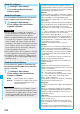
■
To clear alarm tone/alarm message, and animation/
i-motion movie from the display
Press any key to stop the alarm tone but the animation/
i-motion movie changes to a still image and the alarm
message remains displayed. Press any key again (press
h
if you set “Snooze” of “Alarm” to “ON”) to clear the
display. However, you cannot clear the alarm message for
the schedule event or ToDo item by pressing a side key, with
the FOMA phone closed. When a call comes in, the alarm
stops sounding.
■
When “Alarm” did not work
“Missed alarm” icon is displayed on the desktop. You can
check that icon for the contents of the missed alarm (Missed
alarm information).
The latest missed alarm information that could not be
notified is displayed.
Information
p
If you set “Alarm setting” to “Alarm preferred” and the
alarm time has come when you are dialing, the alarm
sounds after calling up the other party. If the alarm time
has come when receiving a call, the alarm sounds after
starting communication.
p
You might not be able to set some i-motion movies or
Chaku-uta Full
®
music files for the alarm.
p
Some i-motion movies set for the alarm might be played
back only with sound at the specified time.
p
The Chaku-uta Full
®
music file set for the alarm is played
back only with sound at the specified time.
The illumination for when you play back a demo to select
an alarm tone might differ from for when you are notified
by an alarm.
You can display the calendar by month or week to
check the stored schedule events.
You can display or store from January 1, 2000 through
December 31, 2037.
p
See page 336 for how alarm works.
When the specified date and time come, an alarm tone,
an illumination, alarm message (summary or contents
of the schedule event) and an animation corresponding
to the set icon notify you of the schedule event.
You can store up to 1,000 schedule events.
1
m
Stationery
Schedule
l
()
Schedule
Do the following operations.
+m-4-5
Schedule
Using Calendar to Manage
Schedule
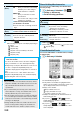
Store Schedule Events
<>
Item Operation/Explanation
(Edit
summary)
Select an icon.
p
When the alarm tone alerts you, the
animation corresponding to the selected
icon is displayed.
Enter the summary of the schedule
event.
p
You can enter up to 20 full-pitch/40
half-pitch characters.
p
A summary corresponding to the selected
icon is entered in advance.
(Whole day)
You can set whole day schedule without
entering starting and ending date/time.
OFF or ON
p
If you set to “ON”, the alarm sounds at 12
a.m.
[Date (from)]
Enter the date and time for starting the
schedule.
[Date (to)]
Enter the date and time for ending the
schedule.
(Repeat)
Select a type of repeat.
p
If you select “1 time”, the alarm is not
repeated.
p
If you select “Select day”, put a check mark
for days of the week to be set and press
l
().
p
The schedule event set with repetition is
counted as one event.
ᵡᶍᶌᶒᶇᶌᶓᶃᶂ