
User's Manual Part 3





323
Music&Video Channel/Music Playback
Set “USB mode setting” to “microSD mode”.
(See page 300)
Start SD-Jukebox and set a music CD on the personal
computer. Then use SD-Jukebox to save music files to
the microSD memory card.
p
For how to operate SD-Jukebox, refer to Help for
SD-Jukebox.
p
When you finish saving, remove the FOMA USB Cable with
Charge Function 01 from the FOMA phone.
You can play back Chaku-uta Full
®
music files obtained
from sites or music files saved to the microSD memory
card.
To play back music files, select “MUSIC Player” from
“MUSIC” on Main Menu. Play Background is available
so that you can use mail functions, display sites, and
so on, while listening to music.
To manage folders or data files, select “MUSIC” from
“Data box” on Main Menu.
p
Note that battery consumption will be faster when you use
MUSIC Player.
p
You can enjoy playing back music in stereo sound by
connecting the Flat-plug Stereo Earphone Set (option). Also,
you can enjoy listening to music wirelessly by using a
commercial Bluetooth device. (See page 352)
p
If the number of stored files increases, it may take long to
start MUSIC Player.
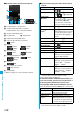
1
Press and hold
p
for at least one second.
The Player Menu display appears.
p
You can play back the top of the
All tracks list by pressing and
holding
p
for at least one
second with the FOMA phone
closed.
p
The playback display (in pause state) of the previously
played music file appears when the information about it
remains.
p
The “
★
” mark is added to the playlist which is currently
played back or was previously played back.
Use the FOMA phone as reader/writer
Save music files to the microSD memory card
MUSIC Player
Using MUSIC Player
Play Back Music Files
3
4
<>
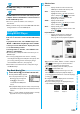
Player Menu display
2
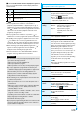
Select an item.
All tracks
. . . . . . . . . Displays all the music files saved on the
FOMA phone and microSD memory card.
Artist
. . . . Displays all the artist names.
Highlight the name of the artist you want to
listen to and press
Oo
( ), then all the
album names of the selected artist are
displayed. (Go to Album)
Album
. . . Displays all the albums.
Highlight the name of the album you want to
listen to and press
Oo
().
Genre
. . . . Displays all the genres.
Highlight the genre you want to listen to and
press
Oo
().
Playlist/SD-Audio
. . . . . . . . . Displays all the playlists created by the
FOMA phone and personal computer.
See page 330 for the playback of playlists.
p
When you select “Artist”, “Album”, or “Genre”, and press
l
( ) from the Type List, all the music files
stored in the selected item are played back.
p
You can switch display format each time you press
c
( ) from the Music List.
p
When “ ” is displayed on the Type List or the
Music List, you can display the playback display of
previously played back music file or music file in-play by
pressing
m
().
p
You might not be able to display all the stored music
files depending on their file size.
p
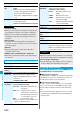
Any of the following images are displayed when you
cannot display the preview image:
Type List
(For Artist)
Music List
Cannot be
displayed
Incomplete
download
No image, etc.
ᵡᶍᶌᶒᶇᶌᶓᶃᶂ