
User's Manual Part 3





319
Music&Video Channel/Music Playback
■
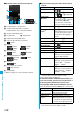
Icons on the Music&Video Channel display/the Program List
The icons on the Music&Video Channel display indicate the
download status.
p
“ ” is added to the newly obtained program.
p
Some programs have restrictions on the number of
playbacks, playable deadline, or playback period. “ ” is
added to the icon of the program with playback restrictions
and “ ” is added to the icon of the program with restrictions
expired. You can check the playback restrictions for the
program by “Program info”.
p
Some programs have restrictions on operation. “ ” is
added to the icon of the program with operation restrictions.
p
Depending on the program, its playable time zone is fixed.
“ ” is added to the icon of the program with time zone
restrictions. The time follows the time information obtained
from the network, which has automatically been corrected.
p
When obtaining a periodically-updated program fails, “ ”
appears to tell the program has not been updated. “ ”
disappears when obtaining the program starts.
p
The file restriction is set to all the Music&Video Channel
programs. See page 146 for the file restrictions.
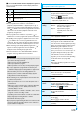
Icon Description
Successfully obtained program
Broken program
Partially obtained program or unsuccessfully
obtained program
Information
p
The information of the previously played program is erased
if you do the following operations:
・
When you turn on/off the FOMA phone
・
When you update the program
・
When you delete or move the previously played program
p
If you try to play back a program with a low battery, the
confirmation display appears asking whether to play it back.
When the battery becomes low during playback, the
playback pauses, and the confirmation display appears
asking whether to finish the playback.
p
In the following cases, playback pauses and resumes after
you finish each operation:
・
When you make/receive a voice call, videophone call, or
PushTalk call
・
When you receive a mail message or Message R/F while
“Receiving display” is set to “Alarm preferred” or the
Stand-by display is shown
・
When an alarm tone of “Alarm”, “Schedule”, “ToDo”, “Book
program” or “Timer recording” sounds
Depending on the function which occurred, the confirmation
display might appear asking whether to end the
Music&Video Channel program.
p
If you play the program having the time zone restriction, and
that can be played repeatedly, a black screen continues to
appear until the next play time.
Function Menu of Music&Video Channel display/
Program Folder List/Program List
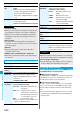
Function menu
Operation/Explanation
Chapter list
You can display the list of chapters set for the
program. Select a chapter to play back the
selected chapter and afterward.
p
Press
i
()
and select “Chapter
info” to display the information about the
chapter title, playback time, etc.
Play mode
setting
Normal or Repeat
Normal . . . Plays back the program once in
the order of the chapters.
Repeat . . . Plays back the program
repeatedly in the order of the
chapters.
Program info
You can display the program title, distribution
source, playback restrictions, etc.
Move program
Programs currently distributed are updated to
new programs on the next distribution date.
You can save the current programs by moving
them to the “Saved program” folder before the
distributed program is updated. You can
check “Memory info” for unused memory
space you can save to. You can save up to 10
programs sharing the memory space with
other data files, however, the number of
programs you can save decreases depending
on the data volume. (See page 444)
YES
p
See page 162 when programs are stored to
the maximum.
Add desktop
icon
See page 114.
Edit title
Enter a title.
p
You can enter up to 31 full-pitch/63
half-pitch characters.
Reset title
You can reset the title to the default.
YES
Multiple-
choice
You can select and delete multiple programs
stored in “Saved program” folder.
Put a check mark for programs to be
deleted
i
()
Delete
Connect to
URL
You can access the URL when the program
has the URL information.
YES
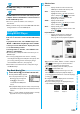
Display image
You can display the program images stored in
the program.
p
Press
r
to return to the List.
Memory info
You can display the used memory space
(estimate).
ᵡᶍᶌᶒᶇᶌᶓᶃᶂ