
User's Manual Part 3




311
Data Display/Edit/Management
Function Menu of the Document List
Function menu
Operation/Explanation
Edit title
See page 274.
File info
You can display the name and type of files.
Attach to mail
You can compose an i-mode mail message
with the document file attached.
Go to step 2 on page 172.
Copy
See page 275.
Move
See page 275.
Delete this
See page 275.
Delete all
See page 276.
Multiple-choice
See page 276.
Memory info
You can display the used memory space (estimate).
Function Menu while Document File is Displayed
Function menu
Operation/Explanation
Zoom in
You can zoom in the file.
You can zoom in the file up to 1,000%.
Zoom out
You can zoom out the file.
You can zoom out the file up to 8%.
View types
You can change display format of the file.
Select a display format.
p
If you select “User defined”, enter the
magnification value in the magnification
specification field, and select “OK”; then you can
display the page at the specified magnification.
p
The magnification you can specify by “User
defined” is 8 through 1,000%.
Go to
You can move to another page or sheet of the file.
Select the page or the sheet you want to
move to.
p
If you select “Specified page” for the
Microsoft Word file or Microsoft PowerPoint
file, enter the page number you want to move
to in the page number field, and select “OK”;
then you can move to the specified page.
Search
You can display the screen in which the specified
character string is contained. The point that matches
the specified character string is highlighted.
Search
Select the search string field
Enter a character string to be searched for.
p
You can enter up to 8 full-pitch/16 half-pitch characters.
Put a check mark for search conditions
to be specified
l
()
p
I
f you select “Search prev.” or “Search next”, you
can continue to search under the same condition.
Zoom & page
You can set whether to display the zoom
magnification and page number for displaying the file.
Display or Not display
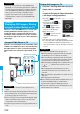
DPOF is the format for recording the print information
about the still image you shot with a digital camera.
You can input the information into the still image on the
microSD memory card about whether to print it out and
how many copies you print out. You can take the card
to DPE service shops or use a DPOF compatible printer
to print photos as you specify.
1
Still image in play/Still image List
i
()
DPOF setting
Print
Enter the number of copies to be printed
out.
p
Enter “01” through “99” in two digits.
p
To cancel printing the selected still image, select “Print
OFF”. To cancel printing all still images, select “All print
OFF”.
Scroll bar
You can set whether to display the scroll bar
for displaying the files.
Display or Not display
Rotate view
90
°
to right or 90
°
to left
Document
info
You can display the name and type of files.
Function menu
Operation/Explanation
Information
<Search>
p
The search conditions work as shown below:
Whole words only:
Searches for character strings that completely match by
unit of a word.
Match case:
Identifies between uppercase and lowercase for search.
Search in this page (Excel file only):
Searches in the currently displayed page only.
Search in this file (Excel file only):
Searches in the whole file.
Printing Saved Images
Select a Method to Print the Images
Saved in the microSD Memory Card
Information
p
The classification icon of the images set DPOF Setting is
“”.
p
You can set DPOF Setting for up to 999 image files.
p
You cannot set DPOF Setting for the image in excess of 2
Mbytes or 5M (2592 x 1944) size.
p
DPOF Setting by other devices such as personal computers
is disabled except the information about the number of
copies to be printed out.
p
If unused space on the microSD memory card is not
enough, DPOF Setting might not be set. (The icon and
Picture Information, however, indicate DPOF is set.) Delete
unnecessary files, make memory space, and then try again.
ᵡᶍᶌᶒᶇᶌᶓᶃᶂ