
User's Manual Part 2







237
GPS Function
1
TOP display
設定/直感
★
(Settings/
Institution
★
)
設定・ヘルプ
(Settings/Help)
Select an item.
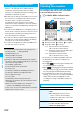
You can provide your location information upon the request
from others. Depending on the service you use, you need to
set GPS service settings beforehand. (See page 239) Also,
you need to set “Location request menu” to “ON” or set the
permitted period by “Permission schedule” beforehand.
<When the setting by service is “
毎回確認
(Check every time)”>
1
When a location provision request arrives
YES or NO
YES
. . . Measures the current
location and sends the
location information.
NO
. . . . Rejects to provide the
location information.
p
If no keys are pressed for about
20 seconds, the former display
returns without providing your
current location.
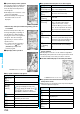
<When the setting by service is “
許可
(Accept)”>
1
When a location provision request arrives
OK
p
When you select “OK” or about
three seconds elapse, the
current location provision starts.
p
The information of the service
provider might not be displayed.
p
Press
r
to stop providing
information.
However, your location
information might be sent depending on the timing.
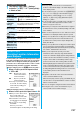
Using Settings and Help
Item Action
会員情報確認
(Confirm member
information)
You can check whether you are
registered as a member of “
ゼンリン
地図+ナビ
(ZENRIN/map+navi)”.
α基本設定
(
α
Standard
settings)
You can perform the overall settings of
the software program such as specifying
map display color or font size.
ナビ設定
(Navi settings)
You can perform the overall settings of
the navigation program such as re-routing
or the sound level of voice guide.
自宅設定
(Home setting)
You can register the place of your home.
履歴系クリア
(Clear records)
Clears the records of the map or
Navigation used.
使い方の説明/よ
くある質問/利用
規約
(Explanation
about how to use/
FAQ/Usage rules)
You can get explanation about how to
use, FAQ, and usage rules.
Provide Location
Providing Location Information
upon Request
<>
Information
p
If no keys are pressed for about 15 seconds from the
Position Location Result display or the Failure display, the
former display returns.
p
To use “imadoco-search”, you need to set “
位置情報利用設
定(イマドコサーチ設定)
[Location Information Usage
Setting (imadoco-search Setting)] of “
オプション設定
(Options)” of “
料金&お申込・設定
(Bill & Subscription/
Setting)” on
i
Menu.
p
To use Provide Location, you might need to subscribe to a
service provider which supports the Provider Location
function or to pay the service fee.
p
Even when you send your location information, it might not
be delivered to the service provider depending on the radio
wave conditions.
p
When “Location request menu” is set to “OFF”, the location
information is not displayed, and the request is rejected.
p
When you set, by GPS service settings, the location request
to be checked every time, the location information is not
provided on the location provision request during Public
Mode (Drive Mode).
p
When you set, by GPS service settings, the location request
to be accepted, the location information is provided with a
display during Public Mode (Drive Mode) but the positioning
tone, vibrator, and illumination do not work.
p
When you are requested to provide your location
information from the other party using “imadocokantan
search”, the confirmation display appears asking whether to
send the current location information each time you receive
a request. Select “YES” to immediately send the rough
position location result. After selecting “YES”, the GPS
Measuring display appears and the precise position location
result is notified after GPS measuring. The rough position
location result is notified even if you suspend the location
providing during GPS measuring. In this case, it is stored in
Location History but the location information is not
displayed.
p
Regardless of the mode of 2in1, the location information
can be searched for Number A only.
When the other party searches you by your Number B, your
current location is not provided and the searcher is notified
that the search has failed.
p
A fee is not charged for using the Provide Location function.
p
For using the service, refer to the information on your
service provider or the DoCoMo web page.