
User's Manual Part 2







236
GPS Function
■
Route (Car)/Navigation (Car) View display and its operation
p
The displays are for reference, so the actual ones might differ.
◆
Key operation when using Navigation
◆
Key operation when the quick access menu appears
©
ZENRIN DataCom CO.,LTD. 2007
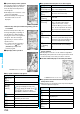
Route (Car) View
display
The route to
the destination
is displayed.
Navigation (Car) View
display
The current location
and proceeding
direction is
displayed.
Key operation Action
l
[
メニュー
(Menu)]
Ends the Navigation program and shows
the TOP menu.
Oo
Shows the quick access menu.
i
[
拡縮
(Enlarge/
Reduce)]
Shows the bar that shows reduced scale.
To enlarge and display the map, press
Zo
, and to display the details, press
Xo
.
Press
i
[
閉じる
(Close)] to fix the
reduced scale, and then to clear the bar.
Mo
Moves the map up, down, left, and right.
r
Returns to the current location.
2
Switches to intersection mode.
5
Pauses or starts the Navigation program.
a
Turns the map to the left.
0
Turns the map northward.
s
Turns the map to the right.
Key operation Action
Xo
[
検索結果&
設定
(Search
result&Settings)]
Shows the search result of the route (time
and fare, and others), or sets the
Navigation program.
Co
[
経由地設定
(Set junction)]
Sets up to three junctions of the route to
the destination and searches.
Vo
[
リルート
(Re-route)]
Re-searches the route from the current
location to the destination.
1
[
ルート消去
(Clear route)]
Clears the route being displayed.
2
[
モード切替
(Switch mode)]
Switches to junction mode.
3
[
渋滞情報
(Traffic jam
information)]
※
Only for car route
Shows the traffic jam information linked to
the map being displayed.
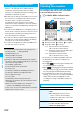
By voice input, you can easily check the details of your
nearby area, get transfer information, or see the map
from the Voice search menu.
<Example> When using
おしゃべり検索
(Voice search)
to check the details of your nearby area
1
TOP display
おしゃべり検索
(Voice search)
周辺を調べる
(Check nearby area)
How to input your voice is displayed.
2
Explanatory display for voice input
音声入力開始(
Start voice input)
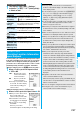
The display for voice input appears. After the Voice Input
display appears, speak in Japanese about the details of
nearby area you want to search.
Example: “Konohen-no Konbini” (nearby convenience
store)
Using
おしゃべり検索
(Voice search)
A confirmation display appears
after your voice is recognized.
When the recognition is wrong,
select “
音声再入力
(Re-input
voice)”.