
User's Manual Part 2





227
Osaifu-Keitai/ToruCa
Operate folder
(Edit folder
name)
You can edit the folder name for the user
folder.
Edit folder name
Enter a folder name.
p
You can enter up to 10 full-pitch/20
half-pitch characters for the FOMA phone.
p
You can enter up to 31 full-pitch/63
half-pitch characters for the microSD
memory card.
Operate folder
(Delete folder)
All ToruCa files in the folder are deleted.
Delete folder
Enter your Terminal
Security Code
YES
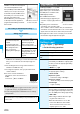
Search all
folders
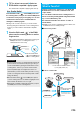
You can search through all ToruCa files in the
FOMA phone (except ToruCa files stored in
the “Used ToruCa” folder) by specifying a
search condition.
Select a search condition.
Genre
. . . Select a genre.
Press
l
( ) to display a
list of category icons belonging to
the genre.
Title
. . . . . Enter characters to be searched
for, from those in the title.
Index
. . . . Enter characters to be searched
for, from those in location data.
p
You can enter up to 20 full-pitch/40
half-pitch characters for the Title search,
and up to 10 full-pitch/20 half-pitch
characters for the Index search.
Auto-sort
You can set a ToruCa file that matches the
condition to be automatically sorted and
saved to the folder when you obtain the
ToruCa file from the scanning device.
Select a sorting condition.
Genre
. . . . Put a check mark for the genre to
sort into and press
l
().
You can put it for multiple
genres.
Title
. . . . . . Enter characters from those in
the title, to be a sorting condition.
Index
. . . . . Enter characters from those in
the location data, to be a sorting
condition.
Release
. . . Select “YES” to release the
sorting condition you specified.
p
You can enter up to 20 full-pitch/40
half-pitch characters for the Title sort, and
up to 10 full-pitch/20 half-pitch characters
for the Index sort.
p
When a sorting condition is already
specified for the folder, it is displayed. Press
i
( ) to set a sorting condition
again.
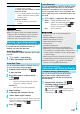
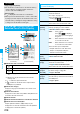
Function menu
Operation/Explanation
Copy
(Copy to
microSD)
You can copy the ToruCa files together with
the folder from the FOMA phone to the
microSD memory card.
Copy to microSD
Copy
(CPY all to
microSD)
You can copy all the ToruCa files together
with the folder from the FOMA phone to the
microSD memory card.
CPY all to microSD
Enter your
Terminal Security Code
YES
Copy
(Copy to
phone)
You can copy the ToruCa files together with
the folder from the microSD memory card to
the FOMA phone.
Copy to phone
Copy
(Copy all to
phone)
You can copy all the ToruCa files together
with the folder from the microSD memory card
to the FOMA phone.
Copy all to phone
Add or Overwrite
Enter your Terminal Security Code
YES
Ir/
transmission
(Send all Ir data)
See page 305.
Ir/
transmission
(All
transmission)
See page 307.
Memory info
You can display the used memory space
(estimate)/the number of saved files.
Delete all
You can delete all the ToruCa files stored in
the FOMA phone.
Enter your Terminal Security Code
YES
Select storage
You can set a destination folder for when
copying from the FOMA phone to the
microSD memory card.
YES
Information
<Auto-sort>
p
“ ” is displayed when the Genre sort is set, “ ” is
displayed when the Title sort is set, and “ ” is displayed
when the Index sort is set.
p
When a file satisfies multiple conditions, it is sorted into the
top of the folder in the ToruCa Folder List.
<Copy (Copy to microSD)>
p
The ToruCa file (details) is copied as a ToruCa file before
obtaining details if it contains data which is prohibited to
output from the FOMA phone or set with UIM restrictions.
<Copy (CPY all to microSD)>
p
The ToruCa files in the “ToruCa” folder within the FOMA
phone are saved to “SD ToruCa” on the microSD memory
card.
Function menu
Operation/Explanation
ᵡᶍᶌᶒᶇᶌᶓᶃᶂ