
User's Manual Part 2




212
i-
α
ppli
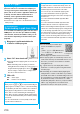
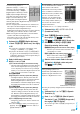
You can list up Osaifu-Keitai compatible i-
α
ppli programs.
1
m
Osaifu-Keitai
IC card content
p
See page 162 when you select
“Search by i-mode”.
Bring up IC Card List
IC Card List
Information
p
When a software program to be started is not specified,
select a software program.
p
To start up i-
α
ppli DX, set the data and time by “Set time”
beforehand.
p
When a software program is running, melodies are played
back at the volume set for “Phone” of “Ring volume”.
However, melodies are not played back during a call.
p
You may need to set the communication setting while a
software program is running.
p
When communicating frequency is extremely high in a
certain period of time while i-
α
ppli is running, the confirmation
display appears asking whether to continue communicating.
p
With some software programs, you can use the Web To
function and the Phone To/AV Phone To function from
i-
α
ppli. However, you cannot use them while the software
program is running as the i-
α
ppli Stand-by display.
p
If you start a camera from i-
α
ppli, the shot images are not
saved with ordinary images, but are saved as part of i-
α
ppli
for its usage.
p
If you start a camera from i-
α
ppli, you can specify the image
size or image quality for some i-
α
ppli programs.
p
You can scan QR codes and JAN codes from i-
α
ppli using
the camera. The scanned data is saved and used by the
software program.
p
Images
※
that are used by i-
α
ppli and data you have
entered might be sent over the Internet to the server
automatically.
※
i-
α
ppli uses the following types of images:
・
Images shot by the camera after it is started from a
camera-linked application program
・
Images obtained by the infrared data exchange function
of i-
α
ppli
・
Images downloaded from sites or Internet web pages
・
Images obtained from Data Box by i-
α
ppli
p
i-
α
ppli mail running under mail-linked i-
α
ppli might not be
displayed correctly.
p
Some i-
α
ppli programs save the various information used
on i-
α
ppli when you finish it. However, the information might
not be saved if the low battery alarm sounds or the battery
pack is removed while i-
α
ppli is running. If the battery level
indicates “ ”, either press
-h
or end i-
α
ppli in
accordance with the operation of each software program.
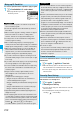
You can check the details when a software program
malfunctions.
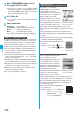
1
m
i-
α
ppli
i
α
ppli info
Trace info
p
When the memory space for the Trace Info becomes
full, the information is overwritten from the oldest one.
p
You can operate “Copy info” and “Delete info” from the
Function menu.
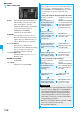
You can check the details when an i-
α
ppli program
ends because of a security error.
1
m
i-
α
ppli
i
α
ppli info
Security error history
p
You can operate “Copy info” and “Delete info” from the
Function menu.
p
You can display the security error history also by
selecting “ ” on the desktop.
p
You can save the data files of some software programs to
the microSD memory card, but you might not be able to use
them for another model. You can check “
i
α
ppli(microSD)”
for the software programs that use the microSD memory
card.
p
Some IPs (Information Providers) may access the software
program stored in your mobile phone and have it directly
halted, depending on the software program. In that case,
you will not be able to start or upgrade the software
program, or use it for the Stand-by display. You can delete it
or display the software information. To resume running the
software program, you need to receive the communication
to cancel the software halting state. Contact the IP
(Information Provider) to inquire about that.
p
Some IPs (Information Providers) might send data to the
software program stored in your mobile phone depending
on the software program.
p
When the IP (Information Provider) requests to halt or
re-open the software program or sends data to it, the mobile
phone communicates and “ ” is displayed. In this case,
you are not charged a communication fee.
p
To creators of i-
α
ppli
If you encounter an error while creating a software program, the
Trace Information display might help identify the problem.
For how to check the Trace Information, see “Trace
Information” on page 212.
Trace Information
Information
Security Error History