
User's Manual Part 2



145
Camera
Cont.
shooting set.
(Shot number)
[Continuous
Mode only]
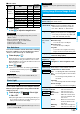
Shot number
Enter the number of photos.
p
When “Image size” is set to “VGA (640 x
480)” or “CIF (352 x 288)”, you cannot
change “Shot number”.
p
You can set this only in “Auto” or ”Manual”
of Continuous Mode.
Movie type set
[Movie Mode
only]
You can select whether to record both the
video and voice, or one of them when you
shoot the moving image.
Normal, Video, or Voice
Display size
You can set whether to display a moving image
or still image in the original size (Actual size) or
to fit to the screen size on the Finder display.
Actual size or Fit in display
Common
replay mode
[Movie Mode
only]
You can set a shooting size appropriate for
attaching to i-mode mail.
YES
p
Image Size is set to “QCIF”, File Size Setting
is set to “Mail restrict’n (S)”, and Image
Quality (Movie Mode) is set to “Normal”.
Icon
You can set whether to display icons.
ON or OFF
Memory info
You can display the used memory space
(estimate)/number of stored items.
Information
<Inside camera/Outside camera>
p
When “Image size” is set to larger than “Stand-by (480 x
854)”, and you switch to the inside camera, the camera
starts up in “VGA (640 x 480)”.
<File size setting>
p
When the “File size setting” is set to “Long time”, “Store in”
is set to “microSD”.
<Camera settings>
p
Note that the image may blur in Night Mode because the
exposure takes a longer time.
p
If you set “Flicker correction” to “Auto”, it may take a while to
automatically adjust the image quality. In this case, switch
to Mode 1 or Mode 2 according to the power frequency
provided in the shooting location.
p
Even if you change the setting of “Brightness”, “White
balance”, “Color mode set”, or “Focus”, when you change
“Photo mode”, their settings are changed to the setting fit to
each photo mode.
<Storage setting>
p
See “Select storage” for how to set a storage location on the
microSD memory card.
p
If you change “File size setting” to “Long time”, “Store in” is
set to “microSD” and “Storage setting” cannot be operated.
p
When “Auto save set” is set to “ON”, the image is saved to
the latest folder if “Select storage” is not set or the folder set
as a destination folder is deleted.
Function menu
Operation/Explanation
At Camera start-up
Normal
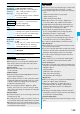
<Img. stabilizer>
p
This function is only for decreasing the degree of camera shake,
so its effect differs depending on the subject or condition.
p
Image Stabilizer might not work effectively in the following
cases:
・
When the camera shakes to a great extent
・
When zooming is in use
・
When shooting moving subjects
p
When “Photo mode” is set to “Sports”, “Night mode”, or
“Pet” in Photo Mode, “Img. stabilizer” become invalid.
p
It might happen that residual image remains in the area
where the subject is moving, or noise is found in overall
area. In that case, set this function to “OFF”.
p
In Movie Mode, as peripheral pixels are used for the
process of Image Stabilizer, the shooting range differs
depending on the “Auto” or “OFF” setting.
p
When this function is activated in Photo Mode, the
processing time after shooting might be longer about two
seconds because of the process of Image Stabilizer.
p
You cannot use Image Stabilizer for the inside camera.
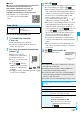
<Shooting effect>
p
When “Image size” is set to larger than “2M (1600 x 1200)”,
you cannot shoot with a frame.
p
If you shoot a still image with a frame using the inside camera
and save it, the frame is also horizontally reversed when the
still image is automatically reversed as a correct image.
p
You cannot save the still image shot with a frame as the
mirrored image.
p
When “Image size” is set to larger than “Stand-by (480 x
854)”, cushy marks cannot be pasted in Photo Mode.
<Cont. shooting set.>
p
The number of shots that can be set differs depending on the
image size. The number of shots that can be set is as follows
:
VGA (640 x 480): 4
CIF (352 x 288): 4
QVGA (240 x 320): 5 through 10
QCIF (176 x 144): 5 through 20
Sub-QCIF (128 x 96): 5 through 20
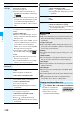
<Display size>
p
When you set “Image size” to larger than “HVGA Wide (640
x 352)”, the setting is always “Fit in display”.
p
When you set “Image size” to “QCIF (176 x 144)”, or
“Sub-QCIF (128 x 96)”, the image is enlarged at both
lengthwise and sidewise two times to be displayed in
“Actual size”.
p
The setting on the Finder display is reflected on the Post
View display; however the setting on the Post View display
is not reflected on the Finder display.
<Common replay mode>
p
You cannot operate when you set “File size setting” to “Long
time”.
Information