
User's Manual Part 2





206
Mail
3
Enter a mail address.
p
You can enter up to 50 half-pitch characters.
p
When the entered mail address is stored in the
Phonebook, and the image is stored in the Phonebook,
the image is also set.
p
When the mail address is “phone
number@docomo.ne.jp”, store the phone number only.
Repeat step 2 and step 3 to store multiple mail
addresses.
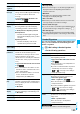
Function Menu of the Chat Group List
Function menu
Operation/Explanation
Activate chat
The members in the chat group are stored as
chat members and Chat Mail starts.
Go to step 2 on page 203.
Edit group
name
Enter a chat group name.
p
You can enter up to 10 full-pitch/20
half-pitch characters.
Reset group
name
You can reset the name of the chat group to
the default.
YES
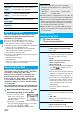
Function Menu of the Detailed Chat Group
Display/Chat Group Address Confirmation Display
Function menu
Operation/Explanation
Edit
You can edit the mail address.
Go to step 3 of “Creating Chat Group” on
page 206.
p
You can edit also by pressing
l
().
Refer address
You can look up a phone number or mail
address in the Phonebook, Sent Address, or
Received Address to enter it.
Select an item.
Phonebook
. . . Call up a Phonebook entry and select a
phone number or mail address.
Sent address
. . . Select a phone number or mail address
and press
Oo
().
Received address
. . . Select a phone number or mail address
and press
Oo
().
Change
member
You can store members from a Mail group in
the chat group.
Mail group
Select a Mail group.
p
If you have already stored chat members,
the confirmation display appears asking
whether to replace all the chat members.
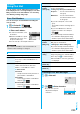
You can compose and send SMS messages.
You can save up to 1,000 sent SMS messages including
i-mode mail messages to the Outbox.
p
You can send and receive SMS messages to and from
subscribers of overseas carriers other than DoCoMo. For the
countries and overseas carriers available for the service,
refer to the DoCoMo Global Service web page.
p
You can move/copy the sent SMS messages to the UIM.
(See page 345)
1
l
Compose SMS
2
Select the address field
Select an item.
Phonebook
. . . . . . . . Call up a Phonebook entry and
select a phone number.
Sent address
. . . . . . . Select a phone number and press
Oo
().
Received address
. . . . Select a phone number and press
Oo
().
Enter address
. . . . . . Enter a phone number.
Only one address can be specified.
p
You can enter up to 21 digits (including “+”).
p
When the address is that of overseas carriers other
than DoCoMo, enter “+” (press and hold
0
for at
least one second), “country code”, and “destination
mobile phone number” in that order. When the mobile
phone number begins with “0”, enter the phone number
except for the “0”. Also, you can enter “010”, “country
code”, and “destination mobile phone number” in that
order to send SMS messages. (When you reply to SMS
messages received from overseas, enter “010”.)
3
Select the text field
Enter text.
p
The number of characters you can enter differs
depending on the “SMS input character”.
Member
setting
You can set the member’s name and image.
You can switch members by pressing
No
.
Select the member name field
Enter a member’s name.
p
You can enter up to four full-pitch/eight
half-pitch characters.
p
Not to change the member’s name, go to
the next step.
Select the picture field
Select a folder
Select an image.
Delete
YES
Delete all
Enter your Terminal Security Code
YES
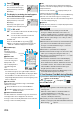
Compose SMS
Composing SMS Messages to Send
Function menu
Operation/Explanation
<>
SMS Composition display
Address field
Text field