
User's Manual Part 2





203
Mail
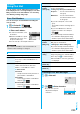
You can send or receive chat mail messages to and
from multiple persons on a single display. To use Chat
Mail, you need to store chat members. You can easily
store them by creating chat groups.
You can store up to six chat members including the
user (yourself).
1
l
Chat mail
i
()
Chat member
<Not recorded>
Enter a mail address.
p
To edit a stored member, select
the member.
p
When the mail address is “phone
number@docomo.ne.jp”, store
the phone number only.
p
You can enter up to 50 half-pitch characters.
Chat Mail
Using Chat Mail
Store Chat Members
<>
Chat Member List
Information
p
If you edit the mail address of the stored member, the
member’s name and image are changed.
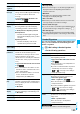
Function Menu of the Chat Member List
Function menu
Operation/Explanation
Edit
You can edit the mail address.
Go to step 1 of “Store Chat Members” on
page 203.
Refer address
You can look up a phone number or mail
address in the Phonebook, Received
Address, or Sent Address to enter it.
Select an item.
Phonebook
. . . Call up a Phonebook entry and select a
phone number or mail address.
Sent address
. . . Select a phone number or mail address
and press
Oo
().
Received address
. . . Select a phone number or mail address
and press
Oo
().
1
l
Chat mail
2
Oo
()
Enter characters.
p
You can enter up to 250
full-pitch/500 half-pitch
characters.
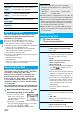
Change
member
(Chat group)
You can store the members stored in a chat
group as chat members.
Chat group
Group list or Member list
Group list
. . . . You can select members by
chat group.
Member list
. . . You can select members
from all the members stored
in chat groups.
p
If you select “Group list”, select a chat
group.
The members from the selected group are
stored.
p
If you select “Member list”, check the
members you want to store and press
l
().
p
If you have already stored chat members,
the confirmation display appears asking
whether to replace all the chat members.
Change
member
(Mail group)
You can store the mail addresses stored in
Mail group as chat members.
Mail group
Select a Mail group.
p
If you have already stored chat members,
the confirmation display appears asking
whether to replace all the chat members.
Display
setting
You can check the chat member’s name,
image, background color, and mail address.
p
You can press
No
to switch members.
p
The mail address of the user (yourself) is
not displayed.
Delete
(Delete this)
Delete this
YES
Delete
(Delete all)
Delete all
YES
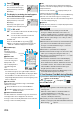
Exchange Chat Mail Messages
Function menu
Operation/Explanation
Chat Mail display
ᵡᶍᶌᶒᶇᶌᶓᶃᶂ