
User's Manual Part 2





199
Mail
Header/
signature
See page 199.
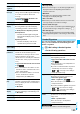
Set check new
message
You can select items to be checked from
among i-mode mail, Message R and Message
F, for when you perform “Check new
message”.
Put a check mark for the items to be
checked
l
()
Auto-display
See page 200.
Receiving
display
You can set whether to display the Message
Receiving and Reception Result displays,
even during operation of another function.
Alarm preferred
or
Operation preferred
Alarm preferred
. . . Prioritizes the Message Receiving and
Reception Result displays when you have
new mail.
Operation preferred
. . . Prioritizes the display of the current
operation when you have new mail.
Receive
option setting
See page 183.
Attachment
preference
You can set whether to receive the attached
file with an i-mode mail message. The
attached files for which you remove a check
mark are held at the i-mode Center.
(The file in excess of 100 Kbytes is held at the
i-mode Center, even if you put a check mark
for it.)
Put a check mark for items to be received
l
()
p
Put a check mark for “Tool data” to receive
Phonebook entries, schedule events, ToDo
items, and bookmarks.
p
Put a check mark for “Other” to receive PC
movies, document files, and files
unsupported by the FOMA phone.
Auto melody
play
You can set whether to play back the
attached or pasted melodies automatically for
when you display the text of received mail, or
message R/F.
ON or OFF
Photo auto
display
You can set whether to automatically display
the photo (still image) received during a call.
ON or OFF
Chat setting
See page 205.
Check settings
You can check each of “Mail settings”.
Item Operation/Explanation
You can store a header, signature and quotation mark.
Also, you can set whether to automatically paste the
header or signature.
1
l
Mail settings
Header/signature
Do the following operations.
Information
<Message display>
p
Even if “From message” is set, the message might not be
displayed from the text depending on the number of
characters in the text.
<Mail blind>
p
Pictographs, Decomail-pictographs, and Deco-mail
messages are not displayed in gray.
<Auto color label>
p
Even when you set this function, the text color of the mail
message already received does not change.
<Set check new message>
p
If you do not want to receive Messages R and Messages F
by “Check new message”, change these settings to “ ”.
<Auto melody play>
p
You cannot play back attached or pasted melodies during
Play Background regardless of the setting of “Auto melody
play”.
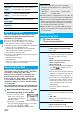
Header/Signature
Item Operation/Explanation
Header
The header is the sentence such as greeting
at the beginning of the text.
Select the header field
Enter a header
l
()
p
You can enter up to 5,000 full-pitch/10,000
half-pitch characters.
p
If you do not want the header to be pasted
automatically, select “Insert” to change
“ ” to “ ”. See page 174 for adding a
header by mail message.
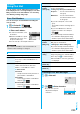
Signature
The signature is your name and other
information, placed at the end of the text.
Select the signature field
Enter a signature
l
()
p
You can enter up to 5,000 full-pitch/10,000
half-pitch characters.
p
If you do not want the signature to be pasted
automatically, select “Insert” to change
“ ” to “ ”. See page 174 for adding a
signature by mail message.
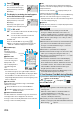
Quotation
marks
The quotation mark is the symbol indicating a
quotation from received mail for when you
reply to mail.
Enter a quotation mark.
p
You can enter up to 10 full-pitch/20
half-pitch characters.
Information
p
You can set decorations in a header and signature.
ᵡᶍᶌᶒᶇᶌᶓᶃᶂ