
User's Manual Part 2




198
Mail
1
l
Mail settings
Do the following operations.
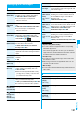
Function Menu of the Mail Group List
Function menu
Operation/Explanation
Compose
message
You can compose i-mode mail to the Mail group.
Go to step 3 on page 172.
Edit group
name
Enter a name of the Mail group.
p
You can enter up to 10 full-pitch/20
half-pitch characters.
Reset group
name
You can reset the name of Mail group to the
default.
YES
Function Menu of the Detailed Mail Group Display/
Mail Group Address Confirmation Display
Function menu
Operation/Explanation
Edit address
Go to step 3 on page 197.
p
You can edit the address also by pressing
l
().
Look-up
address
You can call up a phone number or mail
address in the Phonebook, Sent Address, or
Received Address to enter it.
Select an item.
Phonebook
. . . Call up a Phonebook entry and select a
phone number or mail address.
Sent address
. . . Select a phone number or mail address
and press
Oo
().
Received address
. . . Select a phone number or mail address
and press
Oo
().
Delete this
YES
Delete all
Enter your Terminal Security Code
YES
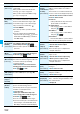
Mail Settings
Setting Mail and Messages R/F
<>
Item Operation/Explanation
Scroll
You can set the number of lines that are
scrolled at a time for when you press
Bo
on
the detailed mail display, detailed Message R/
F display, Message Composition display and
preview display.
Select the number of lines.
Character size
See page 115.
Mail list
display
You can set items to be displayed on the
Inbox/Outbox/Draft List by using radio buttons
or check boxes.
Select a display format
l
()
Message
display
You can set whether to display received mail in
standard display (from the top) or from the text.
Standard or From message
Mail blind
You can show the characters on the detailed
mail display and Message Composition display
in gray to make them hard to see from persons
around you. (The characters on the Character
Entry display are not shown in gray.)
ON or OFF
p
Press and hold
8
for at least one second
while sent or received mail is displayed.
Mail security
See page 126.
Secret mail
display
See page 126.
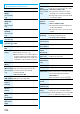
Auto color
label
You can specify the text color of the sender,
received date/time and others on the Inbox
List by mail address. You can store up to 10
items.
<Not stored>
Select an item.
Phonebook
. . . Call up a Phonebook entry and select a
phone number or mail address.
Sent address
. . . Select a phone number or mail address
and press
Oo
().
Received address
. . . Select a phone number or mail address
and press
Oo
().
Enter address
. . . Enter a mail address or phone number.
p
To change the set color, press
i
()
and select “Select color”.
p
To delete the set item, press
i
()
and select “Delete”
→
“Delete this” or “Delete
all” and select “YES”. If you select “Delete
all”, you need to enter your Terminal
Security Code.
Select a color.
Pred. conv. at
reply
You can set whether to preferentially display
the words contained in the subject and text of
the received mail message as conversion
candidates when you reply to, reply with
quote to, or forward it.
ON or OFF
Item Operation/Explanation