
User's Manual Part 2




197
Mail
Address sort
(Enter
address)
You can directly enter a mail address or
phone number to be sorted into the folder.
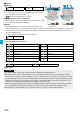
Enter address
Enter a mail address or phone number.
p
You can enter up to 50 half-pitch characters.
p
When the mail address is “phone
number@docomo.ne.jp”, enter the phone
number only. You can sort SMS messages
as well if you enter the phone number only.
Subject sort
You can enter the subject of i-mode mail
messages to be sorted into the folder. One
subject can be set per folder.
Enter a subject.
p
You can enter up to 100 full-pitch/200
half-pitch characters.
Reply
impossible
You can set reply-disabled mail messages to
be sorted. You can set for only one folder.
Send
impossible
You can set failed-to-send mail messages to
be sorted. You can set for only one folder.
Sort all
You can sort all mail messages into the i-
α
ppli
mail folder. You can set for only one i-
α
ppli
mail folder each in the Inbox and Outbox.
When “Sort all” is set, other sort settings are
disabled.
YES
Edit addr/subj
You can edit and store the mail address,
phone number, and subject set for the folder.
Edit the mail address, phone number or
subject.
List setting
You can switch whether to display the
destinations by the name stored in the
Phonebook or by the mail address or phone
number.
Name or Address
p
You can switch also by pressing
s
.
Release
(Release this)
You can release the sort condition. (The item
is deleted from the Auto-sort Setting display.)
Release this
YES
Release
(Release
selected)
You can select mail addresses or phone
numbers, and release the sort condition for
them. (The items are deleted from the
Auto-sort Setting display.)
Release selected
Put a check mark for
mail addresses or phone numbers to be
released
l
()
YES
Release
(Release all)
You can release all sort conditions. (The
items are deleted from the Auto-sort Setting
display.)
Release all
YES
Function menu
Operation/Explanation
You can store mail addresses by group. You can send
mail to regular destinations.
You can store up to five addresses per group, and up to
20 groups.
1
m
Phonebook
Phonebook settings
Mail group
Select a Mail group to be stored.
p
When mail addresses are stored
in a Mail group, “ ”
appears at the lower left of the
display. Press
l
( ) to
compose i-mode mail to a selected Mail group set as
the destination address.
Go to step 3 on page 172.
2
Highlight <Not stored> and press
l
().
p
If you select a stored mail
address, the Mail Group Address
Confirmation display appears.
3
Enter a mail address.
p
You can enter up to 50 half-pitch characters.
Repeat step 2 and step 3 to store multiple mail
addresses.
Information
<Address sort (Look-up group)>
p
On the Auto-sort Setting display, “ ” is added to the front
of group name.
p
You cannot set groups on the UIM.
p
The secret mail messages received in ordinary mode (not in
“Secret mode” or “Secret data only”) are not sorted into the
folder.
<Address sort (Look-up mail group)>
p
On the Auto-sort Setting display, “ ” is added to the front
of mail group name.
<Subject sort>
p
When the subject matches sort conditions for multiple
folders, it is sorted to the folder nearest to the “Inbox” folder
or “Outbox” folder.
p
Even if you set “No title”, the i-mode mail titled with “No title”
because of no entry cannot be sorted.
p
SMS messages cannot be sorted by subject.
<Sort all>
p
You cannot sort SMS reports or SMS messages that have
been directly received on the UIM.
+m-2-6
Mail Group
Creating Mail Group
<>
Mail Group List
Detailed Mail Group
display