
User's Manual Part 2



182
Mail
When the FOMA phone is in the service area, you can
receive i-mode mail, SMS messages and SMS reports
automatically. (See page 183 for receiving i-mode mail
after selecting it.)
When a mail message comes in, “ (white)” appears at
the top of the display.
You can save up to 2,500 received i-mode mail
messages including SMS messages.
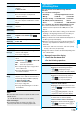
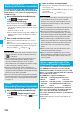
1
When i-mode mail arrives, “ (white)” blinks
and the receiving message is displayed.
When receiving is completed, the
display shows the number of
received i-mode mail messages
and Messages R/F.
p
You can display the Inbox List by
selecting “Mail”.
p
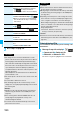
To cancel receiving midway, select “Cancel” or press
and hold
r
for at least one second while “Mail
Receiving...” is displayed. However, the mail message
might be received depending on the timing.
p
If no keys are pressed for about 15 seconds, “ ”
(see page 112) appears on the desktop and the former
display returns. (The transit time varies depending on
the setting for “Mail/Msg. ring time”.)
Press
Oo
, highlight “ ”, and press
Oo
() to
display the Inbox List.
p
See page 30 for when the FOMA phone is closed.
Mail Auto-receive
Receiving i-mode Mail Automatically
<>
Reception Result display
Information
p
You can automatically receive up to 100 Kbytes of an
i-mode mail message including attached files. You can
manually obtain the attached files in excess of 100 Kbytes
from the i-mode Center. (See page 185)
p
When the total number or size of received messages stored
in the FOMA phone has reached the maximum, the mail
messages will be overwritten in the priority order of mail in
the “Trash box” folder and older received mail. However,
unread or protected mail is not overwritten.
p
When the total number of unread or protected mail
messages in the Inbox has reached the maximum, no new
mail can be received and “ (black)” is displayed. To
receive i-mode mail, delete received mail or read unread
mail or release protection of mail until “ (black)” clears,
and then perform “Check new message”.
p
You can receive i-mode mail with melodies, still images, or
other files attached. You can receive incompatible attached
files but you cannot display them.
p
When you receive mail from a device that can set To, Cc
and Bcc, you can check whether the message was sent to
you as To, Cc or Bcc.
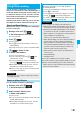
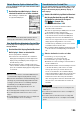
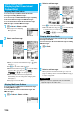
1
Reception Result display
Mail
Select an
i-mode mail message to be displayed.
p
Press and hold
No
for at least
one second from the detailed
i-mode mail display to change
the size of text characters.
When you set to “Large”, the
characters on the Folder List and
the Inbox/Outbox/Draft List are
displayed in large size as well.
p
Mail Messages for you are held at the i-mode Center in the
following cases:
・
When the power is off
・
During a videophone call
・
During Self Mode
・
During infrared data exchange
・
During Omakase Lock
・
During iC Communication
・
When you are out of the service area
・
While connecting to the FirstPass center
・
During PushTalk communication
・
While copying to the microSD memory card
・
While connecting to the Data Storage Center
・
When the space of the Inbox is full with protected or
unread messages
p
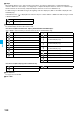
When i-mode mail messages are held at the i-mode Center,
“ (white)” appears, and when they are held to the
maximum, “ (black)”, appears.
Display Newly Received i-mode Mail
Information
Information
p
Undisplayable characters are replaced by spaces, etc.
p
When the number of characters in the text of received
i-mode mail exceeds the maximum, “/” or “//” is inserted at
the end of the text and the excess part is deleted
automatically.
p
The still image automatically displayed at opening might not
be correctly displayed. When the image is larger than the
screen size, it is displayed shrunk with a proportional ratio
retained.
p
Some decorations inserted into the decorated mail (HTML
mail) sent from a personal computer might not be displayed
correctly.