
User's Manual Part 2



181
Mail
You can send photos (still images) to the other party
during a voice call. The photo is sent as the attachments of
i-mode mail, and the receiving end can view it during a call.
To send photos during a voice call, you need to store the
phone number and mail address of the other party in the
same Phonebook entry beforehand.
Depending on the model of other party’s phone, the other
party might not be able to view the photo during a call.
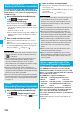
During a voice call, you can send photos (still images)
you shoot on the spot.
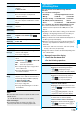
1
During a voice call
i
()
Shoot/send photo
Photo mode
The camera starts up.
2
Press
Oo
().
The photo is shot.
p
Press
h
from the Finder display to return to the
“Talking” display.
p
See page 143 for how to operate on the Finder display.
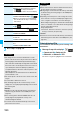
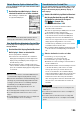
3
Oo
()
Select a folder
Select a mail address.
The photo is saved and sent.
p
You can send it also by pressing
i
( ) and
selecting “Save & send”.
p
You can set “Set display” and “File restriction” by
pressing
i
( ). (See page 140 and page 146)
p
When multiple mail addresses are stored, select the
mail address you send the mail message to.
p
When you select “Quit”, the photo is saved to the Draft
as the image-attached mail.
You can send the saved photos (still images).
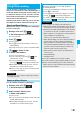
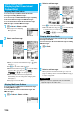
1
During a voice call
i
()
Shoot/send photo
My picture
2
Select a folder
Select a photo
Select a mail address.
The photo is sent.
p
You can select a photo (still image) of QCIF (176 x 144)
and Sub-QCIF (128 x 96).
p
When multiple mail addresses are stored, select the
mail address you send the mail message to.
Photo-sending
Using Photo-sending
Shoot and Send Photos
<>
Information
p
The image sizes of the camera are QCIF (176 x 144) and
Sub-QCIF (128 x 96).
Select and Send Photos
■
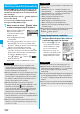
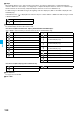
When you received a photo (still image)
When “Photo auto display” is set to “ON”, the photo is
automatically displayed.
If you have received multiple photos during a voice call, you
can press
No
to switch them.
p
You can display the received photo during a voice call by
pressing
i
( ) and selecting “Display photo”.
p
You can also execute “Check new msg.” during a voice call
by pressing
i
( ). (See page 183)
Information
p
Photo-sending is not available in the following cases:
・
When the phone number and mail address of the other party
on the phone are not stored in the same Phonebook entry
・
When the phone number and mail address of the other party
on the phone are stored as secret data in the Phonebook
・
When a caller ID is not notified to the receiving end (User
unset, PublicPhone, Unavailable etc.)
(However, you can send from the calling end.)
・
When “Restrict dialing” is not set for the phone number of
the other party on the phone during “Restrict dialing”
・
When the number of sent mail messages in the Outbox
has reached the maximum and those messages are all
protected, or when 20 mail messages are saved to the
Draft or the Draft is full (You cannot send.)
・
When the Inbox is full of unread or protected mail (You
cannot receive.)
・
During Call Waiting
・
In B Mode of 2in1
p
You cannot send Flash movies by Photo-sending.
p
You cannot send some photos (images) during a voice call.
p
A photo sent/received during a voice call is saved to the
Outbox or Inbox as a file attachment of the image mail (the
subject is the phone number).