
User's Manual Part 2



142
Camera
■
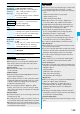
If recording ends or the image quality deteriorates
while shooting
When you use a microSD memory card that you repeatedly
save/delete data files to/from, the writing speed slows down,
recording might end midway or the image quality might
deteriorate.
Do the following operations to improve such symptoms:
1. Copy all the data files from the microSD memory card
onto your personal computer as they are.
p
When your personal computer is set so as to hide
folders and files, change the settings to display those
folders and files, and then operate. For how to change
the settings, refer to the operating manual or Help on the
personal computer you use.
p
Do not change the names of folders and files copied to
the personal computer.
2. Use the personal computer to delete all the data files
on the microSD memory card.
p
Do not format the microSD memory card. The data files
might not be played back.
3. Copy the data files copied in step 1 back to the
microSD memory card.
p
Be sure to copy them back to the same microSD memory
card. Even if you save the copyrighted data files on another
microSD memory card, you cannot play them back.
Information
p
The shutter tone set by “Shutter sound” sounds when shooting
starts and ends regardless of the settings such as Manner
Mode. The sound volume for shutter tone cannot be changed.
p
If you do key operations while recording, the operation
sound may be picked up.
p
The photo light lights during recording.
p
When you switch the subject you are shooting to a subject
with a difference in perspective, it takes a time to focus on
the new subject.
p
When you have difficulty focusing on some subject, switch
the subject. Then the subject might come into focus.
p
The speed of auto focus to work is slowed down in a dim place.
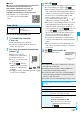
Function Menu of the Post View Display in Movie Mode
Function menu
Operation/Explanation
Play
See page 280.
Save
See page 141.
Attach to mail
You can save the recorded moving image and
attach it to i-mode mail.
Select a folder.
Go to step 2 on page 172.
p
You can compose an i-mode mail also by
pressing
l
().
Set as
stand-by
You can save the recorded moving image and
set it for the Stand-by display.
Select a folder.
Store in
See page 144.
You can set a camera when shooting images.
You can display the image through the camera in
“Wide” or “Tele”.
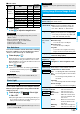
The maximum magnification for each size is as follows:
■
Outside camera
Display size
See page 145.
File restriction
See page 146.
Icon
You can set whether to display icons.
ON or OFF
Cancel
You do not save the recorded moving image.
Information
<Set as stand-by>
p
Some moving images might not be displayed correctly.
p
See page 105 for playback of the moving image set for the
Stand-by display.
Changing Settings for Shooting Images
Use Zoom
Camera
mode
Size
Level of
zoom
The maximum
magnifications
(Approx.)
Photo
5M (2592 x 1944) 1 level 1.0 times
3.7M Wide (2592 x 1456)
1 level 1.0 times
3M (2048 x 1536) 6 levels 1.2 times
2M Wide (1920 x 1080) 6 levels 1.3 times
2M (1600 x 1200) 11 levels 1.6 times
Stand-by (480 x 854) 11 levels 1.5 times
VGA (640 x 480) 31 levels 3.0 times
CIF (352 x 288) 31 levels 5.5 times
QVGA (240 x 320) 31 levels 8.1 times
QCIF (176 x 144) 31 levels 11.0 times
Sub-QCIF (128 x 96) 31 levels 15.1 times
Continuous
VGA (640 x 480) 11 levels 1.9 times
CIF (352 x 288) 21 levels 2.7 times
QVGA (240 x 320) 31 levels 3.8 times
QCIF (176 x 144) 31 levels 5.5 times
Sub-QCIF (128 x 96) 31 levels 7.5 times
Movie
(Image
stabilizer:
Auto)
VGA (640 x 480) 11 levels 1.6 times
HVGA Wide (640 x 352) 11 levels 1.6 times
QVGA (320 x 240) 21 levels 2.4 times
QCIF (176 x 144) 31 levels 4.4 times
Sub-QCIF (128 x 96) 31 levels 6.0 times
Movie
(Image
stabilizer:
OFF)
VGA (640 x 480) 11 levels 1.9 times
HVGA Wide (640 x 352) 11 levels 1.9 times
QVGA (320 x 240) 21 levels 3.0 times
QCIF (176 x 144) 21 levels 5.5 times
Sub-QCIF (128 x 96) 31 levels 7.5 times
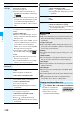
Function menu
Operation/Explanation