
User's Manual Part 2






177
Mail
■
How to operate Decoration
Function Operation/Explanation
(Insert image/
Font effect)
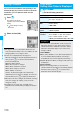
You can convert characters to a mark and
insert it into the text. The mark animates in
various ways and conveys your feelings to the
other party.
Select a moving font effect
Enter text.
p
To delete the moving font effect, move the
cursor to the moving font effect and press
r
.
(Insert image/
My picture)
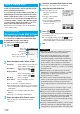
You can insert the image stored in “My
picture” into the text of mail.
Select a folder
Select an image.
p
You can select a Decomail-picture by
pressing and holding
d
for at least one
second from the Message Entry display.
p
To delete the image, move the cursor to the
image and press
r
.
(Insert image/
Camera)
You can insert the image shot by a camera on
the spot into the text of mail.
Shoot a still image.
p
The image size of the camera is Sub-QCIF
(128 x 96), QCIF (176 x 144), QVGA (240 x
320) or CIF (352 x 288).
p
To delete the image, move the cursor to the
image and press
r
.
p
See step 2 and step 3 of “Shoot a Still
Image” on page 139 for how to shoot.
(Font color)
You can change the color of characters and
lines to be entered.
Select a color
Enter text.
p
In the font color changing mode, “ ” is
displayed at the upper right of the display.
p
You can set other decorations in
succession.
p
When you have selected the area, you do
not need to enter text.
(Background
color)
You can change the background color of the
mail text.
Select a color.
(Insert line)
You can insert a horizontal line into the mail
text.
The line feed is inserted automatically, and
the line is inserted.
p
To delete the line, move the cursor to the
line and press
r
.
(Undo)
You can return to the previous status of the
set decoration. You can do it up to twice.
p
You can undo the operation also by
pressing
m
().
(Decorate all
reset)
You can release all the decorations.
YES
p
If you have inserted an image, the message
“In-line image is deleted” is displayed.
(Select area)
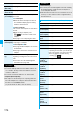
You can set Font Color, Blink, Font Size,
Word Alignment, Ticker and Swing over the
selected text you have entered. You can also
change the set decoration, add another
decoration, or cancel Blink, Ticker or Swing.
Select a start point.
p
You can select all text by pressing
i
( ) and selecting “YES”.
Select an end point.
Set, change, add or cancel each decoration.
p
“ ” is displayed at the upper right
of the display during selecting decoration
area.
<Set, change, or add decoration>
Select an icon and set, change, or add
decorations.
p
Select another icon in succession to change
the multiple decorations or add decorations.
p
When Blink, Ticker, or Swing has been set,
reselect each icon and complete
decorations.
<Release Blink, Ticker, or Swing>
Select the icon for Blink, Ticker, or Swing
Select the same icon again.
(Font size)
You can change the size of characters to be
entered.
Select a font size
Enter text.
p
In the font size changing mode, “ ” or
“ ” is displayed at the upper right of the
display.
p
You can set other decorations in
succession.
p
When you have selected the area, you do
not need to enter text.
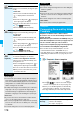
(Select blink)
You can make characters to be entered blink.
Enter text.
The set characters are blinking.
p
In the blink setting mode, “ ” is displayed
at the upper right of the display.
p
You can set other decorations in
succession.
d
(Reset blink)
Function Operation/Explanation
ᵡᶍᶌᶒᶇᶌᶓᶃᶂ