
User's Manual Part 2






172
Mail
Once you subscribe to i-mode, you can exchange
e-mails over the Internet as well as with other i-mode
phones (including mova phones).
You can attach up to 10 files (JPEG, ToruCa, PDF, etc.)
within 2 Mbytes in total besides mail text. The i-mode
mail also supports Deco-mail, so you can change the
character color, character size, and background color
of mail text. Further, a variety of Decomail-pictographs
you can insert into text are pre-installed, so you can
easily compose pleasant messages to send.
p
For details on the i-mode mail, refer to the “Mobile Phone
User’s Guide [i-mode]”.
You can compose and send i-mode mail messages.
You can save up to 1,000 sent i-mode mail messages
including SMS messages to the Outbox.
See page 175 for composing Deco-mail.
1
ll
()
2
Select the address field
Select an item.
Phonebook
. . . . . Call up a Phonebook entry and select
a phone number or mail address.
Sent address
. . . . Select a phone number or mail
address and press
Oo
().
Received address
. . . . . . . . . . . . . . . Select a phone number or mail
address and press
Oo
().
Mail group
. . . . . . Select a mail group.
Enter address
. . . Enter a mail address or phone
number.
p
You can enter up to 50 half-pitch characters.
p
If the destination is an i-mode phone, you can send mail
also by entering only the part preceding the “@” mark of
a mail address.
p
See page 173 for sending to multiple destination
addresses.
p
See page 173 for deleting an added address.
3
Select the subject field
Enter a subject.
p
You can enter up to 100 full-pitch/200 half-pitch
characters.
What is i-mode Mail?
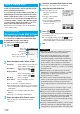
Compose Message
Composing i-mode Mail to Send
<>
Message Composition
display
Address field
Subject field
Text field
(When you enter text, the
number of bytes is displayed.)
Attachment field
4
Select the attachment field
Select an item.
p
See page 179 for how to select an attachment.
5
Select the text field
Enter text.
p
You can enter up to 5,000
full-pitch/10,000 half-pitch
characters.
p
See page 174 for pasting a
header or signature.
p
You can select Decomail-pictures
by pressing and holding
d
for
at least one second.
6
Press
l
().
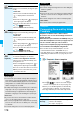
The animation display during transmission appears and
the mail message is sent.
p
To cancel sending midway, press
Oo
( ) or press
and hold
r
(for at least one second). However, the
mail message might be sent depending on the timing.
7
OK
Message Entry display
Information
p
Depending on the radio wave conditions, the characters
might not be displayed correctly at the destination.
p
If you send an i-mode mail message to other carrier’s
mobile phone (au/SoftBank/Tu-Ka) with a pictograph
entered, the pictograph is automatically converted into a
similar pictograph at the receiving end. Depending on the
model or function of the receiving end’s mobile phone,
however, the pictograph might not be correctly displayed or
be converted into a character or “=” when no corresponding
pictograph is found.
p
When the number of sent mail messages exceeds the
FOMA phone’s storage maximum, they will be overwritten
from the oldest one. However, protected sent mail
messages cannot be overwritten.
p
You cannot compose an i-mode mail message when the
number of sent mail messages in the Outbox has reached
the maximum and those messages are all protected, or
when 20 mail messages are saved to the Draft or the Draft
is full.
Release the protection for sent mail messages, or send/
delete draft mail messages, and then operate again.
p
When you select “Compose message” from the Function
menu while entering a phone number, the mail address is
entered as a destination address if the phone number and
mail address are stored in a Phonebook entry. When
multiple mail addresses are stored in the Phonebook entry,
the first mail address is entered.
p
If you try to send the mail whose address is a phone number
headed by “184”/“186”, the confirmation display appears
asking whether to delete prefix numbers and send the mail.