
User's Manual Part 2



141
Camera
ᵡᶍᶌᶒᶇᶌᶓᶃᶂ
p
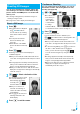
If you select a still image from the Post View display and
press
Oo
( ), “ ” is added. Press
Oo
( ) again
to release the selection.
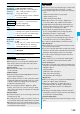
You can shoot moving images by using a camera. The
shot moving images are saved to a folder within the
“
i
motion” folder in the FOMA phone or to the
microSD memory card.
p
For selecting a storage location, see “Store in” and “Select
storage”.
p
See page 280 for playing back the saved moving images.
1
cc
()
p
The Camera menu is displayed
by
m
LifeKit
Camera.
You can start also by selecting
“Movie mode” from the camera
menu.
p
You can paste the Camera
menu to the desktop. (See
page 114)
Cancel
You do not save the shot still image.
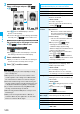
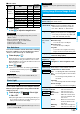
Function Menu of the Post View Display in
Continuous Mode
Function menu
Operation/Explanation
Function menu
Operation/Explanation
Save
See page 141.
Store all/
animat’n
You can save all the shot still images to store
as an original animation.
Save
p
To save as a mirrored image (horizontally
reversed), select “Mirror save”.
Select a folder
<New>
Store in
See page 144.
Normal display/
Mirror display
You can switch between a correct image and
a mirrored image (horizontally reversed).
File restriction
You can set the file restrictions on the image
on the Post View display.
File unrestricted or File restricted
p
See page 146 for the file restrictions.
Cancel
You do not save the shot still images.
Information
<Store all/animat’n>
p
When “Store in” is set to “microSD”, this function is not available.
p
If you have shot a single still image only, this function is not
available.
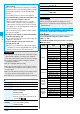
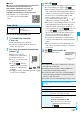
Moving Image Shoot
Shooting Moving Images
<>
Finder display
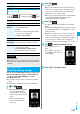
2
Press
Oo
().
Recording starts.
p
When you shoot with the outside camera with “Focus”
set to “Auto”, shooting starts after the subject is focused
on. The focus is automatically focused on the subject
regardless of “Focus” while shooting.
p
When you shoot with the inside camera, the horizontally
reversed (mirrored) image is displayed, but it is
displayed normally when played back.
3
Press
Oo
().
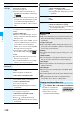
Recording ends. The Post View display for confirmation
appears.
p
Recording automatically ends when a call comes in, the
low battery alarm sounds, or the FOMA phone is closed
during recording.
p
When you set “Auto save set” to “ON”, or set “File size
setting” to “Long time”, the Post View display does not
appear; the moving image is automatically saved. When
you set “Store in” to “microSD”, the moving image is
saved to the folder set by “Select storage”. Go to step 5.
4
Oo
()
Select a destination folder.
The moving image you shot is
saved.
p
Press
r
to cancel the shot
moving image and return to the
Finder display.
5
Press
h
to end the camera.
Post View display