
User's Manual Part 2




291
Data Display/Edit/Management
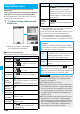
Function Menu of the Melody List
Function menu
Operation/Explanation
Edit title
Edit the title.
p
For a file in the FOMA phone, you can enter
up to 31 full-pitch/63 half-pitch characters.
p
For a file on the microSD memory card, you
can enter up to 18 full-pitch/36 half-pitch
characters.
Edit file name
Edit the file name.
p
You can enter up to 36 half-pitch
alphanumeric characters (except extension).
Play melody
See page 290.
Set as ring
tone
Select an incoming type.
p
“
★
” indicates the set item.
File restriction
You can set the file restrictions on the
selected melody.
File unrestricted or File restricted
p
See page 146 for the file restrictions.
Add desktop
icon
See page 114.
Attach to mail
You can compose i-mode mail with the
selected melody attached.
Go to step 2 on page 172.
p
You can compose it also by pressing
l
().
Send Ir data
See page 305.
transmission
See page 306.
Copy to
microSD
See page 296.
Melody info
You can display the melody title, file name
and others.
Copy to phone
See page 297.
Move to phone
See page 298.
Copy
You can copy the melody from a folder on the
microSD memory card to another folder on
the microSD memory card.
Select a destination folder.
Memory info
You can display the used memory space
(estimate).
Reset title
You can reset the title to the default.
YES
Delete
(Delete this)
You can delete the melody stored in the
FOMA phone.
Delete this
YES
Delete
(Delete
selected)
You can select and delete multiple melodies
stored in the FOMA phone.
Delete selected
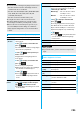
Put a check mark for
melodies to be deleted
l
()
YES
Delete
(Delete all)
You can delete all melodies stored in the
selected folder in the FOMA phone.
Delete all
Enter your Terminal Security Code
YES
Delete this
You can delete the melody stored on the
microSD memory card.
YES
Delete all
You can delete all melodies stored in the
selected folder on the microSD memory card.
Enter your Terminal Security Code
YES
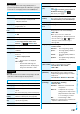
Multiple-choice
You can select multiple melodies stored on
the microSD memory card and operate them.
Put a check mark for the melodies to be
operated
i
()
Select an item.
Delete
. . . . . . See “Delete this” on page 291.
Copy
. . . . . . . See page 291.
Move
. . . . . . . See page 291.
Select all
. . . . You can select all melodies.
Release all
. . . You can release all selected
melodies.
Sort
You can change displayed order.
Select an order.
p
You cannot sort the file stored on the
microSD memory card.
Move
You can move the melody to another folder.
Select a destination folder
Put a check mark for melodies to be
moved
l
()
YES
p
Press
l
( ) to display folders at the
second-tier level or lower, if they exist.
Press
r
to return to the upper level.
p
For the microSD memory card, you do not
need to put a check mark for the melodies.
Move to
microSD
See page 298.
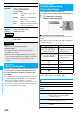
Information
<Edit file name>
p
When the icon of the acquired source is “ ” or “ ” and
the icon such as “ ” or “ ” is displayed for that melody,
you cannot change the file name.
p
You cannot use some characters such as symbols for a file name.
<File restriction>
p
You can set the file restrictions only to the melody with the
acquired source icon “ ”.
p
When the melody file exceeds 100 Kbytes by applying the
restriction, you cannot set the file restrictions.
<Attach to mail>
p
You cannot attach the melody with “ ” or “ ”, or the
melody in excess of 100 Kbytes, whose acquired source
icon is “ ” or “ ”.
Function menu
Operation/Explanation
ᵡᶍᶌᶒᶇᶌᶓᶃᶂ