
User's Manual Part 2




289
Data Display/Edit/Management
Add desktop
icon
See page 114.
Delete
YES
Delete all
Enter your Terminal Security Code
YES
p
This operation deletes the pre-installed
Chara-den image as well.
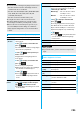
Multiple-choice
You can select and delete multiple
Chara-den images.
Put a check mark for Chara-den images
to be deleted
i
()
Delete
YES
Display size
You can set whether to display the
Chara-den image in “Actual size” or “Fit in
display”.
Actual size or Fit in display
Reset title
You can reset the title to the default one.
YES
Information
<File property>
p
“Rec. file restriction” denotes whether to restrict the
operation such as attaching still images/moving images
created by “Rec. Chara-den” to mail, saving them to
microSD memory card, or editing them.
<Delete> <Delete all> <Multiple-choice>
p
If you delete a Chara-den image set for the substitute image
except “
カンガルー
(kangaroo)”, “
カンガルー
(kangaroo)” is
set for the substitute image. If you delete “
カンガルー
(kangaroo)”, a pre-installed substitute image will be sent.
Function Menu of the Chara-den Display
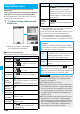
Function menu
Operation/Explanation
Function menu
Operation/Explanation
Chara-den call
See page 69.
Substitute
image
See page 69.
Rec. Chara-den
See page 289.
Add desktop
icon
See page 114.
Action list
You can display the list for actions that you
can operate.
p
Highlight an action, and press
Oo
()
to run the action; and press
l
() to
check the details of the action.
p
You can display the Action List also by
pressing
m
.
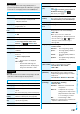
Change action
You can switch the action modes between Whole
Action Mode ( ) and Parts Action Mode ( ).
File property
See page 288.
Display size
See page 289.
At Chara-den display
Whole Action Mode
You can shoot the displayed Chara-den image as a still
image or moving image.
1
m
Data box
Chara-den
Select a Chara-den image to be shot
c
()
p
You can select “Rec. Chara-den”
also from the Function menu of
the Chara-den List or Chara-den
display for recording.
1
Display “ ” on the Chara-den Recording
display and press
Oo
().
A still image of the displayed Chara-den image is shot.
p
While “ ” is displayed, press
c
( ) to display
“”.
2
Press
Oo
().
The still image you have shot is saved to the “Camera”
folder.
1
Display “ ” on the Chara-den Recording
display and press
Oo
().
Recording of the displayed Chara-den image starts.
p
While “ ” is displayed, press
c
( ) to display
“”.
2
Oo
()
Oo
()
The recorded moving image is saved to the “Camera”
folder.
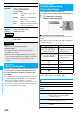
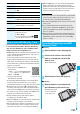
Record Chara-den
Recording Chara-den Images
<>
Chara-den Recording
display
Shoot Still Images
Record Moving Images
Information
p
The image size is fixed to QCIF (176 x 144).
p
In Manner Mode or when “Phone” or “Mail” of “Ring volume”
is set to “Silent”, the recording confirmation tone, the
recording start tone, and the recording end tone do not
sound.
p
When “Recording type” is set to “Video + voice”, the voice is
recorded as well. [When a Flat-plug Earphone/Microphone
with Switch (option) is connected, the voice is recorded via
the Earphone/Microphone.]