
User's Manual Part 2




283
Data Display/Edit/Management
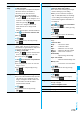
Quick View
(1.25x)
The moving image is played back at the
speed 1.25 times the normal speed.
p
Press
l
( ) to play back the moving
image at twice the normal speed. Press
l
( ) to play back at the normal speed.
Quick View
(2x)
The moving image is played back at twice the
normal speed.
p
To cancel Quick View, press
l
(),
or perform “Normal play”.
Stop
You can end playback.
Position to
play
You can set the start point for playing back
the moving image.
Use
No
to move the cursor position of
the time bar and press
Oo
().
p
To cancel, press
r
.
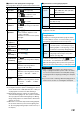
Sound effect
(Remaster)
You can bring the sound from an earphone or
Bluetooth device to the original sound by
complementing high-pitch range lost at data
compression.
Remaster
ON or OFF
Sound effect
(Listening)
You can set sound effect for listening.
Listening
Select an item.
Surround
. . . Makes the sound natural and
stereophonic.
Natur 1/2
. . . Complements the cooped-up
feeling specific to earphones and
plays back natural sound. Select
1 or 2 according to your taste.
OFF
. . . . . . . Sets Listening to “OFF”.
p
“Natur 1/2” is effective for the sound from an
earphone or Bluetooth device.
Sound effect
(Equalizer)
You can change the quality of sound from an
earphone or Bluetooth device.
Equalizer
Select an item.
Normal
. . . Reproduces normal sound
quality.
S-XBS1
. . . Enhances bass sound.
S-XBS2
. . . Enhances bass sound more
deeply than S-XBS1.
Train
. . . . . Minimizes abnormal sound that
causes sound leakage.
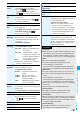
Position
memory
You can store a position memory in the
moving image. Store it at the desired position
in pause state.
Position memory1 or Position memory2
Edit
i
motion
See page 284.
Attach to mail
See page 282.
p
You can compose it also by pressing
l
( ) from the end of playback
display.
Set
i
motion
See page 282.
i
motion info
See page 282.
Send Ir data
See page 305.
Function menu
Operation/Explanation
transmission
See page 306.
Copy to phone
See page 297.
Add desktop
icon
See page 114.
Display size
You can set the display whether to display a
moving image in the original size (Actual size)
or to fit to the display size.
Actual size or Fit in display
p
Even if you set “Actual size”, the moving
image in excess of the display size is
reduced to the display size. Also, when the
moving image which is smaller than QCIF
size, it is halved at both lengthwise and
sidewise to be displayed.
Change to full
You can change the display format of moving
images. Each time of selecting the item
switches in order of playback on the vertical
display
→
playback on the horizontal display
fitted to the display size
→
playback on the
enlarged full size display.
Information
<Chapter list>
p
When restrictions on chapter forward are applied, you cannot
select chapters after the one you are currently playing back.
When restrictions on chapter rewind are applied, you cannot
select chapters before the one you are currently playing back.
<Slow>
p
No sound is output during slow playback.
p
You cannot slow-play the following i-motion movie:
・
A streaming type of i-motion movie
・
An i-motion movie being played back while obtaining data
・
An i-motion movie played back from the Stand-by display
<Quick View>
p
You cannot execute Quick View for some i-motion movies.
p
You cannot execute Quick View for the following i-motion
movies:
・
A streaming type of i-motion movie
・
An i-motion movie being played back while obtaining data
・
An i-motion movie played back from the Stand-by display
p
i-motion movies are not played back in stereo sound during
Quick View.
p
It may be hard to hear sound during Quick View.
<Position to play>
p
You might not be able to select the position to play
depending on the moving image/i-motion movie.
<Sound effect>
p
Even if an earphone or Bluetooth device is not connected,
the respective setting contents are displayed on the display.
p
When audio format of the i-motion movie is AMR or G.726,
sound effect might be unavailable.
<Position memory>
p
You might not be able to store the position memory
depending on the moving image/i-motion movie.
Function menu
Operation/Explanation
ᵡᶍᶌᶒᶇᶌᶓᶃᶂ