
User's Manual Part 2




282
Data Display/Edit/Management
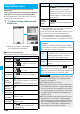
Function Menu of the Moving Image List
Function menu
Operation/Explanation
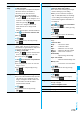
Edit
i
motion
See page 284.
Edit title
See page 274.
Set
i
motion
(Ring tone)
You can set a moving image for a ring tone.
Ring tone
Select an incoming type
l
()
p
The set item is indicated by “
★
”.
Set
i
motion
(Stand-by
display)
You can set a moving image to Stand-by
display.
Stand-by display
YES
l
()
Set
i
motion
(Wake-up
display)
You can set a moving image to Wake-up
display.
Wake-up display
YES
l
()
i
motion info
You can display the i-motion movie title, file
name and others.
Attach to mail
You can compose i-motion mail with the file
attached.
Go to step 2 on page 172.
p
You can compose it also by pressing
l
().
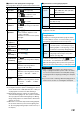
Send Ir data
See page 305.
transmission
See page 306.
Copy to microSD
See page 296.
Copy to phone
See page 297.
Move to
microSD
See page 298.
Move to phone
See page 298.
Copy
See page 275.
Move
See page 275.
Add desktop
icon
See page 114.
Edit file name
See page 275.
File restriction
See page 275.
Reset title
You can reset the title to the default.
YES
Delete this
See page 275.
Delete all
See page 276.
Multiple-choice
See page 276.
Memory info
You can display the used memory space
(estimate).
Sort
See page 276.
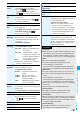
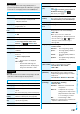
Listing
You can change the displayed contents for
Moving Image List. You can select whether
the title or file name is displayed in the
microSD Memory Card List.
Select a display format.
Title
. . .The titles or file names are listed.
Title + Image
. . . . . . .The title or file name, and image are
displayed at a time. The displayed
image is the first frame of moving
image.
Title/File name
. . . . . . .You can select whether to display
the title or file name.
p
In the case of the microSD Memory Card
List, “Title” is displayed as “Name”, and “Title
+ Image” is displayed as “Name + Image”.
p
You can switch by pressing
c
()
from the Moving Image List.
Information
<Set
i
motion>
p
You cannot set the i-motion movie whose acquired source
is “ ” as a ring tone.
p
See “
i
motion info” to check whether the i-motion movie
can be set for a ring tone or receiving display.
<Attach to mail>
p
When the file size is larger than 2 Mbytes, the confirmation
display appears asking whether to cut it out to the mail size.
Select “YES” to cut out the i-motion movie from the
beginning to the about 2-Mbyte point.
p
You may not be able to compose i-mode mail depending on
the i-motion movie.
p
Depending on the i-motion movie, its file size may become
larger or smaller.
p
You cannot attach an i-motion movie in excess of 2 Mbytes
to mail from the Edit
i
motion display. See “Trim for mail”
for how to cut out the i-motion movie for attaching to
i-motion mail.
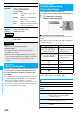
Function Menu during Pause/at the End of Playback
Function menu
Operation/Explanation
Function menu
Operation/Explanation
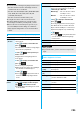
Normal play
The moving image is played back at the
normal speed.
Chapter list
You can display the list of chapters stored in
the moving image and select a chapter to be
played back.
Select a chapter to be played back.
Slow
The moving image is played back at half the
normal speed.
p
To cancel Slow playback, press
l
( ), or perform “Normal play”.