
User's Manual Part 2




239
GPS Function
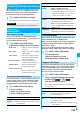
By connecting to GPS service settings (a host set by
“
Host selection
”
), you can configure the settings for
the Provide Location service such as the permission
for location information search and password.
1
m
LifeKit
GPS
Service settings
p
See page 153 for operations while a site is displayed.
You can set an operation for after measuring your
location by pressing and holding
1
for at least one
second from the Stand-by display.
1
m
LifeKit
GPS
GPS settings
GPS button setting
Select an operation.
Read a map
. . . . . . . . Displays a map by connecting to
a map site.
Run
i
α
ppli
. . . . . . . . Displays a list of GPS compatible
i-
α
ppli programs.
Paste to mail
. . . . . . . Pastes the location information
converted to a URL to text and
compose i-mode mail.
Add to phonebook
. . Stores the current location
information in the Phonebook.
Attach to image
. . . . Stores the current location
information in the image.
Confirm every session
. . . . . . . . . . . . . . . . . . Selects an operation each time
you measure the location.
You can select a tone to sound for when you check your
current location or when you are requested to provide
location information. You can set a color of the Call/
Charging indicator and the vibration pattern as well.
1
m
LifeKit
GPS
GPS settings
Posit. tone/illum.
Select an operation to be set
Do the following operations.
Service Settings
Configuring GPS Service Settings
<>
Information
p
You cannot use the Bookmark or Screen Memo function.
GPS Settings
Setting GPS
GPS Button Setting
<>
Positioning Tone/Illumination
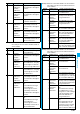
Item Operation/Explanation
Select posit.
ring tone
Select a folder
Select a ring tone.
p
While selecting, the selected tone sounds
for confirmation.
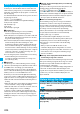
Select a mode for measuring the current location from
either “Standard mode” or “Quality mode”.
When you select “Quality mode”, it takes a longer time
for measuring, but the measuring accuracy might be
improved as a result.
You can set a measuring mode for Position Location,
Notify Of Location, and Provide Location respectively.
1
m
LifeKit
GPS
GPS settings
Positioning mode
Select an operation to be set
Standard mode or Quality mode
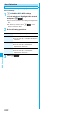
If you have stored LCS clients, you can select an LCS
client when you notify of your current location. Further,
you can automatically notify of your current location
when you make a call to the stored phone number.
You can store up to five LCS clients.
1
m
LifeKit
GPS
GPS settings
Reg. LCS client
Highlight <Not stored>
and press
l
() or
Oo
()
Do the following operations.
p
If you select a stored LCS client, you can confirm the
stored contents.
Ring time
setting
You can set a ring time for positioning ring tone.
Enter a ring time (seconds).
p
Enter two digits from “00” through “30”. For
“Location req./Confirm”, however, enter two
digits from “00” through “20”. If you set to 0
seconds, the tone does not sound.
Select
vibrator
Select a vibration pattern.
p
If you select “Melody linkage”, the FOMA
phone vibrates in time with ring tone.
p
While selecting, the FOMA phone vibrates
by the selected pattern for confirmation.
Select
illumination
Select a color.
p
While selecting, the Call/Charging indicator
lights in the selected color for confirmation.
Positioning Mode
Item Operation/Explanation
Register LCS Client
Item Operation/Explanation
Service client
name
Enter a service client name.
p
You can enter up to 16 full-pitch/32
half-pitch characters.
Service client
ID
Enter a service client ID.
p
You can enter up to 12 digits by using
numerals, # and
:
.
p
Enter the service client ID specified by your
service provider.
ᵡᶍᶌᶒᶇᶌᶓᶃᶂ