
User's Manual Part 1



108
Sound/Screen/Light Settings
You can set the display color pattern of characters and
backgrounds, and so on.
1
m
Settings
Display
Color theme setting
Select a color theme.
p
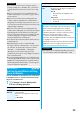
While a color theme is selected, the selected color
theme appears on the display for confirmation.
You can change the icons and the background images
of Main Menu.
1
mi
()
Menu icon setting
Select a pattern.
+m-8-6
Color Theme Setting
Setting Color Combination for
Display
<>
Information
p
You cannot change the color for icons and images
displayed in multiple colors, the DoCoMo pictographs, and
the Internet web pages (sites) supporting i-mode.
+m-5-7
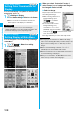
Menu Icon Setting
Setting Display of Main Menu
<>
Black White Red
Pink gold Enlarge menu
Normal
2
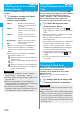
When you select “Customize” in step 1,
select a menu icon or background image to
be changed
Select a folder
Select an image.
Repeat step 2 and set menu icons
and a background image.
p
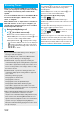
While selecting a menu icon or
background image, press
l
( ) to confirm the
currently set image.
p
To reset the menu icon and
background image set to
“Customize” to “
スタンダード
(Standard)” in the “Pre-installed”
folder, press
i
( ) and select “Reset” or “All
reset”, then select “YES”.
p
See page 162 when you select “Search by i-mode”.
Information
p
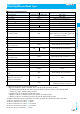
The image you can customize is a JPEG or GIF image
whose size is Stand-by (480 x 854) or smaller and up to 300
Kbytes. Perform “Change size” or “Trim away” for other
images.
p
When a customized image is deleted, “
スタンダード
(Standard)” in the “Pre-installed” folder returns.
p
When Personal Data Lock is activated while “Customize” is
set, the default image is displayed.
p
When you set “Customize”, the Main Menu icons do not
switch even if you switch “Select language”.